ExtractSound vs CloudConvert for MP4 to MP3 Conversion
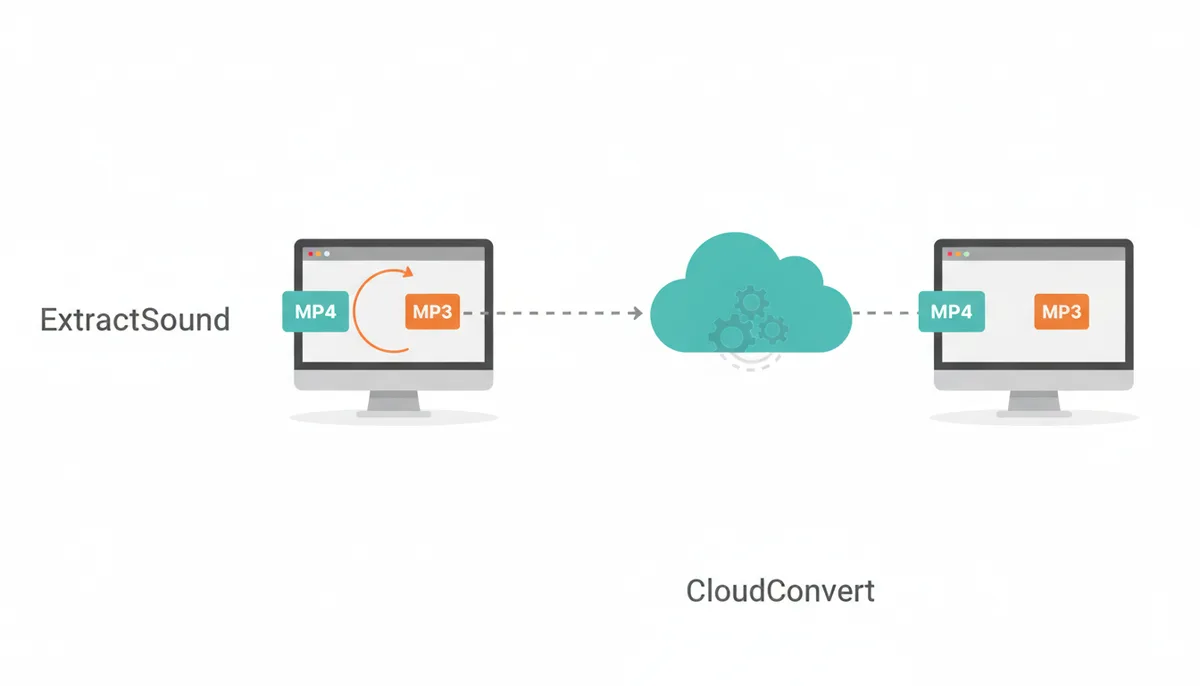
The real choice isn’t “which converter is better?” It’s whether you want the file to stay on your device, or you want the flexibility of a cloud service that can do far more than MP4 to MP3. If you mostly need fast, private audio extraction, ExtractSound fits the job. If you need a general-purpose conversion tool that handles many formats, cloud storage workflows, and developer use cases, CloudConvert is the broader option.
What’s the Real Choice: a Private Specialist or a Cloud Workhorse?
Most people comparing these two are solving the same immediate problem: they have a video file and want the audio out of it. The split happens after that. One path is for people who care most about keeping the file local and moving quickly with minimal friction. The other is for people who need a general conversion platform that can handle almost anything you throw at it.
ExtractSound is the specialist. It focuses on extracting audio from video directly in the browser, which is the kind of setup you want when privacy is the first requirement and the task is straightforward. Its homepage emphasizes no file storage and processing directly in your browser, which tells you exactly what it’s built for: quick audio extraction without handing the file to a server.
CloudConvert is the workhorse. It’s a cloud-based conversion platform with more than 200 supported formats and integrations with services like Google Drive and Dropbox. That makes it useful when MP4 to MP3 is just one small step in a larger workflow. The trade-off is simple: you get breadth, automation, and format coverage, but the file has to leave your device.
How Do They Work? Browser-Side vs. Server-Side Conversion
The architecture matters more than the branding. With browser-side conversion, the processing happens on your own machine. In practice, that means the file is opened and handled locally in your browser, so it never has to be uploaded before conversion starts. That gives you a privacy advantage immediately, and it also removes the upload delay. The downside is just as real: your browser, CPU, and memory are doing the work. If your machine struggles, the conversion will feel it.
That is the basic model behind ExtractSound. Its site describes direct browser processing and no storage, which points to a client-side workflow. In plain English, the conversion engine runs in your browser rather than on someone else’s server. For a normal MP4-to-MP3 task, that can feel instant because there’s no upload queue in the middle. Runs in your browser describes the environment that makes this approach performant and practical.
Server-side conversion works differently. With CloudConvert, you upload the file to its servers, the service performs the conversion remotely, and then you download the result. That model has a big advantage: the heavy lifting happens on infrastructure built for processing files at scale, so it can handle large jobs, obscure formats, and chained operations more comfortably than a browser-only tool.
The immediate implication is the trade-off most people actually care about. Browser-side conversion gives you privacy and a shorter path from file to output, but it is limited by your device. Server-side conversion gives you more power and flexibility, but you pay for it with upload time and trust. If the file is sensitive, or if you want to avoid sending it anywhere, browser-side wins. If the file is huge or the workflow is complicated, cloud-side is usually the safer operational choice.
Feature by Feature: a Head-to-Head Comparison
If you want the short version, this table shows the practical differences that matter most. The biggest gap is format breadth. CloudConvert is built as a universal converter, while ExtractSound is specialized for audio extraction from video. They overlap on the core MP4 to MP3 job, but they are not trying to solve the same problem.
| Feature | ExtractSound | CloudConvert |
|---|---|---|
| Primary Function | Browser-based MP4 to MP3 conversion and audio extraction from video | Cloud-based file conversion across audio, video, document, image, ebook, and archive formats |
| Privacy Model | Client-side processing in the browser; the file stays on your device | Server-side processing; the file is uploaded for conversion and then deleted after processing |
| Supported Input Formats | MP4, AVI, and MOV, based on the site profile provided | More than 200 formats, including MP4, AVI, WEBM, and many more |
| Supported Output Formats | Focused on MP3 audio extraction | Many output formats, including MP3, AAC, FLAC, WAV, and others across multiple file types |
| Free Tier / File-Size Limits | No specific file-size limit or quota is stated in the site profile provided | Free use is quota-based rather than a single fixed public file-size cap; practical limits depend on the job and plan |
| Speed Trade-Off | No upload step, so simple conversions feel faster; actual speed depends on your browser and computer | Upload and download add time, but the server handles the heavy work and can be better for large files |
| Batch Processing / Automation | Not listed in the site profile provided | Supported through jobs, workflows, and automation integrations |
| Quality Controls | Offers output selection and basic quality controls for conversion | Supports conversion settings, including bitrate controls for audio output |
| Cloud Integrations / API | Not listed in the site profile provided | Integrations with Google Drive, Dropbox, OneDrive, SharePoint, automation platforms, and an API are available |
| Best Use Case | Private, one-off MP4 to MP3 conversion when you want to keep the file local | Mixed-format conversion, cloud workflows, automation, and developer use cases |
The biggest differences are obvious. CloudConvert supports a much wider range of input and output formats, and it plugs into cloud storage and automation tools. ExtractSound’s strength is narrower but cleaner: it stays focused on one job and keeps that job local. Both can handle quality settings for audio conversion, so the difference isn’t “simple versus capable.” It’s “specialized and local” versus “general and remote.”
Who Handles the Core Task Better: Converting MP4 to MP3?
For a normal MP4 file, the experience is where ExtractSound usually feels simpler. Imagine a 100MB video interview that you just want turned into audio. With ExtractSound, the path is usually short: drop the file, choose the output, and start the conversion. There’s no waiting for an upload to finish before the processing begins, and that makes the flow feel quick even before you account for actual conversion time.
CloudConvert can absolutely do the same job, but the interface tends to expose more choices because it is built for many kinds of conversions. That flexibility helps when you need format control, destination selection, or automation. It can also slow down a one-off task because you’re working through more options than you need for a simple MP4 to MP3 conversion.
On the same 100MB file, the practical difference comes down to two kinds of speed. First is interaction speed: how long it takes you to set up the job. ExtractSound is more direct here. Second is processing speed: how long the conversion itself takes. For normal files, both can be fast, but ExtractSound avoids the upload step entirely, so the total time from click to finished file is often shorter for the exact task it was built for.
That said, “faster” is not universal. If your computer is old, low on memory, or already busy, a browser-based conversion can feel slower because the work is local. If your network is strong and the file is large, CloudConvert’s servers may make the conversion itself smoother once the upload is done. The honest rule is this: use ExtractSound for quick local jobs; use CloudConvert when the file is large enough that the browser starts to become the bottleneck.
Where Does Your File Go? A Deep Dive into Privacy and Security
This is the part of the comparison that most people underestimate. The file path is the product. If your video contains an interview, internal training, legal material, unreleased content, or anything else you don’t want leaving your machine, the architecture matters more than the output format.
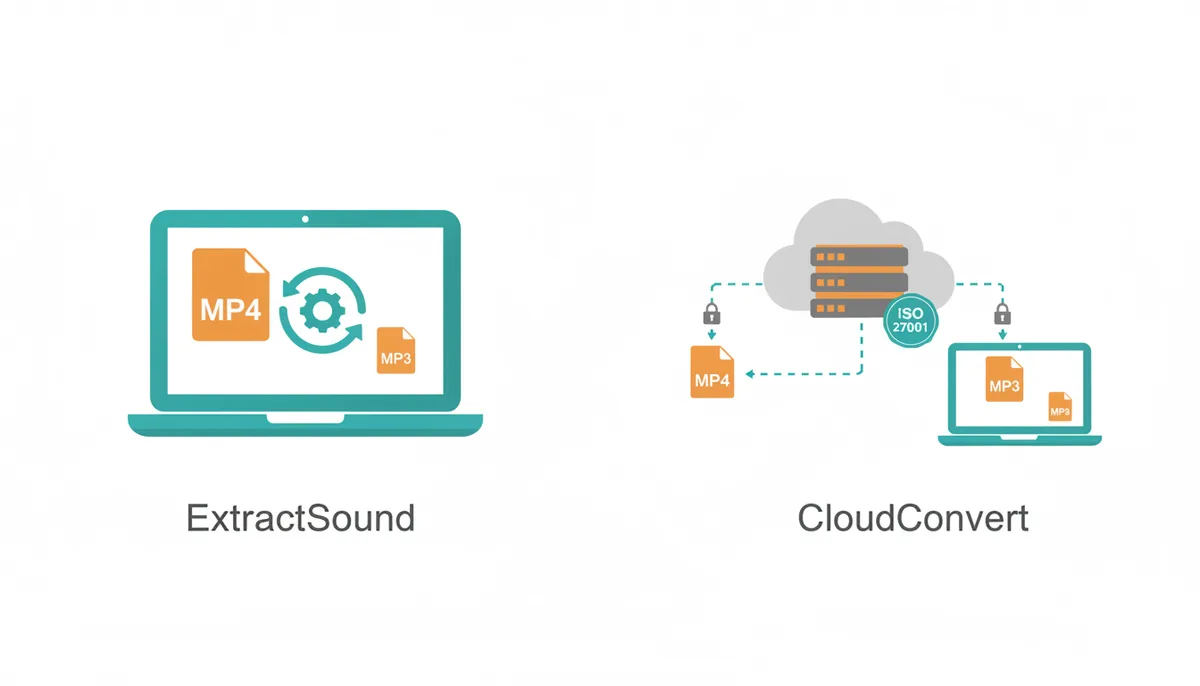
ExtractSound’s model is the strictest kind of privacy posture for this kind of tool. Because the conversion happens in the browser and the file is not uploaded for processing, there is no server copy to retain, inspect, or delete later. That means the service never gets the file in the first place. If your concern is exposure, that is the cleanest outcome possible.
CloudConvert takes a different approach. It uses encrypted transfers, automatic deletion after processing, and ISO 27001 certified infrastructure according to the information provided on its site and integrations pages. CloudConvert documents its security practices, which is a serious security posture and the right answer for many business workflows. But it is still a server-based model, which means the file leaves your device during the conversion process. The risk is reduced, not eliminated.
For highly sensitive material, that difference matters. A professionally managed cloud service can be secure and well-run while still requiring trust that a browser-only tool does not. If you want the lowest possible exposure surface, keep the file local. If you need cloud processing, retention controls and encryption reduce the risk, but they do not change the fact that the file moved off your device.
What’s the Cost? Comparing Free Tiers and Paid Plans
The free tiers are built for different kinds of use. ExtractSound’s free offering is tied to its browser-based audio extraction workflow, which makes it useful for quick, private, one-off conversions. The site profile provided does not list a precise free-tier limit such as a file size cap or a number of conversions, so it would be wrong to invent one. What you can say with confidence is that the free path is meant to get you converting immediately without asking you to install anything or upload files.
CloudConvert’s pricing model is more explicit in the information available: it uses subscriptions and prepaid credit packages. Packages are one-time purchases, and subscriptions provide a monthly amount of credits at a lower per-credit price. The practical difference is that you are either buying credits as you need them or paying for recurring usage. Unused subscription credits do not roll over, which matters if your workload is uneven.
That difference changes the audience. ExtractSound’s value proposition makes the most sense for people who want a fast tool for audio extraction and do not want to think about quotas every time they use it. CloudConvert’s pricing is better aligned with people who convert a wide range of files, automate tasks, or need to budget conversion volume across a team or product.
| Attribute | ExtractSound | CloudConvert |
|---|---|---|
| Free Tier Limits | Free browser-based MP4 to MP3 conversion; exact quota is not stated in the site profile provided | Free use is quota-based; public materials describe daily conversion allowances and/or credits depending on the current plan |
| Pricing Model | Free access for core conversion, with Pro access for advanced use | Subscriptions and prepaid credit packages |
| Entry-Level Plan Cost | Not stated in the site profile provided | Paid plans are offered through credit packages and subscriptions; exact current pricing should be checked at publication time |
| High-Volume Plan Cost | Not stated in the site profile provided | Usage-based pricing with volume discounts for production workloads |
| Best Value For | People who want private, one-off audio extraction and a simple workflow | Teams, developers, and heavy users who need many formats and automation |
The honest takeaway is that the right pricing model depends on usage shape, not just price. If you convert files occasionally and mostly care about privacy, a lightweight tool is easier to justify. If you run conversion jobs all week, a credit-based cloud platform with integrations can be better value because you are buying flexibility, not just a single MP3 file.
When Do You Need to Look Beyond Audio Extraction?
This is where CloudConvert pulls away. ExtractSound is built for a narrow job: extracting audio from video. That focus is a strength, not a defect. But if your work spills into other file types, you will outgrow it quickly.
CloudConvert can handle tasks far beyond MP4 to MP3. It supports document conversions, image conversions, archive creation, and more. A practical example: you might need to convert DOCX to PDF for a client, change PNG files to JPG for a web upload, and package files into a ZIP archive for delivery. That is the sort of mixed workload where a general-purpose converter saves time because you don’t have to jump between tools.
The integration story is just as important. CloudConvert can connect with Google Drive, Dropbox, OneDrive, SharePoint, and automation platforms. That means you can build workflows instead of just doing one-off conversions. A real-world pattern looks like this: a video lands in a Google Drive folder, CloudConvert picks it up, converts it to MP3, and writes the result to another folder or storage location. That is useful when you want repeatable file handling without moving files by hand.
That workflow power comes with a trade-off. You are giving the service more access to your files and making it part of a bigger system. If all you need is audio extraction, that extra machinery is unnecessary. If you need multi-step automation, it’s the point.
The Final Verdict: Which Converter Should You Choose?
Choose ExtractSound if privacy is the deciding factor, if you want a fast one-off MP4 to MP3 conversion, or if you are working with interview audio, rough cuts, or other files you do not want to upload. It is the better fit when the task is narrow and the answer you want is “keep it local and get it done.”
Choose CloudConvert if your file work is broader than audio extraction, if you need integrations with cloud storage, if you want an API, or if you regularly convert large or unusual file types. It is the better fit when you need a conversion platform, not just a converter.
If the question is “is ExtractSound better than CloudConvert?” the answer is no, not in general. It is better for a specific kind of user and task. If the question is “which one should I use for a private MP4 to MP3 conversion?” ExtractSound is the cleaner answer. If the question is “which one should I standardize across a team that handles many file types?” CloudConvert is the more complete tool.
What Happens to Bitrate, Tags, and Audio Quality When You Extract MP3?
This is where the comparison stops being abstract and starts affecting the file you actually get back. MP3 is a compressed audio format, so the quality of the result is shaped by three things: the source audio, the bitrate you choose, and whether the converter preserves metadata like title, artist, or chapter markers. If you pick the wrong settings, you don’t get “bad conversion” in a vague sense. You get a file that sounds thinner than it should, or an output that works fine but is harder to organize later.
With a browser-first tool like ExtractSound, the main question is how much control you need over the output. For a podcast clip, lecture, or interview, a midrange MP3 bitrate is usually enough. For example, if you’re pulling spoken-word audio from a video recorded with decent source sound, you don’t need to chase the highest possible bitrate just because the original file was large. What matters is keeping the voice clean while avoiding a bloated file that takes longer to move around or upload later. If you were converting music instead of speech, you would care more about preserving high-frequency detail and may prefer a higher bitrate or a different output format altogether.
The useful rule is simple: don’t expect conversion to improve weak source audio. If the video has hiss, clipping, or echo, the MP3 will keep those defects. A converter can only preserve what is there, not fix it. That’s why the “professional quality” language on a site is worth reading carefully. It usually means the output is clean and technically sound, not that it performs restoration. If you need noise reduction, normalization, or loudness matching, that’s a separate step.
CloudConvert gives you more room to think in technical terms because it handles more formats and more workflows. If you want WAV instead of MP3 for editing, FLAC for lossless archiving, or a different bitrate target for distribution, that wider format support matters. The trade-off is that more knobs make more decisions your job. For a simple extraction task, that can slow you down. For anyone managing a pipeline where output quality must match a delivery standard, it can be exactly what you want.
Metadata is the other detail people forget. MP3 files can carry ID3 tags, which are the labels that tell music players and libraries what the file is called, who it belongs to, and sometimes where it came from. If the converter strips those tags, the audio still works, but the file becomes annoying to sort and search later. If you’re extracting many clips, that’s not cosmetic. It affects how much cleanup you do after the conversion. When you’re comparing tools, ask a blunt question: does the converter preserve the information you care about, or do you have to add it back by hand?
The practical takeaway is that audio quality isn’t just “better” or “worse.” It depends on whether you’re converting speech or music, whether the source is clean, and whether you need the output for listening, editing, or archiving. For one-off spoken audio, ExtractSound’s focused workflow is usually enough. For controlled production work where bitrate, format, and metadata all matter, CloudConvert gives you more control, but you have to spend more time choosing the right settings.
Where Browser-Based Conversion Breaks Down, and What That Costs You
A browser-only converter feels effortless until you hit the cases it was never designed to carry. The first failure mode is memory pressure. If the file is too large, the browser can slow down, stop responding, or fail outright. That’s not a flaw unique to one service. It’s the cost of doing heavy media work inside a browser tab instead of on a dedicated server. For a short interview clip, you won’t care. For a two-hour, high-bitrate video file, you might.
The second failure mode is multitasking. Browser-based processing depends on your machine being free enough to do the work. If you have twenty tabs open, a video call running, and another app chewing up CPU, your conversion will feel sluggish or may fail. That’s why “fastest MP4 to MP3 conversion” is never just about software. It’s about the whole environment. A local converter can be faster than a cloud tool when your computer is idle and the file is modest. The same tool can be frustrating when your system is under load.
There’s also the browser lifecycle itself. If you reload the page, close the tab, or the browser crashes, the job is gone. With a server-based service, the upload step creates a handoff point. Once the file is on the server and the job is accepted, the work can continue even if your laptop sleeps or your connection drops afterward. That makes CloudConvert better for jobs you can’t babysit. It is the more resilient model when the task takes long enough that interruptions become likely.
This is the cost of privacy that people often miss. Keeping the file local protects you from server-side exposure, but it shifts responsibility to your own device. If your hardware is underpowered, the experience can get worse, not better. If your internet connection is unstable, a browser-based tool still avoids the upload failure problem, but it won’t rescue you from a machine that simply can’t keep up with the file size. The privacy gain is real. So is the operational limit.
CloudConvert changes the failure pattern. Instead of local memory pressure, you’re dealing with upload time, quota usage, and trust in the service’s retention policy. If the file is huge, the cloud route is often easier because the server does the actual conversion. If your work is repetitive, the cloud route is easier because the job can be automated. If your work is sensitive, the cloud route is harder because the file must leave your device first. That is the cleanest way to think about the trade-off: browser tools fail locally; cloud tools fail procedurally.
So the practical decision is not “local good, cloud bad.” It is whether you would rather accept machine dependence or data transit. If your file is small to medium and your first priority is privacy, browser-based conversion is the right risk to accept. If your file is large, your machine is busy, or you need the task to survive interruptions, the cloud model is the better one even though it asks you to trust a remote system.
A Real Workflow Comparison: From Downloaded Video to Shareable Audio
It helps to picture an actual job instead of comparing abstract features. Say you have a recorded webinar in MP4 format, and you want the audio as an MP3 so a teammate can listen on the commute. The file is not tiny, but it’s normal enough that either tool can handle the task in principle. The question is how much time and attention each route takes.
With ExtractSound, the workflow is short. You open the site, bring in the MP4, choose MP3, and start the conversion. There’s no need to decide where the source file lives in the cloud, no import step from Google Drive, and no export destination to wire up. If the file is already on your device, the friction is low. The conversion starts without a waiting period for upload, which makes the whole process feel more immediate. The cost of that simplicity is that you’re relying on the browser and your local hardware to finish the job without complaint.
With CloudConvert, the same task usually starts with more setup. If the file is already on your computer, you upload it. If it’s already in cloud storage, you may connect the source service and pull it in from there. Then you choose the output format and any relevant settings. After that, the service processes the file on its servers and gives you a download link. That’s more steps, but each one is doing something useful if your workflow is part of a larger system. The file can be routed from one storage location to another without manual handling once the job is configured.
The difference becomes obvious when you repeat the task. If you do this once a month, the shortest path matters most. If you do it every day, the setup effort becomes part of your work cost. A three-click tool that you open occasionally beats a more flexible platform if you don’t need the extra capability. But if you’re processing multiple videos for a team, the cloud workflow starts to pay for itself because you can standardize it.
There’s also a difference in failure recovery. If something goes wrong halfway through an ExtractSound job and your tab closes, you may have to start over from the beginning. If something goes wrong before CloudConvert finishes uploading, you also restart. But once CloudConvert has the file and the job is running, the risk shifts away from your browser session. That can save time on longer conversions or when you need to step away from the machine.
The useful lesson is that “fewer clicks” is not automatically “better.” Fewer clicks help when the task is simple and one-off. More setup can be worth it when the file has to move through a process, not just get converted. If your audio extraction is part of a pipeline, CloudConvert may fit better even if it takes longer to set up. If you just want a quick MP3 from a local video file, ExtractSound’s shorter route is the one you’ll appreciate.
FAQ
Do I need to install any software to use ExtractSound or CloudConvert?
No. Both tools run in a web browser, so you do not need to install desktop software. ExtractSound handles the conversion locally in your browser, while CloudConvert does the processing on its servers after you upload the file.
Which tool is faster for converting a very large video file, like a 2GB movie?
CloudConvert will usually be the safer choice for very large files. You still have to upload and download the file, but its server-based setup is better suited to heavy jobs. Browser-based tools can run into memory or processing limits when the file gets too large for comfortable local handling.
Can I use these converters on my phone?
Yes. Both services are usable through a mobile browser on iOS or Android. The experience will depend on your device and file size, but neither one requires a separate app just to get started.
Is CloudConvert safe to use for confidential business videos?
CloudConvert uses encrypted transfers, deletes files after processing, and operates on certified infrastructure, which is a strong security posture for a cloud service. Even so, the file still leaves your device. For highly confidential material, a zero-upload tool like ExtractSound is the safer option because the file never has to be sent anywhere.
What happens if my internet disconnects during a conversion?
With ExtractSound, the conversion happens locally once the page is loaded, so an internet drop will not usually interrupt the actual processing. With CloudConvert, a disconnect during upload will break the job and you will need to try again. If the upload is already complete, the server-side conversion can keep running.
Can ExtractSound convert to formats other than MP3?
ExtractSound is specialized for audio extraction and is primarily focused on MP3 output. If you need more audio output options such as FLAC or other formats, CloudConvert is the more flexible choice.
Bottom Line
If you want the file to stay with you, use ExtractSound. If you need a broader conversion platform that can work across file types, storage services, and automation, use CloudConvert. The best choice depends on whether you care more about private simplicity or wide-ranging utility, and that trade-off is the whole story.
Sources
- WebAssembly — Claims about how browser-based (client-side) conversion works, its performance, and its ability to run complex code like an audio converter directly in the browser.
- CloudConvert Security — Specific claims about CloudConvert's data handling, encryption, and security practices. Citing their own documentation is the fairest way to represent their position.