MP4 to MP3 Conversion Versus Recording Audio from a Video
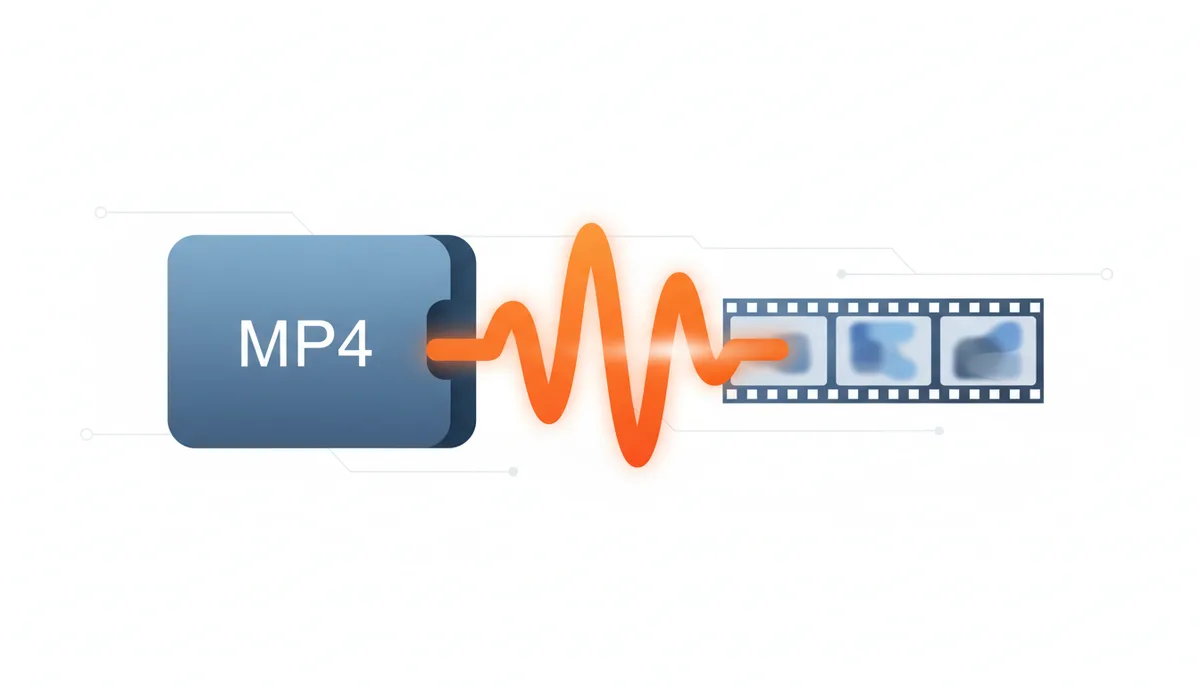
You've got a video file with great audio, and you need just the sound. Maybe it's a conference recording, a music video, or a documentary with an amazing soundtrack. Two paths stretch before you: convert the MP4 directly to MP3, or hit record while the video plays. Most people assume these methods produce the same result. They don't—and the difference matters more than you'd think.
What's the Difference: Taking the Audio Out vs. Re-Recording It?
Direct conversion extracts the existing audio data from your video file, like removing a letter from an envelope. The audio stream already exists inside the MP4 container, fully formed and digitally perfect. Conversion software simply pulls it out and repackages it in your chosen format.
Recording creates an entirely new audio file by capturing what plays through your computer's sound system. Picture holding a microphone to a speaker—except the microphone is software and the speaker is your computer's internal audio routing. Every sound your computer makes during recording ends up in the file, and the audio passes through multiple processing stages that can degrade quality.
The fundamental distinction: conversion operates at the file level, manipulating data structures. Recording operates at the signal level, capturing audio as it flows through your system. One preserves the original; the other creates a copy of a copy.
How Direct Conversion (MP4 to MP3) Works
An MP4 file works like a shipping container. Inside, separate compartments hold the video stream and audio stream—two distinct sets of data traveling together. The audio typically exists as AAC (Advanced Audio Coding), a modern format that balances quality and file size.
The conversion process begins with demuxing—short for demultiplexing. Software opens the MP4 container and identifies each stream. It extracts the audio stream byte-for-byte, preserving every detail of the original encoding. No playback occurs. No real-time processing. Just clean data extraction.
Next comes transcoding, where the extracted AAC audio becomes MP3. The encoder reads the AAC data, decodes it to raw audio samples, then re-encodes those samples as MP3 according to your chosen bitrate—128, 192, or 320 kilobits per second. Higher bitrates preserve more detail but create larger files.
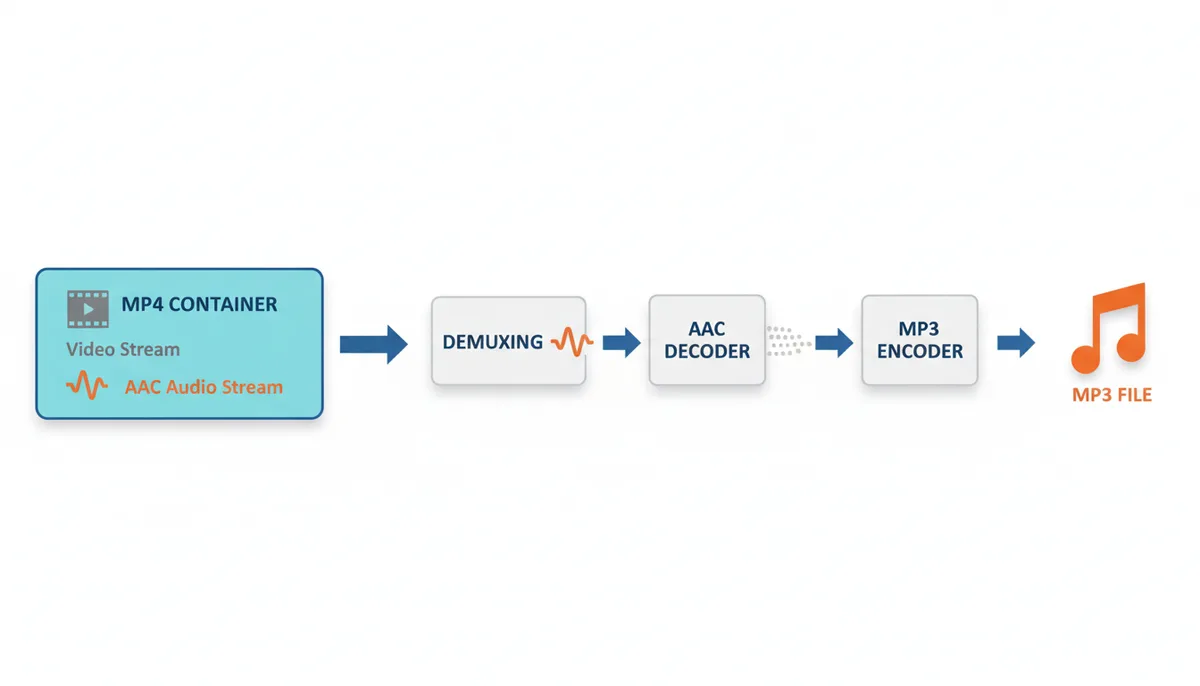
This entire process happens in memory, often completing in seconds. A 10-minute video might convert in 15 seconds on a modern computer. The software reads data, transforms it, and writes the result—no waiting for playback, no real-time constraints.
How Recording Audio from a Video Works
Recording audio from video playback involves your entire audio subsystem. The journey begins when video player software decodes the MP4 file and sends audio to your operating system. The OS audio mixer receives this stream alongside sounds from other programs—notification pings, system alerts, background music from browser tabs.
The mixed audio travels to your sound driver, which performs various processing. Modern recording methods like WASAPI loopback on Windows and Core Audio routing on macOS capture digital audio streams directly, avoiding analog conversion. However, the signal still passes through OS mixing, potential resampling between different rates (like 44.1 kHz to 48 kHz), and any system audio enhancements or effects you have enabled. Older methods using analog cables or hardware loopback do involve digital-to-analog conversion (DAC) at output and analog-to-digital conversion (ADC) at input, introducing additional quality loss.
Recording software captures this processed audio through system features like WASAPI loopback on Windows, Core Audio on macOS, or third-party virtual audio cables. Legacy Windows systems might use Stereo Mix, though Microsoft has deprecated this feature. Mac users often install BlackHole or similar virtual audio devices to enable system audio recording.
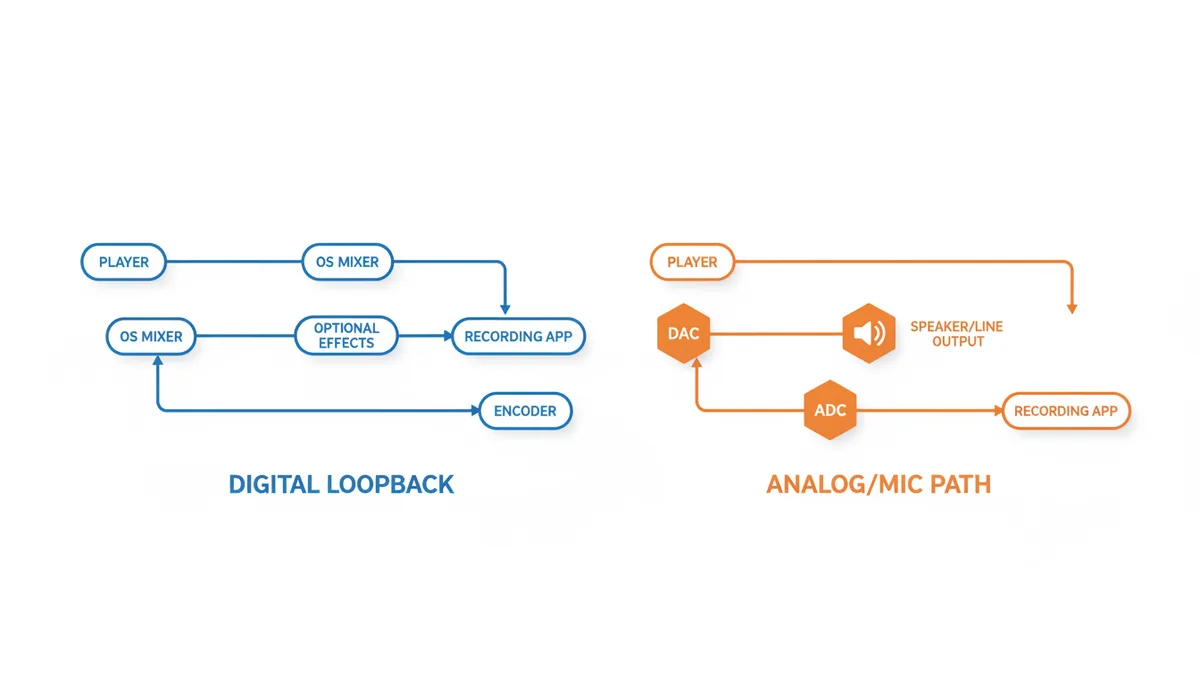
Your recording quality depends on every link in this chain. System volume changes affect the signal level and can introduce clipping or reduce dynamic range. The OS mixer might resample audio or apply unwanted effects. Buffer underruns from high CPU usage cause clicks and dropouts. Background processes consuming resources lead to gaps in the recording. A notification sound ruins the entire recording.
Quality Showdown: Which Method Preserves Sound Fidelity?
Direct conversion touches the audio once: during the transcode from AAC to MP3. You control this step completely through bitrate selection. Choose 320 kbps MP3, and the quality loss stays minimal—most listeners can't distinguish it from the original in blind tests.
Recording accumulates quality losses at every stage. The video player's decoder might use lower-quality settings for performance. The OS mixer's bit depth and sample rate depend on your system settings—Windows might default to 16-bit/48 kHz while your source is 24-bit/44.1 kHz, forcing conversion. System effects like volume normalization or spatial audio processing alter the original signal. The final capture includes all these modifications before MP3 encoding even begins.
Consider a practical example: converting a music video with 256 kbps AAC audio to 320 kbps MP3 preserves nearly all perceptible detail. Recording the same video through system audio might introduce degradation from resampling, dynamic range compression from system limiters, and mixing artifacts from the OS audio pipeline—before applying MP3 compression on top.
| Quality Factor | Direct Conversion | Audio Recording |
|---|---|---|
| Source Fidelity | Near-perfect | Degraded |
| Potential for Noise | Extremely low | High |
| Influence of System Volume | None | Critical |
| Metadata Preservation | Yes | No |
| Generational Loss | One controlled step | Multiple uncontrolled steps |
Metadata represents another quality dimension. MP4 files store metadata in container atoms (not ID3 tags, which are used in MP3 files). This includes artist names, album titles, and track numbers, plus potentially chapters, artwork, and multiple audio track descriptions. Direct conversion typically preserves common fields like title and artist, though support varies by converter—some might skip chapters or embedded artwork. Recording produces a blank file requiring manual tagging.
Speed and Efficiency: Real-Time vs. Faster-Than-Real-Time
Recording audio happens in real time—always. A 45-minute conference recording takes 45 minutes to capture. An 8-hour audiobook requires 8 hours at your computer. No shortcuts exist because recording captures audio as it plays.
Conversion speed depends on your processor, the codecs involved, and the converter software. Many converters process files significantly faster than real-time—a 45-minute file might convert in anywhere from 30 seconds to a few minutes, depending on these factors. An 8-hour audiobook could finish in 10-30 minutes on modern hardware. The key advantage: conversion reads and processes file data without waiting for playback.
Batch processing amplifies this difference. Converting 20 hour-long podcast episodes might take 15-60 minutes total—the software queues them up and processes each in turn. Recording those same 20 episodes requires 20 hours of attended time, ensuring nothing interrupts each recording.
Consider the workflow impact: if a freelancer charges $75/hour and needs audio from 20 hour-long videos, recording requires 20 hours of monitoring time. Even if they multitask, the computer remains occupied for the full duration. Conversion frees both the person and computer after initial setup—a difference that could represent hundreds or thousands of dollars in opportunity cost for larger projects.
Common Pitfalls and How to Avoid Them
Conversion failures typically stem from three sources. DRM-protected files from iTunes or similar services include encryption that prevents extraction. Corrupted MP4 files with damaged headers might convert partially or produce glitched audio. Choosing too low a bitrate—like 64 kbps MP3—destroys audio quality unnecessarily when storage space rarely justifies such aggressive compression.
Recording pitfalls multiply with system complexity. The classic mistake: forgetting to disable notifications. Your perfect concert recording gets ruined by an email chime at the 43-minute mark. Audio drift presents another challenge—slight timing mismatches between playback and recording rates cause gradually increasing sync problems in long recordings.
System resource competition creates unpredictable glitches. A background Windows update downloading, antivirus scanning, or browser JavaScript consuming CPU can cause brief audio dropouts. These appear as clicks, pops, or silent gaps in your recording.
Volume settings require careful attention. Recording at low system volume reduces dynamic range and increases noise floor when you normalize later. But maximum volume can cause clipping if the source audio peaks above 0 dB. The sweet spot sits around 85-90% system volume with the player at 100%.
Step-by-Step: How to Convert an MP4 File (The Recommended Method)
Using ExtractSound or similar online converters simplifies the process to three steps. First, select your MP4 file through the upload interface. The service reads the file structure and identifies available audio streams. Second, choose your output format and quality. MP3 at 192 kbps suits most purposes, balancing quality and file size. 320 kbps provides maximum quality for music, while 128 kbps works for voice recordings. Third, start the conversion and download your file.
Desktop software like VLC Media Player offers more control for advanced users. Open VLC, select Media > Convert/Save, add your MP4 file, then click Convert. Choose Audio - MP3 as the profile, adjust the bitrate in settings, select a destination file, and start. VLC handles the demuxing and transcoding automatically.
Understanding bitrate helps you choose wisely. At 128 kbps, MP3 allocates 128,000 bits per second of audio—adequate for podcasts and audiobooks where voice clarity matters more than musical detail. 192 kbps adds noticeable improvement for music, preserving most frequency content. 320 kbps, the MP3 maximum, maintains quality indistinguishable from CD audio for most listeners, though file sizes triple compared to 128 kbps.
Batch conversion saves time with multiple files. Most converters accept entire folders, applying the same settings to every video. Set your preferences once, select all files, and let the software work through them sequentially.
When You MUST Record: The Niche Use Case and How to Do It Right
Recording becomes necessary when you lack file access. Live streams exist only in the moment. Some platforms prevent downloads through technical measures. Certain educational or corporate videos play only within proprietary players. In these cases, recording captures what conversion cannot reach.
Audacity remains the standard free recording software. After installation, configure it carefully. On Windows, select Windows WASAPI as the audio host. This enables loopback recording without special drivers. Choose your speakers or headphones with "(loopback)" appended as the recording device. Mac users need virtual audio routing software like BlackHole, selecting it as both system output and Audacity input.
Preparation prevents problems. Close every unnecessary program—browsers, chat applications, email clients. Disable all system sounds and notifications. Set your system volume to 100% and player volume to 100%. This maximizes signal level without clipping. Launch Task Manager or Activity Monitor to ensure no background processes spike CPU usage.
Perform a test recording first. Play 30 seconds of your video while recording, then review the captured audio. Check for dropouts, verify stereo channels record properly, and confirm no system sounds leaked through. Only after successful testing should you attempt the full recording.
Final Verdict: A Side-by-Side Comparison
The evidence overwhelmingly favors direct conversion for anyone with access to the source MP4 file. Quality remains pristine through controlled processing. Speed advantages make large-scale conversion practical. Reliability comes from eliminating system audio variables.
| Factor | Direct Conversion | Audio Recording |
|---|---|---|
| Audio Quality | Original quality minus one encoding step | Multiple quality losses throughout signal chain |
| Speed | 50-100x faster than real-time | Real-time only |
| Reliability | Consistent results every time | Vulnerable to system sounds and resource issues |
| Ease of Use | Three clicks: select, configure, download | Complex setup, monitoring required |
| Metadata Handling | Preserves all tags automatically | Creates blank file |
| File Size Control | Precise bitrate selection | Limited by recording settings |
| Hardware Dependency | CPU only | Entire audio subsystem |
| Use Case | Any accessible video file | Live streams and protected content only |
Choose recording only when conversion isn't possible—for live streams or locked content. In every other scenario, direct conversion delivers superior results faster and more reliably. The technical advantages aren't subtle or theoretical. They manifest in every converted file through better sound quality, accurate metadata, and consistent results.
Understanding Audio Codecs: What Actually Changes During Conversion
Your MP4 file contains audio encoded with AAC—Advanced Audio Coding. This codec uses psychoacoustic modeling to discard sounds your ears can't perceive. It removes frequencies masked by louder adjacent frequencies and exploits temporal masking where loud sounds hide quiet ones immediately after. AAC typically achieves transparency (indistinguishable from the original) at 192-256 kbps for stereo music.
MP3, despite being older, uses similar perceptual coding but with less sophisticated algorithms. The key difference lies in efficiency: AAC delivers equivalent quality at 30% lower bitrate than MP3. Converting AAC to MP3 at the same bitrate actually wastes space—the MP3 will sound slightly worse while taking up the same storage.
During transcoding, the converter first decodes AAC to raw PCM (Pulse Code Modulation) audio—uncompressed samples representing the exact waveform. This intermediate format might run at 44.1 kHz sample rate with 16-bit depth for CD-quality audio, creating 1,411 kilobits per second of data. The MP3 encoder then re-analyzes this raw audio, applying its own psychoacoustic model to decide what to keep.
The double lossy compression creates unique artifacts. AAC might have removed certain high frequencies, then MP3 removes different ones based on its distinct algorithm. Some frequency content gets doubly penalized. However, at high bitrates like 320 kbps MP3, these losses remain largely theoretical—real-world listening tests show most people cannot identify the converted file.
Container metadata adds complexity. MP4 supports chapter markers, multiple audio tracks, and embedded subtitles. The audio stream might include loudness metadata (replay gain) or dynamic range compression settings for mobile devices. Direct conversion preserves the raw audio but loses these enhancements. Recording captures the processed result after applying these modifications.
Professional mastering engineers avoid cascading lossy codecs when possible. They keep uncompressed masters and encode directly to each target format. For consumer use, the quality loss from one careful conversion stays acceptable. But converting MP3 to AAC then back to MP3—common when moving between devices and services—degrades audio noticeably after several generations.
Real-World Recording Disasters: What Actually Goes Wrong
A podcast producer recently shared their recording nightmare. They needed to extract interviews from a client's proprietary webinar platform that blocked downloads. Setting up OBS Studio for system audio capture seemed straightforward. The first three interviews recorded perfectly during testing. On the fourth—a crucial 90-minute session with an industry leader—Windows decided to install updates.
At minute 67, Windows Defender started a scheduled scan. The CPU spiked to 100%, causing OBS to drop frames and audio packets. The recording continued but with 50 milliseconds of audio missing every few seconds. The result sounded like a skipping CD—technically complete but professionally unusable. They had to schedule a re-interview at considerable expense and embarrassment.
Discord presents another common failure mode. Streamers often record gameplay with voice chat, capturing both through desktop audio. Discord's automatic gain control fights with game audio, reducing music and effects whenever someone speaks. The recorded mix sounds nothing like what players heard live. Worse, Discord's noise suppression can mistake game sounds for background noise, creating weird artifacts as it tries to remove dragon roars or gunfire.
Sample rate mismatches cause subtle but persistent problems. Windows might run at 48 kHz while your recording software expects 44.1 kHz. The real-time resampling introduces aliasing—high frequencies fold back as lower tones, creating metallic ringing on cymbals and sibilant voices. You won't notice during recording, but the damage becomes obvious during editing.
Browser-based recording adds unique complications. Chrome's audio worklet process runs in a separate thread with different priority than the rendering engine. Heavy JavaScript on the page—ad networks, analytics, React re-renders—can desynchronize audio and video buffers. The recording shows correct duration but audio drifts progressively out of sync.
The most insidious failures happen silently. WASAPI exclusive mode looks perfect in testing but fails when another application requests audio access. The recording continues capturing silence while your video plays normally. You discover 45 minutes of dead air only after the stream ends. These silent failures make recording unsuitable for unattended capture.
The Hidden Costs: Time, Storage, and Workflow Impact
Recording's real-time requirement creates opportunity costs beyond the obvious time investment. A video editor needing audio from 20 client videos faces 15 hours of recording time. At typical freelance rates of $75/hour, that's $1,125 of billable time spent waiting for recordings. Direct conversion handles the same task in 30 minutes—a $1,087.50 difference for identical results.
Storage implications compound with workflow requirements. Recording captures uncompressed or lightly compressed audio to avoid quality loss. A stereo 44.1 kHz WAV file uses 10 MB per minute—600 MB per hour. That podcast archive of 200 hour-long episodes needs 120 GB during recording, even if final MP3s total just 20 GB. Conversion works directly with compressed formats, requiring no intermediate storage.
Backup strategies differ significantly. Converted files remain deterministic—you can always re-convert from source videos with identical results. Lost conversions just mean repeated processing. Lost recordings mean repeated real-time capture sessions or permanent data loss if source videos disappear. This forces recordists to maintain redundant copies of large intermediate files.
Error recovery favors conversion dramatically. A failed conversion at 90% completion takes minutes to retry. A failed recording at 90% means starting over, wasting 90% of the original time investment. Network interruptions, power fluctuations, or software crashes become catastrophic rather than minor inconveniences.
Multi-track workflows showcase the gap clearly. Extracting stems from multiple video angles for podcast editing might involve 4 camera angles across 50 episodes. Conversion processes 200 files overnight unattended. Recording requires 200 hours of supervised capture, checking levels and monitoring for errors. The labor difference makes multicam podcast production economically viable or prohibitive.
Processing power tells another story. Modern CPUs include hardware acceleration for common codecs. Intel Quick Sync, AMD VCE, and Apple's media engines convert video files using dedicated silicon, leaving the main CPU free. Recording taxes the entire system—CPU for encoding, GPU for video playback, memory bandwidth for buffer management. Your computer becomes unusable during recording but handles conversion as a background task.
Advanced Techniques: When Simple Extraction Isn't Enough
Some MP4 files contain multiple audio streams—commentary tracks, different languages, or descriptive audio for accessibility. Basic converters might extract only the first stream, missing alternate content. FFmpeg command-line tools let you map specific streams: -map 0:a:2 selects the third audio track. Professional tools like MKVToolNix provide visual stream selection.
Variable frame rate video creates synchronization challenges. Phone recordings often switch frame rates dynamically—60 fps for motion, 30 fps for static scenes. The audio maintains constant timing while video timestamps jump irregularly. Simple extraction preserves correct audio but might introduce sync drift if you plan to re-edit. Frame-aware extraction tools recalculate audio timestamps to maintain sync.
Broadcast formats add complexity through multiple mono streams instead of stereo pairs. A documentary might store narrator on track 1, interview subject on track 2, and ambient sound on tracks 3-4. Direct extraction gives you four mono MP3 files requiring manual combination. Advanced converters merge streams during extraction, applying proper channel mapping and level adjustment.
Some videos use surround sound encoded as AAC 5.1 or AC-3. Converting to stereo MP3 requires downmixing—combining six channels into two while preserving dialogue clarity and spatial information. Simple converters might drop the center channel (dialogue) or rear channels entirely. Proper downmixing applies matrix coefficients: center channel at -3dB, rear channels at -6dB, maintaining perceptual balance.
Streaming protocols complicate extraction. HLS (HTTP Live Streaming) downloads arrive as hundreds of small segments requiring concatenation. DASH (Dynamic Adaptive Streaming) separates audio and video into distinct streams with separate URLs. These formats need specialized tools like youtube-dl or FFmpeg with protocol support. Recording remains an option but captures only the quality your connection delivered, while proper extraction can request maximum quality streams.
Hardware encoding presents unique challenges. Some devices record H.265 video with proprietary audio codecs for space efficiency. These files play correctly on the original device but fail in standard converters. You need matching decoder libraries or must use the device manufacturer's software. Recording through the device's analog output might be the only universal solution, though quality suffers significantly.
Frequently Asked Questions
Will I lose audio quality when converting MP4 to MP3?
Yes, there is a small, controlled quality loss because MP3 is a lossy format. However, this loss is minimal at high bitrates (like 320 kbps) and far less than the unpredictable quality loss from recording audio. The conversion process itself adds no quality loss—only the final encoding to MP3 introduces compression. If you need perfect quality preservation, convert to FLAC or WAV instead.
Is it legal to convert the audio from any MP4 video?
It is legal to convert videos that you own or that are in the public domain. It is generally illegal to convert and distribute copyrighted material without permission. Personal use of content you've purchased typically falls under fair use, but sharing converted files usually violates copyright. Always check the copyright status and terms of use for the content. Educational institutions and some jurisdictions have specific exemptions worth researching.
Why can't I just rename the file from .mp4 to .mp3?
File extensions tell software how to read the file's internal structure. An MP4 file has a video and audio structure, while an MP3 file has only an audio structure. Renaming the file doesn't change the internal structure, so most audio players won't be able to play it. The actual data inside needs transformation through proper conversion software. Some players might attempt to play a renamed file but will likely fail or behave unpredictably.
What if the audio in my original MP4 is already low quality?
Neither method can improve the original quality. However, direct conversion will preserve that original low quality perfectly, while recording risks making it even worse by adding noise or other artifacts. If your source is 96 kbps, converting to 320 kbps MP3 won't add detail—it just prevents further loss. Recording that same low-quality source compounds the problems with system noise and processing artifacts.
Can I convert an MP4 to a lossless format like WAV or FLAC instead?
Yes. If the source audio in the MP4 is high quality, converting to a lossless format like FLAC or WAV will preserve it perfectly with no additional loss. This is a great option for archival purposes, but results in much larger files than MP3. A typical song in FLAC uses 25-30 MB versus 5-10 MB for high-quality MP3. Choose lossless formats when you need to edit the audio later or preserve maximum quality for future use.
Does this comparison also apply to other video files like MOV, AVI, or MKV?
Yes, the principle is exactly the same. Direct conversion is always the superior method for extracting audio from any video container file (MOV, AVI, MKV, etc.) that you have on your device. These containers all store separate audio and video streams that conversion software can extract cleanly. WebM files from YouTube, FLV files from older streaming sites, and even newer formats like AV1 follow the same pattern—direct extraction beats recording every time.
Sources
- FFmpeg Documentation — Technical explanations of demuxing (stream copying) and transcoding, which are the core processes in direct conversion.
- Audacity Manual — The official procedure for recording computer playback (loopback) on different operating systems, confirming the steps and complexity.
- Microsoft Docs: WASAPI — Authoritative information on the Windows Audio Session API (WASAPI), backing claims about how the Windows audio stack and loopback functionality work.
- Apple Developer: Core Audio — Technical documentation for the macOS audio framework, supporting claims about how audio is routed and handled on Apple devices.
- Xiph.Org Foundation — General, expert explanations of digital video, audio codecs, and container formats, providing foundational knowledge for the article.
- ISO/IEC 14496-14 (MP4 File Format) — The official standard for the MP4 file format, confirming its nature as a container for separate audio and video streams.