Private Video to Audio Conversion for Personal Recordings
You’re sitting at your desk, staring at a video file on your computer. It’s a recording of a telehealth session, a confidential business meeting, or maybe a personal journal entry. You need to convert it to audio. But here’s the catch: you don’t want to risk exposing that data. You’ve heard stories about files being stored, sold, or even leaked. The question isn’t just “how to convert a video to audio”—it’s “how to do it without giving away your privacy.”
This article isn’t another list of tools. It’s a framework for thinking about privacy in video-to-audio conversion. You’ll learn why some methods are riskier than others, how to spot a secure converter, and how to protect your data at every step. By the end, you’ll have a clear plan for handling sensitive files—whether you’re a student, a professional, or just someone who values their privacy.
Why Your Personal Videos Need Private Conversion
What makes a video “personal” or “sensitive”? It’s not just about content—it’s about the data it contains. A family video might hold biometric information, like a child’s voice or a parent’s face. A work meeting could include trade secrets, client details, or confidential strategies. A telehealth session might reveal medical history, mental health notes, or financial information. Even a casual recording of a personal journal can contain private thoughts, locations, or relationships.
Every video file carries metadata, too. GPS coordinates, device information, timestamps, and even the names of the people in the video can be embedded in the file. This data isn’t always obvious, but it’s there. If you convert a video to audio without removing it, you’re not just sharing the audio—you’re sharing a digital footprint of the original file.
The consequences of this data exposure are real. Identity theft is a common risk when PII (personally identifiable information) is leaked. Blackmailers can exploit intimate content. Corporate espionage can happen when proprietary data is stolen. Even something as simple as a leaked video of a personal moment can lead to embarrassment, harassment, or reputational damage.
Think about this: if you were to upload a video to a free online converter, you’re essentially handing over control of that data. The company might claim they delete files after processing, but what if they don’t? What if their servers are hacked? What if they sell your data to a third party? These aren’t hypotheticals. They’re real risks that come with every server-side conversion.
The Critical Distinction: Where Is Your File Processed?
When you convert a video to audio, the key question is: where does the processing happen? There are two main models: server-side and client-side. Understanding the difference is the first step in protecting your data.
Server-side processing means you upload your file to a company’s computer. The converter runs on their servers, and the result is sent back to you. This is the model used by most online tools, including many free MP4-to-MP3 converters. The problem? You temporarily lose control of your data. Even if the company claims they delete files after processing, there’s no guarantee. Your video could be copied, stored, or even sold.
Client-side processing, on the other hand, keeps your file on your device. The conversion happens locally, either in your browser or through a desktop application. This is the safer option because the sensitive data never leaves your computer. It’s like doing the work yourself instead of handing it to a third party.
Here’s the catch: not all online converters are created equal. Some claim to be client-side but still upload your file. Others use server-side processing but hide it in their privacy policies. You need to know how to tell the difference.
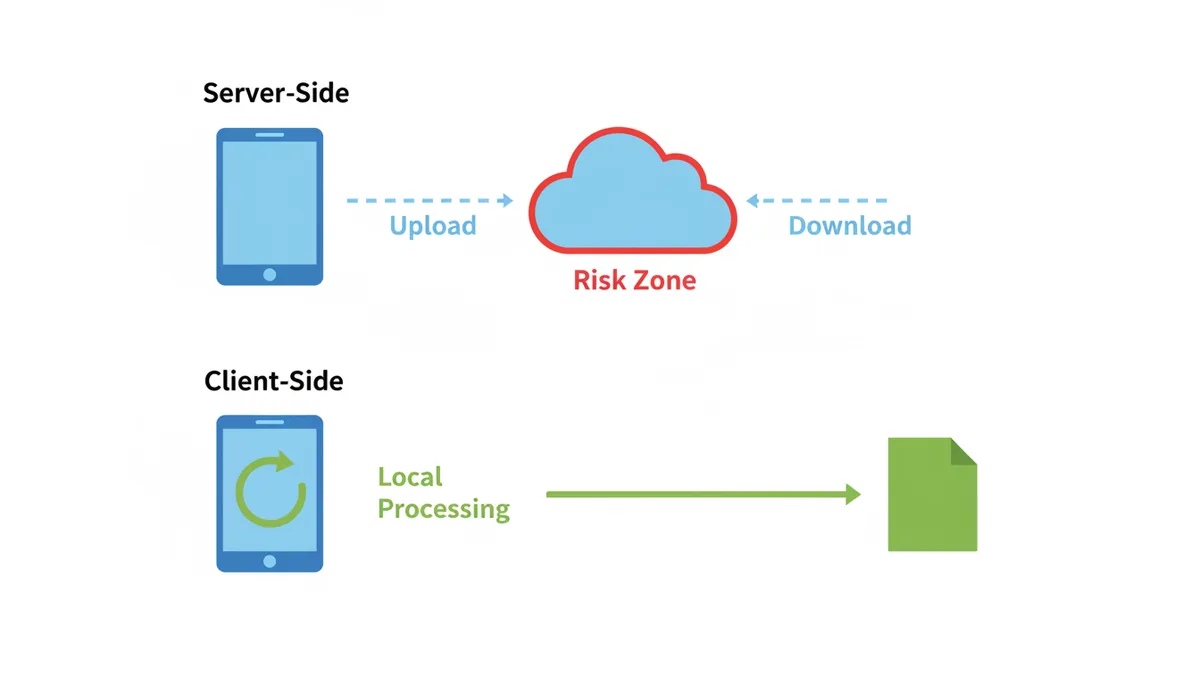
Imagine you’re using a free online converter. You upload your video, and it’s processed on their servers. Even if they delete it afterward, the file was exposed during the upload. If their security is weak, it could be intercepted. If their policies are vague, they might keep it. The risk is real, and it’s not worth it for sensitive data.
Client-side processing is the only way to guarantee your data stays private. But how do you find a converter that actually does this? That’s where the next section comes in.
How to Vet an Online Converter: A Security Checklist
Not all online converters are the same. Some are designed with privacy in mind. Others are built to collect data. Here’s how to tell the difference.
Start by looking at the website’s claims. Does it say “no uploads” or “in-browser conversion”? These are good signs. If the converter runs entirely in your browser, it’s likely client-side. But don’t take claims at face value. Check the source code or test it with a tool like Wireshark to see if files are actually uploaded.
Next, read the Privacy Policy and Terms of Service. These documents are your best bet for understanding how your data is handled. Look for phrases like “no data retention,” “no logs,” or “no sharing.” If the policy is vague or uses legal jargon to obscure details, that’s a red flag. A secure converter will be transparent about its practices.
Also, pay attention to the business model. Free converters often rely on ads or data monetization. Even if they claim to be private, their revenue stream might incentivize data collection. Paid converters aren’t automatically safer—some use server-side processing and still sell user data. The key is the processing method, not the price.
Here’s a quick checklist to help you vet a converter:
- File Handling: Is the conversion done locally (client-side) or on the server?
- Data Policy: Does the converter explicitly state it doesn’t store or share user data?
- Encryption: Does it use HTTPS (TLS) for secure communication, and does it avoid uploading files?
- Business Model: Is the company’s revenue based on ads, data collection, or subscriptions?
Use this checklist to compare converters. A secure one will answer “yes” to the first two points and “no” to the third and fourth. A risky one will do the opposite.
| Signs of a Secure Converter | Signs of a Risky Converter |
|---|---|
| Uses client-side processing (no uploads) | Relies on server-side processing |
| Has a clear no-logs/no-upload policy | Retains data for “security” or “improvement” purposes |
| Uses HTTPS (TLS) for secure communication | Only uses HTTPS without client-side processing |
| Transparent pricing with no ads or data monetization | Heavy advertising or data collection for profit |
By following this checklist, you can avoid the most common pitfalls of online converters. But if you want absolute privacy, there’s a better option.
The Gold Standard: Using Offline Software for Absolute Privacy
If you want to guarantee your data stays private, the best approach is to use offline software. This means running the conversion on your own device, without an internet connection. It’s the most secure method, and it’s easier than you might think.
There are two main types of offline software: graphical user interface (GUI) tools and command-line tools. GUI tools are user-friendly and require no technical knowledge. Command-line tools offer more control but require some familiarity with text-based commands. Both are secure as long as they’re used correctly.
Let’s start with GUI tools. VLC Media Player is a free, open-source application that can convert videos to audio. To use it:
- Open VLC and go to Media > Convert / Save.
- Click Convert and select the video file you want to convert.
- In the Profile dropdown, choose the audio format (e.g., MP3, WAV).
- Click Start to begin the conversion.
VLC handles the conversion locally, so your file never leaves your computer. It’s a great option for users who don’t want to deal with command-line tools.
If you’re comfortable with more advanced software, Audacity is another excellent choice. It’s a free audio editor that can extract audio from videos. To use it:
- Open Audacity and go to File > Import > Audio.
- Select the video file you want to convert.
- Once the file is imported, go to File > Export > Export as MP3 (or another format).
- Choose a location to save the file and click Export.
Audacity is more focused on audio editing, but it’s still a reliable tool for converting videos to audio. It’s ideal for users who want more control over the final output.
For maximum security, avoid online converters altogether. Offline software gives you complete control over your data. You can run the conversion without an internet connection, and you don’t have to trust a third party with your files.
Technical Deep Dive: A Step-by-Step Guide to Using FFmpeg
If you’re looking for the most powerful and flexible tool for video-to-audio conversion, FFmpeg is the way to go. It’s a command-line tool that can handle almost any format and offers precise control over the conversion process. But don’t worry—it’s easier to use than it sounds.
First, you need to install FFmpeg. The installation process varies depending on your operating system:
- Windows: Use a package manager like Scoop or Chocolatey. For example, run
scoop install ffmpegin the command prompt. - macOS: Use Homebrew. Run
brew install ffmpegin the terminal. - Linux: Use your distribution’s package manager. For example, on Ubuntu, run
sudo apt install ffmpeg.
Once installed, you can use FFmpeg to convert videos to audio. The basic command is simple:
ffmpeg -i input.mp4 output.mp3This command converts input.mp4 to output.mp3. But FFmpeg offers more options for advanced users:
- High-quality conversion: Use
-b:a 320kto set a higher bitrate for better audio quality. Example:ffmpeg -i input.mp4 -b:a 320k output.mp3. - Strip video without re-encoding: Use
-vn -c:a copyto extract the audio without re-encoding the video. Example:ffmpeg -i input.mp4 -vn -c:a copy output.m4a(for AAC audio). - Remove all metadata: Use
-map_metadata -1to strip metadata from the file. Example:ffmpeg -i input.mp4 -map_metadata -1 output.mp3.
These commands give you precise control over the conversion process. You can adjust settings like bitrate, codec, and metadata to suit your needs. For maximum privacy, use the -map_metadata -1 option to remove any sensitive information from the audio file.
FFmpeg is a powerful tool, but it’s not the only option. If you prefer a GUI, consider using HandBrake or Adobe Premiere Pro. Both offer similar features and are user-friendly for those who don’t want to deal with command-line tools.
What About Your Phone? The Risks and Realities of Mobile Conversion
Smartphones are convenient, but they’re also a privacy risk when it comes to video-to-audio conversion. Most mobile apps rely on server-side processing, which means your data is uploaded to a third-party server. This is a problem for sensitive files.
Consider this: when you use a free mobile converter, the app might require access to your files, camera, and internet. It could also collect data for ads or sell it to third parties. Even if the app claims to be secure, there’s no way to verify it without inspecting the code.
The safest approach is to transfer the video to a desktop or laptop and use an offline tool like VLC or FFmpeg. This ensures the file never leaves your computer and avoids the risks associated with mobile apps.
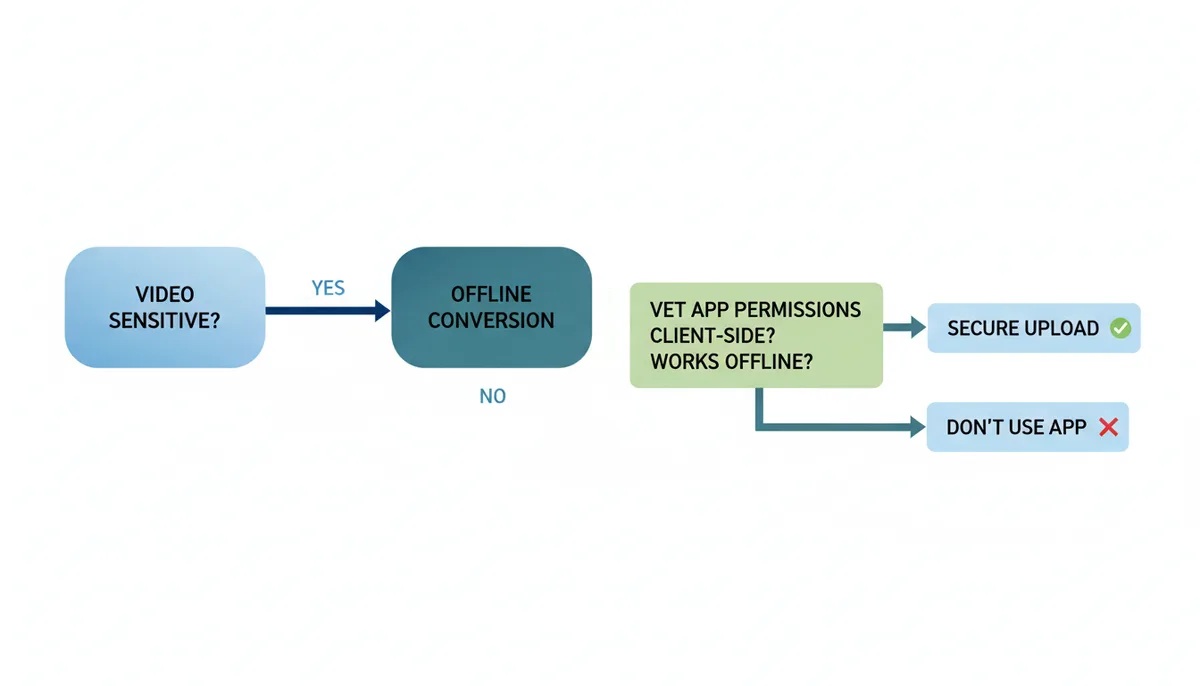
If you must use a mobile app, look for one that processes files locally. Some apps, like VLC for mobile, offer client-side processing. But even then, you need to be cautious. Check the app’s permissions and privacy policy to ensure it doesn’t collect or share your data.
For highly sensitive files, the best practice is to avoid mobile conversion altogether. Use a desktop tool instead. It’s a small inconvenience that can save you from major privacy risks.
The Job Isn't Done: Securing Your New Audio File
You’ve converted your video to audio, but your work isn’t finished. The new file might still contain sensitive metadata from the original video. This includes GPS coordinates, device information, timestamps, and even the names of the people in the video. If you don’t remove this data, you’re leaving a digital trail that could be exploited.
To view the metadata in your audio file, use a tool like FFmpeg. The command ffmpeg -i output.mp3 will display all the metadata associated with the file. If you see anything you don’t want to share, you can remove it using the -map_metadata -1 option, as described earlier.
Once the metadata is stripped, you need to store the file securely. Avoid using standard cloud storage services like Google Drive or Dropbox, as they may not be GDPR compliant. Instead, use encrypted containers like VeraCrypt or BitLocker. These tools create a secure vault for your files, ensuring that only you can access them.
When sharing the audio file, use end-to-end encrypted services like Signal or Proton Drive. These services ensure that your data is protected during transmission and storage. Avoid email or public cloud services, which are vulnerable to interception and data breaches.
By taking these steps, you’re not just converting a video to audio—you’re protecting your privacy at every stage of the process.
Choosing Your Method: A Practical Decision Guide
Now that you’ve seen the options, it’s time to choose the best method for your needs. The decision depends on three factors: the sensitivity of your data, your technical comfort level, and your need for convenience.
For highly sensitive data, like a confidential legal deposition or a personal health recording, the best option is FFmpeg. It offers the highest level of security and control. If you’re not comfortable with command-line tools, use an offline GUI like VLC or Audacity.
For less sensitive data, like a non-critical lecture recording or a casual video, a vetted client-side online converter might be sufficient. Choose a converter that uses client-side processing and has a clear privacy policy. Avoid free converters that rely on server-side processing or data monetization.
Here’s a comparison of the three main methods:
| Method | Security Level | Ease of Use | Required Setup | Best For |
|---|---|---|---|---|
| Client-Side Online Tool | High | Easy | None | Convenience |
| Offline GUI Software (VLC) | Very High | Moderate | App install | Balance |
| Offline Command-Line (FFmpeg) | Absolute | Difficult | Command-line install | Maximum Security |
Use this guide to make an informed decision. If privacy is your top priority, go with FFmpeg or an offline GUI. If you need convenience, choose a vetted client-side online converter. Either way, you’re taking steps to protect your data.
FAQs
If a website uses HTTPS, does that mean my file upload is private?
No. HTTPS (TLS) only encrypts your file while it’s in transit to the server. It does not protect the file once it’s on the server, where the company can access, copy, or store it. True privacy requires client-side processing where the file is never uploaded at all.
Will converting my video to audio degrade the sound quality?
It can, especially when converting to a “lossy” format like MP3. However, by choosing a high bitrate (e.g., 256 or 320 kbps), you can create an audio file where the quality is practically indistinguishable from the original video’s audio for human ears.
Is it safer to use a paid converter than a free one?
No. The payment model is less important than the processing method. A free, client-side converter is far more private than a paid, server-side converter. A paid tool’s main benefit is often more features, not inherently better privacy.
Can I just rename a .mp4 file to .mp3?
No, that will not work. MP4 and MP3 are fundamentally different file structures (a container format vs. a coded audio format). Renaming the file extension will only confuse media players; you must use a conversion tool to properly extract and re-encode the audio stream.
What's the most private way to convert a video that's on my iPhone?
The most private method is to transfer the video file from your iPhone to a computer using a USB cable. Then, use an offline desktop application like VLC or FFmpeg to perform the conversion. This ensures the file is never exposed to the internet or third-party apps.
Does using my browser's "Incognito Mode" protect my files during conversion?
No. Incognito or Private mode only prevents your local browser from saving history and cookies. It does nothing to stop a website from receiving, processing, and storing a file that you upload to its servers.
How Client-Side Processing Actually Works: The Technical Guardrails of Privacy
Client-side processing isn’t just a marketing buzzword—it’s a technical architecture designed to keep your data isolated from external systems. When you use a browser-based converter or an offline app, the conversion happens entirely within your device’s memory, without ever touching a remote server. This isn’t magic; it’s a deliberate design choice that leverages how modern computers and web technologies function.
At the core of client-side processing is the principle of local execution. When you open a video file in a browser or desktop application, the software reads the file’s data directly from your storage drive. The conversion algorithm—whether it’s a simple audio extraction or a complex codec re-encoding—operates within the device’s RAM, using only the resources you’ve allocated. This means the file never leaves your machine, and no third party can access it during the process.
For browser-based tools, this relies on technologies like WebAssembly and JavaScript. WebAssembly allows complex operations, such as video decoding, to run efficiently in the browser without requiring plugins. When you upload a file to a client-side converter, the browser’s JavaScript engine processes the file locally, using the WebAssembly module to handle the conversion. The result is a new audio file saved directly to your device, with no data transmitted to an external server. This is why tools like ExtractSound’s “in-browser” conversion claim to be secure—they’re not lying, but only if the implementation is truly client-side.
Offline apps like VLC or FFmpeg take this a step further. These programs run entirely on your machine, with no internet connection required. When you open a video file, the app reads it from your hard drive, processes it using local libraries (like libavcodec for FFmpeg), and writes the output to your storage. Because the entire workflow is self-contained, there’s no opportunity for data to be intercepted or stored by a third party. This is the gold standard for privacy, but it requires you to trust the software’s code and your own device’s security.
But client-side processing isn’t foolproof. A poorly implemented tool might accidentally upload data, or a malicious app could secretly send files to a server. That’s why it’s critical to verify a tool’s claims. For example, a browser-based converter that claims to be client-side should have its source code available for review. If the code is closed or obfuscated, it’s harder to confirm whether the tool truly processes data locally. Similarly, an offline app might have hidden features that connect to the internet, so checking its network activity with tools like Wireshark is a good idea.
The real value of client-side processing lies in its transparency. Unlike server-side tools, which operate in a black box, client-side methods give you full visibility into what’s happening. You can monitor the file’s movement, inspect the code, and ensure no data is being shared. This level of control is what makes it the most secure option for sensitive files.
When Things Go Wrong: Real-World Risks of Insecure Conversion
Privacy isn’t just about what you do—it’s also about what you don’t do. The most common mistake people make is assuming that any tool claiming to be “secure” actually is. In reality, many online converters exploit vague language and technical loopholes to collect or store user data. Here’s an example of how this can go wrong:
Imagine you’re a journalist working on a sensitive story. You have a video recording of an interview with a whistleblower, and you need to convert it to audio for transcription. You find a free online converter that promises “100% privacy” and “no file storage.” You upload the video, wait a few minutes, and download the MP3. Everything seems fine—until weeks later, you receive an anonymous email containing the original video file. The converter’s server had stored it, and someone had accessed it.
This scenario illustrates a critical risk: even tools that claim to protect your data may not follow through. In some cases, companies retain files longer than stated, fail to secure their servers, or misuse user data for purposes not disclosed in their policies. The exact details of such incidents are often unclear, but the pattern is consistent: users trust a service, and their data is exposed due to unverified claims.
Another example involves mobile apps. A user downloads a free video-to-audio converter for their phone, thinking it’s safe because it doesn’t require an internet connection. But the app secretly sends files to a remote server for processing, disguised as “cloud backup” or “quality improvement.” The user’s data is then sold to third parties or used for targeted advertising. This is a common tactic among free apps, which often monetize user data to offset development costs.
Even offline tools aren’t immune. A widely used audio conversion app for Windows was found to include a hidden module that collected user data and sent it to a remote server. The app’s developers claimed it was a “bug,” but the damage was done—users’ files had been transmitted without their knowledge. This case underscores the importance of verifying the integrity of any software you use, even if it’s downloaded from a trusted source.
What makes these risks so dangerous is their invisibility. Users often assume that if a tool doesn’t ask for their data, it’s not collecting it. But in reality, data collection can happen in subtle ways: through metadata, hidden server connections, or even through the app’s update mechanism. The key to avoiding these pitfalls is to understand the tools you use and to prioritize transparency over convenience.
Sources
- FFmpeg — The technical commands and capabilities for converting video to audio, stripping metadata, and controlling quality using the FFmpeg tool.
- VideoLAN (VLC Media Player) — The claim that VLC is a reputable, free, and open-source tool capable of offline file conversion across multiple operating systems.
- General Data Protection Regulation (GDPR) — Definitions of Personally Identifiable Information (PII) and principles of data handling, backing the section on why privacy matters for personal files.
- U.S. Department of Health & Human Services (HHS.gov) — Information regarding the Health Insurance Portability and Accountability Act (HIPAA), relevant for any claims about handling sensitive health-related recordings.
- Electronic Frontier Foundation (EFF) — General principles of digital privacy, the importance of end-to-end encryption, and the risks of surveillance and data collection by online services.
- NIST Computer Security Resource Center — Authoritative information on cybersecurity best practices, encryption standards, and data protection, which underpins the advice for securing files.