ExtractSound vs VLC Media Player for Converting MP4 to MP3
You have a video, you need just the audio, and you are wondering whether to open a browser tab or hunt through a desktop menu you have ignored for years. Most people default to VLC because it is familiar, then realize the conversion feature is buried under Media > Convert / Save—if they find it at all. The real question is not which tool is "better." It is which philosophy matches your task: a browser-based, single-purpose engine that stays out of your way, or a heavyweight desktop application that can do everything if you learn its language.
What Is the Real Choice: An Online Tool or a Desktop App?
The comparison is not between two products with identical goals. ExtractSound is a specialized converter built for one job: taking a video file, stripping out its audio track, and delivering an MP3 without asking you to install anything. VLC Media Player is a universal playback and streaming engine that happens to include a conversion module. Those are different designs, and they create different trade-offs.
If you need a quick extraction on a borrowed laptop at a library or office, installing software is often impossible. ExtractSound runs in a modern browser using WebAssembly, which lets near-native code execute locally without sending your file to a remote server. You drag the file, choose a quality, and download the result. The cost is control: you get preset bitrates and formats, not fine-grained codec tuning.
VLC, by contrast, is fully offline. Once installed, it never needs a connection to convert files. It supports an enormous range of containers—MP4, AVI, MOV, MKV—and can encode audio to MP3, FLAC, OGG, WAV, or others through profiles you can edit. The trade-off is complexity. The conversion menu is not on the main toolbar; it lives inside Media > Convert / Save, and the profile settings assume you know what CBR and VBR mean. If you value speed of setup over depth of customization, ExtractSound wins. If you need batch queues, metadata editing, or custom codecs, VLC is the only practical choice.
The mistake most users make is assuming VLC is easier because it is famous. It is not easier; it is more powerful. You choose the tool based on whether your problem is "get me an MP3 now" or "build a media library with precise specifications."
How Does ExtractSound Simplify Audio Extraction?
ExtractSound is built around a single workflow. You open the site, drag your MP4, AVI, or MOV into the browser window, pick MP3 and a quality level, and receive a download link. There is no account required, no upload progress bar that hides the file on a server, and no storage of your video after conversion.
The engine runs in-browser via WebAssembly, meaning the heavy lifting—decoding the H.264 or AVC video track, isolating the AAC audio stream, and encoding it to MP3—happens on your machine.
For a practical example, imagine a four-minute lecture video with an AAC audio track at 48 kHz. You open the converter, drop the file, select 192 kbps, and wait roughly fifteen to thirty seconds depending on your hardware. The browser tab handles the compute; your file never traverses the network. When the download starts, the tab can be closed and the file remains only in your download folder.
The privacy model is straightforward: no uploads, no storage, complete privacy, as the site notes. That matters if you are working with confidential recordings or copyrighted material you do not want on a third-party server. The downside is that the interface is intentionally narrow. You do not get to pick the exact sample rate, apply audio normalization, or edit ID3 tags inside the conversion step. You get a clean output file with basic metadata preserved from the source container, and you move on.
The trade-off you accept is simplicity over precision. If you are a podcast producer who needs every file normalized to -1 dB with specific ID3 tags, ExtractSound will not satisfy you. If you are a student extracting a lecture clip for offline listening, it is exactly what you need.
Why Is VLC More Than Just a Media Player?
VLC is often described as a Swiss Army knife because its capabilities extend far beyond playback. It can stream over networks, capture desktop video, apply filters, and convert between dozens of formats. VLC supports many codecs and container formats through its media framework, while FFmpeg is a separate widely used media framework. That depth is why VLC remains the standard for users who need control.
However, that depth creates friction. The conversion feature is not exposed in the default interface. You must open the Media menu, select Convert / Save, add your file in the dialog, then choose a profile before you can even specify a destination file name. Many new users click Open File instead, play the video, and never realize a conversion module exists. Once inside the dialog, the profile selection asks you to pick between formats—Audio - MP3 is one option among many—and you can click the wrench icon to edit the bitrate, sample rate, and channels.
Where VLC excels is in offline, long-term work. You can queue twenty files, apply different profiles to each, and let the software run while you do other tasks. It writes directly to disk using native I/O, which is efficient for very large files. It also handles metadata more robustly; through Tools > Media Information, you can edit ID3 tags like artist, album, and track title after conversion. The trade-off is installation, learning time, and the fact that you must manage your own file organization.
If you have never converted a file with VLC, expect to spend five minutes finding the menu and another five minutes understanding the profile settings. Once you have done it twice, the process becomes routine, but it is never as immediate as a drag-and-drop browser tool.
How Do ExtractSound and VLC Compare Head-to-Head?
To decide, you need to compare them on the dimensions that actually matter for audio extraction: how easy they are to use, how fast they finish a single job, whether they can handle many files, what quality controls they offer, how they treat privacy, and whether you need to install anything.
| Attribute | ExtractSound | VLC Media Player |
|---|---|---|
| Ease of Use | Very high; drag-and-drop with a 3-step workflow | Low to moderate; hidden menus and profile selection required |
| Speed (Single File) | Fast; local WASM processing with no upload delay | Fast once started; native codec access, but menu overhead adds time |
| Batch Processing | Not supported; one file at a time | Excellent; queue multiple files with individual profiles |
| Audio Quality Options | Preset bitrates (e.g., 128, 192, 320 kbps) for MP3 | Extensive; custom codecs, CBR/VBR, sample rate, normalization |
| Privacy Model | No upload; file processed locally, no server storage | Fully offline; file never leaves your computer |
| Cost | Free | Free and open-source |
| Installation Required | No; runs in modern browser | Yes; desktop application required |
On ease of use, ExtractSound wins because it eliminates decision fatigue. You do not choose a profile; you choose a quality preset. On batch processing, VLC dominates because it can queue files and process them sequentially with different settings. On privacy, both are strong, but through different mechanisms: ExtractSound avoids transmission entirely by running in-browser, while VLC never connects to the internet because it is installed software.
The speed comparison is closer than it appears. For a single file, both can finish in seconds to a minute. ExtractSound avoids upload time, but it runs inside a browser sandbox that can introduce slight overhead. VLC writes natively to disk, which is efficient, but you must navigate menus first. If your task is one file, the real speed difference is in setup time, not conversion time.
Audio quality options reveal the deepest difference. ExtractSound gives you MP3 output with preset bitrates. VLC lets you edit the profile, choose Constant Bitrate or Variable Bitrate, set channels to stereo or mono, and apply normalization filters before encoding. If you are archiving music, VLC's control is valuable. If you just need a small file for a commute, ExtractSound's presets are sufficient.
How Do You Convert MP4 to MP3 with VLC?
Because VLC hides this feature, here is the exact sequence you need. Open VLC and do not click Play. Instead, click Media in the menu bar, then select Convert / Save. A new dialog opens. Click the Add button, navigate to your MP4 file, and click Open. Once the file appears in the list, click Convert / Save at the bottom of the window—not Open.
In the Convert dialog, open the Profile dropdown. Choose Audio - MP3. Before starting, click the wrench icon next to the profile to edit settings if needed; here you can set the bitrate to 192 kbps or 320 kbps and ensure the sample rate matches your source. After confirming, click Browse next to Destination File, name your file with an explicit .mp3 extension—this is a common pitfall, because VLC will create whatever file name you give, and without the extension some players may not recognize it—and click Save.
Finally, click Start. VLC will encode and write to your chosen folder. If you want to convert multiple files, return to the Convert dialog, add another file, and start again; VLC handles them sequentially.
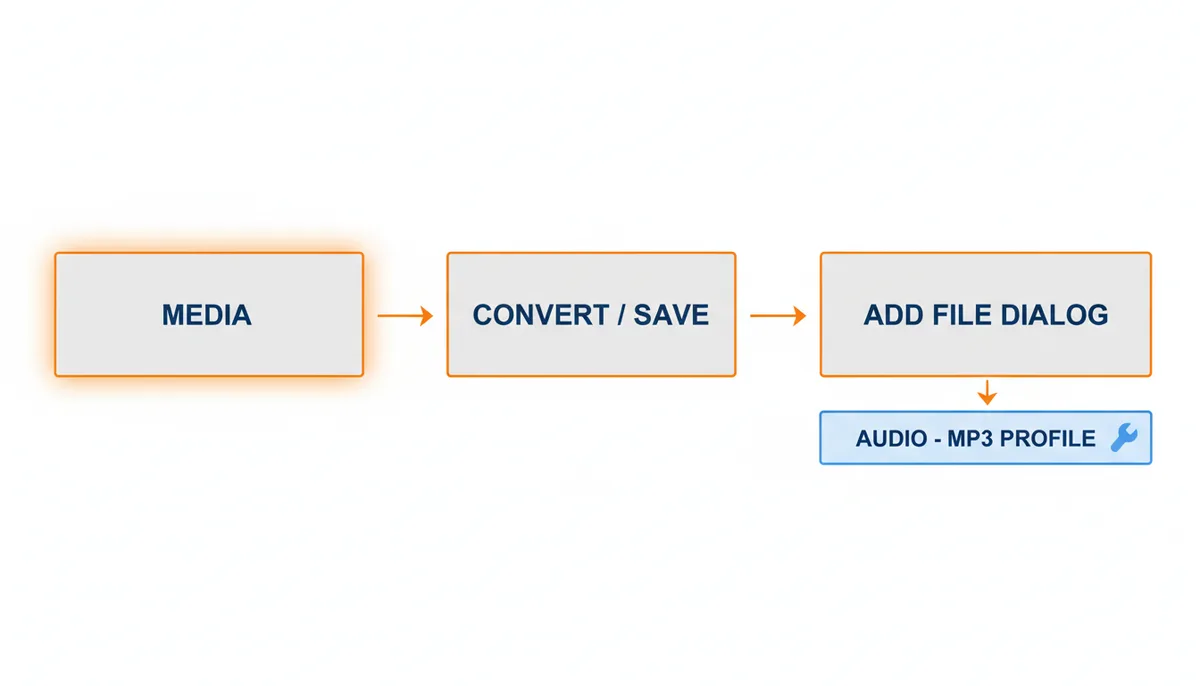
The most frequent mistake is using the Open File option instead of Convert / Save, which only plays the video. Another error is forgetting to specify the output file name or extension, leaving you with a file that has no clear format. Finally, some users look under Tools for conversion settings; they are not there. The conversion module lives exclusively under Media.
What Audio Quality Settings Should You Use?
Bitrate measures how much data is used per second of audio, measured in kilobits per second (kbps). A 128 kbps file uses roughly 128,000 bits each second, which translates to about one megabyte per minute. A 320 kbps file uses roughly 2.4 megabytes per minute. Higher bitrates preserve more high-frequency detail and reduce artifacts from lossy compression, but they create larger files.
Sample rate, measured in kilohertz (kHz), describes how many audio samples are captured per second. Standard CD audio is 44.1 kHz; video content is often 48 kHz. If you extract audio from a 48 kHz video and force it to 44.1 kHz, the software resamples the signal, which usually causes no audible harm but can slightly alter the sound. If you are using VLC, you can leave the sample rate at the source value in the profile settings to avoid unnecessary processing.
Constant Bitrate (CBR) keeps the data rate fixed throughout, which is predictable for file size and works well for spoken word. Variable Bitrate (VBR) adjusts the rate based on audio complexity, allocating more bits to loud passages and fewer to silence, giving better quality at a similar average file size.
| Quality Level | Recommended Bitrate (kbps) | Typical Use Case | File Size Impact |
|---|---|---|---|
| Spoken Word / Podcast | 128 CBR | Lectures, voice memos, interviews | ~1 MB per minute |
| Good Quality Music | 192–256 CBR | Standard listening on headphones or speakers | ~1.5–2 MB per minute |
| High Quality Music | 320 CBR | Critical listening, hi-fi systems | ~2.4 MB per minute |
| Archival / Master | 320+ CBR or FLAC (via VLC) | Long-term preservation, editing source | Very large (FLAC ~5–10 MB/min) |
For most users, 192 kbps CBR strikes the best balance. It is small enough to store thousands of tracks on a phone, yet high enough that the difference from the original AAC audio track is unnoticeable in casual listening. If you are converting a video with a high-fidelity soundtrack for a professional project, use 320 kbps or consider extracting to FLAC through VLC if you want a lossless copy.
One technical detail: MP4 containers often hold AAC audio, which is itself a lossy format. Converting AAC to MP3 is a second round of lossy compression. The quality loss is usually minor at 192 kbps or above, but it is real. If you need to preserve the original audio exactly, you should not use MP3 at all; use FLAC or WAV through VLC. For the formal definitions of MP4 and MP3 as standards, consult the international specifications.
One technical detail: MP4 is an international standard and MP3 is defined as a standardized audio format; for formal definitions see the ISO resources.
Does In-Browser Processing Affect Performance?
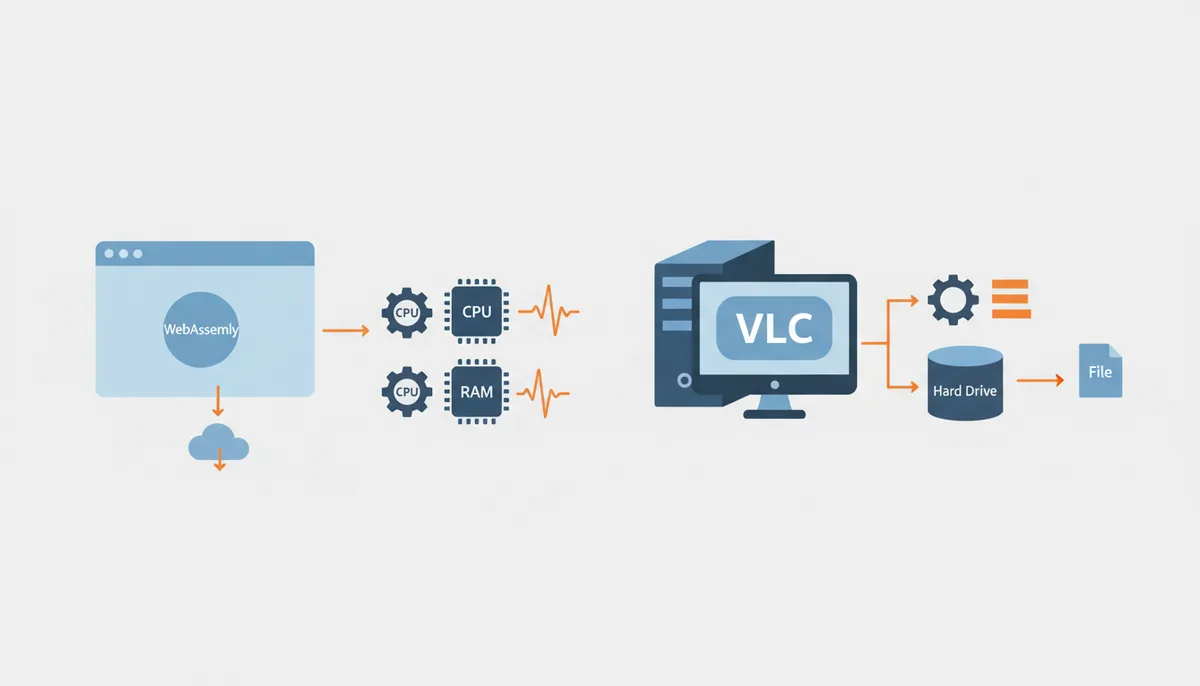
ExtractSound uses WebAssembly to run codec operations inside your browser. That means your CPU and RAM handle the work, but inside a sandboxed environment with some overhead. For a standard two-minute video, the impact is temporary and modest: a brief spike in CPU usage and a chunk of memory equal to the file size being processed. When the download completes, the browser tab releases that memory.
VLC operates as a native desktop process with direct access to system resources and disk I/O. It can stream large files from disk without loading them entirely into RAM, and it writes output continuously rather than holding everything in memory. For a very large file—say, a two-hour concert recording—VLC is generally more efficient because it can manage memory more aggressively and does not suffer from browser tab limits.
The trade-off is containment versus power. ExtractSound is self-cleaning: close the tab, and the process stops entirely. VLC remains in memory and can continue processing a batch queue in the background. If you are on a machine with limited RAM—say, 4 GB or less—ExtractSound can strain the browser if you attempt to process a very large file, because browsers enforce memory limits to protect stability. VLC can handle larger files more gracefully because it is not constrained by browser sandbox rules.
Neither tool uploads your file, so network speed is irrelevant to conversion time. The real difference is how they manage your local resources. For quick, occasional tasks on modern hardware, you will not notice the gap. For bulk processing of large files on older machines, VLC's native efficiency is an advantage.
Which Tool Is Right for Your Specific Task?
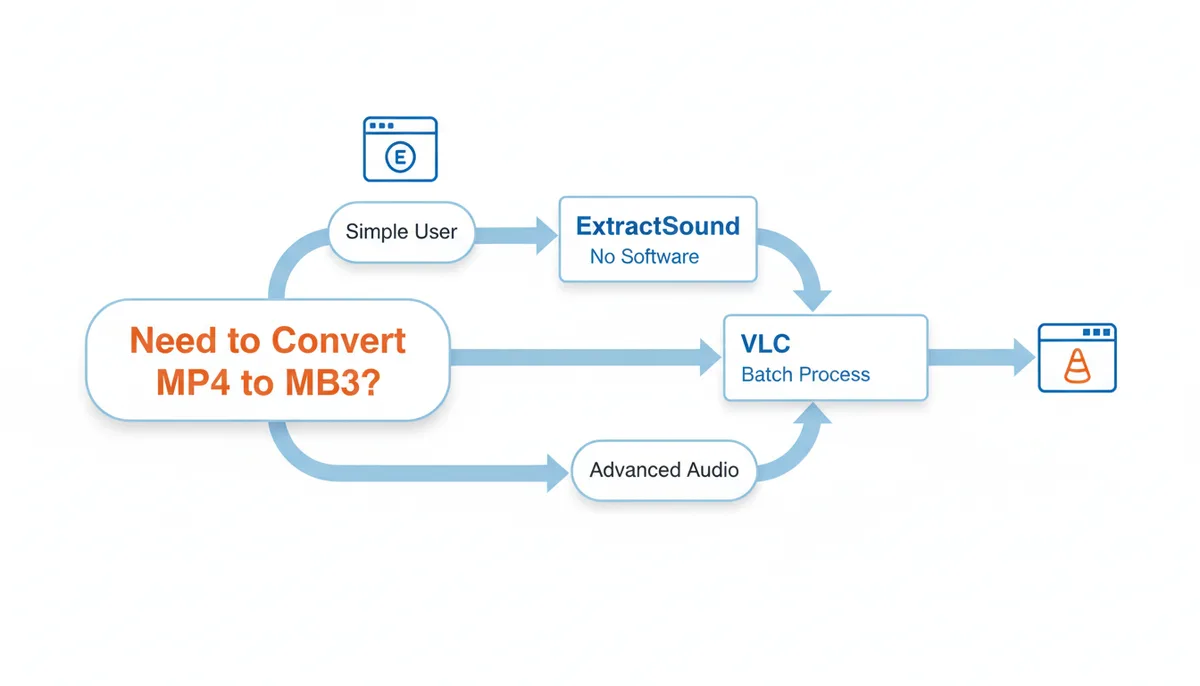
The best way to decide is to match your scenario to the tool's strengths. Here is a direct framework.
If you are on a computer where you cannot install software—an office workstation, a library terminal, or a friend's laptop—use ExtractSound. It requires only a modern browser, no permissions, and no setup. You get an MP3 in under a minute, and your file never leaves the machine.
If you have a folder of fifty videos to extract for a music library or archive, use VLC. The batch queue saves hours of repetitive clicking. You can apply different profiles, edit metadata in bulk, and let the software run overnight.
If you are non-technical and value simplicity above all else, use ExtractSound. The interface has no profiles, no codecs, and no hidden menus. You choose quality and download.
If you need fine-grained control over audio codecs, normalization, or metadata tags, use VLC. It is the only option here that lets you edit ID3 tags, choose between CBR and VBR precisely, and output to formats beyond MP3.
My recommendation for the average user is this: use ExtractSound for one-off conversions and when you need privacy without installation; use VLC when you have a collection to process or when quality control matters. Both are free, both process locally, and neither forces you into a subscription.
What Actually Goes Wrong When You Convert
You have done everything right—selected Audio - MP3, named your file, clicked Start—and the result is either silent, distorted, or missing entirely. This happens because conversion is not just "saving as" a different extension; it is a decode-and-reencode pipeline that can fail at any point. Knowing the failure modes saves you from assuming the tool is broken when it is actually a settings or resource issue.
| Problem | Likely Cause | Fix (ExtractSound / VLC) |
|---|---|---|
| No output file | Destination path not set; browser blocked download; conversion canceled | VLC: Click Browse and specify full filename with .mp3. ExtractSound: Check browser download settings and allow the download prompt. |
| Silent MP3 | Source has no audio track; wrong profile selected; source audio disabled | Verify source plays audio in VLC. In VLC, choose Audio - MP3 profile. In ExtractSound, test with a different source file. |
| Distorted / clipped audio | Bitrate too low; source already clipped; resampling artifacts | Raise bitrate to 192+ kbps. In VLC, avoid forcing sample rate changes and check volume filters. In ExtractSound, select a higher preset. |
| Wrong file extension / unrecognizable | VLC wrote file without .mp3; user forgot extension | Re-run VLC with explicit .mp3 destination. Rename manually if needed. ExtractSound usually names output correctly. |
| Unsupported codec / source file | Rare codec (e.g., AV1 with PCM); corrupt container; browser cannot decode | In VLC, test playback first; if it opens, conversion works via its framework. If not, preprocess to H.264/AAC. In ExtractSound, use standard MP4/MOV. |
| Browser memory failure | File too large for browser tab; WASM process killed; tab crashes | Close other tabs, restart browser, or switch to VLC which manages native memory and writes continuously to disk. |
The pattern is consistent: verify the source plays correctly first, confirm the profile targets audio only, then check whether the failure is a settings error or a resource limit. Most silent or missing outputs are user-side, not tool failures.
Frequently Asked Questions
Is there a loss in audio quality when converting from an MP4's audio track to MP3?
Yes, almost always. Most MP4 videos store audio using AAC, which is a lossy codec. Converting that AAC stream to MP3 applies a second round of lossy compression. The result is slightly less accurate to the original recording, but at a high bitrate—192 kbps or above—the difference is usually unnoticeable in casual listening. If you need to preserve the exact original, avoid MP3 and use FLAC or WAV through VLC.
Can VLC extract audio into formats other than MP3?
Yes. VLC supports a wide range of audio formats through its profile system. You can choose FLAC for lossless output, WAV for uncompressed audio, OGG for open-source compression, or others depending on your needs. When you select Convert / Save, the Profile dropdown contains these options. For an overview of VLC's broad feature set, see the official features documentation.
Does ExtractSound work on a mobile phone?
Yes. Because ExtractSound operates entirely within the browser and processes files locally via WebAssembly, it works on modern mobile browsers on Android and iOS. You can drag or select a video file, and the conversion happens on the device without requiring a server upload. Performance depends on your phone's CPU and available RAM.
Is it possible to convert an MP3 file back into a video file?
Not in a meaningful way. You can create an MP4 container that includes your MP3 as the audio track, but it will contain only audio—usually with a black screen or a static image. You cannot recover the original video, its motion, or its visual data from the audio alone.
Are there limits on file size for either tool?
VLC has no practical file size limit because it runs directly on your operating system and reads from disk continuously. ExtractSound's limits are determined by your browser's capabilities and your device's RAM, since the file is loaded into memory for processing. It can handle very large files, but extremely large videos may strain older devices with limited memory.
Which tool is better for editing the audio's metadata (ID3 tags)?
VLC has more robust, built-in tools for this. After conversion, you can open Tools > Media Information to edit tags like artist, album, title, and genre for the output file. ExtractSound preserves basic metadata from the source container but does not provide an interface for manual tag editing.
For additional context on codecs, containers, and lossy compression, consult the educational resources from digital audio projects.
VLC is a free, open-source project with a broad feature set documented by its developers.
Sources
- VideoLAN Organization — Claims about VLC's features, supported formats, and its status as a free, open-source project.
- WebAssembly — The explanation of the in-browser technology (WASM) that allows tools like ExtractSound to process files locally without server uploads.
- FFmpeg — The fact that many media tools, likely including both VLC and ExtractSound's underlying engine, use FFmpeg for decoding and encoding media files.
- ISO/IEC — The technical definitions of MP4 (MPEG-4 Part 14) and MP3 (MPEG-1 Audio Layer III) as international standards.
- xiph.org Foundation — Educational resources and explanations of digital audio/video concepts like codecs, containers, and lossy compression, from a reputable non-profit.