How to Fix an MP4 to MP3 Conversion That Stalls in the Browser
You’ve tried everything—dragged and dropped your MP4 file into the ExtractSound converter, selected MP3 as the output format, and watched the progress bar inch agonizingly close to 99%, only to freeze. You’re not alone. Many users have experienced this frustrating stall, and it can be a real headache.
But don’t despair; this article will walk you through a systematic process to diagnose and fix the issue. By the end, you’ll either resolve the problem or understand why it might be time to switch to a different tool.
Why Do Browser-Based Conversions Stall?
The first thing to understand is that browser-based conversions are fundamentally different from server-side conversions. When you use a tool like ExtractSound, the entire process happens within your web browser. This means that any issues can stem from three main areas: your computer/browser (client-side), the MP4 file itself (file-side), or network/server-side issues.
The key to fixing a stalled conversion is to systematically eliminate these possibilities one by one.
Your First-Response Troubleshooting Checklist
Before diving deeper, try these simple steps:
- Hard Refresh: Press Ctrl+F5 (Windows) or Cmd+Shift+R (Mac) to clear any temporary glitches.
- Incognito/Private Window: Open a new incognito window and try converting again. This isolates the session from extensions and cookies.
- Convert a Different File: Try converting a different, known-good, small MP4 file to determine if the problem is with the specific file or the tool itself.
Fixing Problems in Your Web Browser
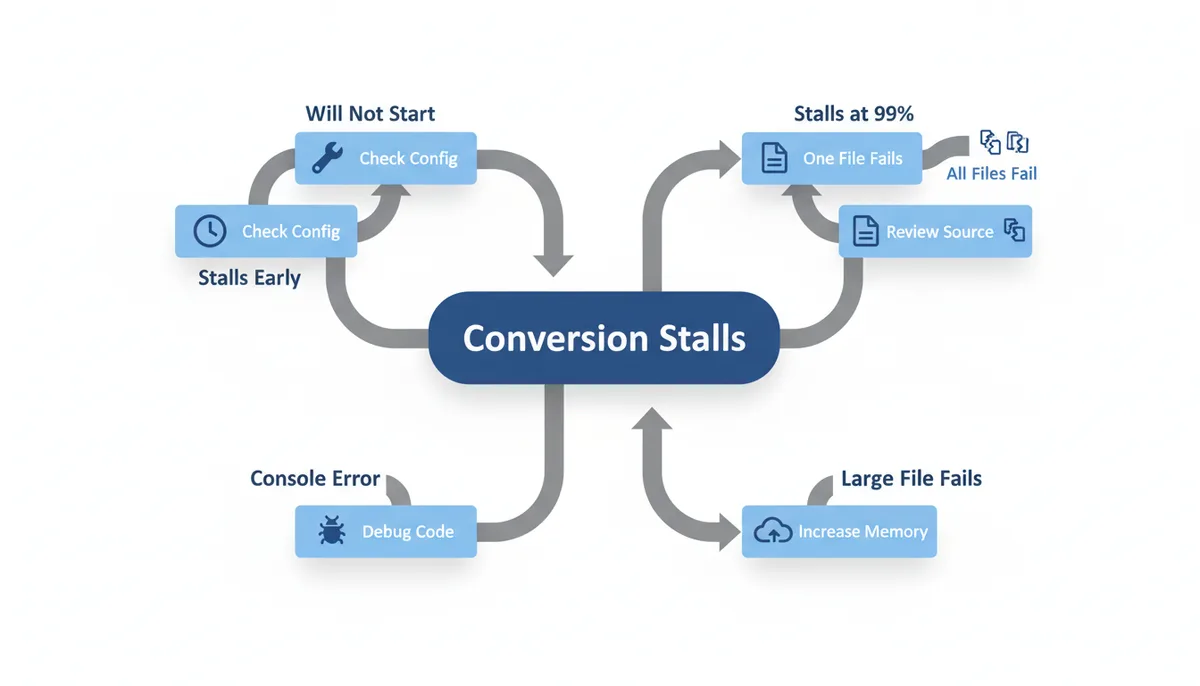
Your web browser plays a crucial role in the conversion process. Here’s how to troubleshoot common browser-related issues:
| Symptom | Likely Cause | Primary Fix | Secondary Fix |
|---|---|---|---|
| Conversion doesn't start | Script-blocking extension | Disable extensions one-by-one | Whitelist the site |
| Progress bar freezes at 99% | Outdated browser or corrupted cache | Clear browser cache and cookies | Update browser to the latest version |
| Developer Tools show errors | JavaScript errors | Check Console tab for error messages | Contact support with detailed error information |
Is Your MP4 File the Culprit?
A corrupted or non-standard MP4 file can cause a converter to fail. Here’s how to validate your file:
- Try playing the MP4 file in VLC Media Player. If it stutters, freezes, or won’t play, the file is likely damaged.
- If the file is corrupt, re-encode it using HandBrake or VLC. Convert it to a new, clean MP4 file before trying the browser conversion again.
How Network and Server Issues Stop Conversions
While network issues can affect server-side converters, they are less likely to impact client-side tools like ExtractSound. However, here’s what to check:
- Slow Upload Speed: Large files may timeout on server-side converters due to slow upload speeds.
- Connection Drops: A flaky connection can cause server-side uploads to fail and reset.
- No Network Issues for Client-Side Tools: ExtractSound uses your browser to load the tool itself, not to upload the file. Therefore, network issues are unlikely to be the cause.
Advanced Troubleshooting with Browser Developer Tools
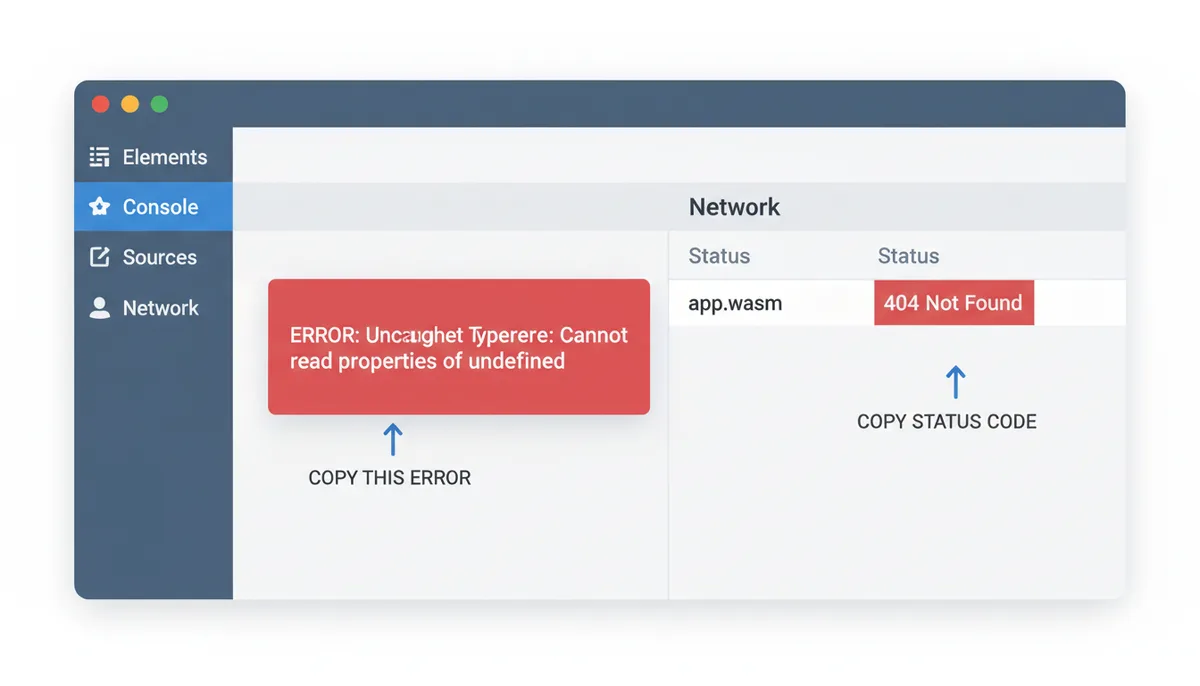
Browser Developer Tools can provide valuable insights into what’s going wrong:
- Open Developer Tools (F12 or Ctrl+Shift+I) and navigate to the 'Console' tab. Look for red error messages, which usually indicate JavaScript errors.
- Use the 'Network' tab to spot failed file uploads indicated by red status codes (like 4xx or 5xx).
When to Switch to a Desktop Converter
There are scenarios where a desktop application is the better choice:
- Large Files: Extremely large files (>2GB) may take too long to convert online.
- Batch Processing: Processing many files at once is easier with a desktop tool.
- Advanced Features: Needing advanced audio controls like normalization or specific filters.
- Offline Work: Working completely offline is possible with a desktop tool.
Consider using VLC Media Player or HandBrake for these tasks. These tools offer more control and flexibility, especially for large files or complex processing needs.
How to Choose a Reliable Online Converter That Won't Stall
Look for tools that explicitly state they perform conversions in the browser. This ensures no upload failures and no server queues. Other signs of a quality tool include:
- A clear privacy policy
- No file size limits
- Transparent pricing
- A professional UI without excessive ads
ExtractSound processes files directly in your browser, ensuring your video never leaves your machine. This approach addresses the most common causes of stalling discussed in this article.
Understanding the Mechanism Behind MP4 to MP3 Conversion
When you convert an MP4 file to MP3 using a tool like ExtractSound, several underlying mechanisms come into play. Understanding these mechanisms can help you better diagnose and fix issues that arise during the conversion process.
The core mechanism involves breaking down the MP4 file into its constituent parts: video and audio streams. The audio stream is then extracted and converted to the desired format (MP3 in this case). This process involves several steps:
- File Parsing: The MP4 container is parsed to identify the audio tracks. MP4 files use a container format that encapsulates multiple media streams, including audio and video.
- Audio Extraction: Once the audio track is identified, it is extracted from the container. This step may involve decoding the audio codec (e.g., AAC or HE-AAC) used in the MP4 file.
- Re-encoding: The extracted audio data is then re-encoded into the desired format (MP3). This involves converting the audio from one codec to another, adjusting bitrate, sample rate, and other parameters as needed.
- Output Generation: Finally, the re-encoded audio is packaged into an MP3 file and saved to your computer.
Each of these steps can be affected by various factors, such as file corruption, unsupported codecs, or browser limitations. Understanding these mechanisms helps you identify where potential problems might arise.
A Real Worked Example: Troubleshooting a Stalled Conversion
Let's walk through a real example to see how you might troubleshoot a stalled MP4 to MP3 conversion using ExtractSound.
Imagine you're trying to convert an MP4 file named "movie.mp4" to MP3, but the conversion stalls at 99%. Here’s how you would go about diagnosing the issue:
- Check Browser Cache and Cookies: Clear your browser cache and cookies to ensure there are no outdated or corrupted data interfering with the conversion process.
- Disable Extensions: Disable any browser extensions that could interfere with the conversion, such as ad blockers or script blockers. Try converting again in an incognito window to isolate the session.
- Convert a Different File: Try converting a different, known-good MP4 file to determine if the problem is with the specific file or the tool itself.
- Use Developer Tools: Open the Developer Tools (F12 or Ctrl+Shift+I) and check the 'Console' tab for any error messages. If you find an error, report it to ExtractSound's support team.
- Check File Integrity: Use VLC Media Player to play the original MP4 file. If it stutters, freezes, or won’t play, the file is likely corrupt. Re-encode the file using HandBrake or VLC to create a new, clean MP4 file before trying the conversion again.
By following these steps, you can systematically identify and resolve the issue causing the stalled conversion.
Common Issues and Their Consequences
Here are some common issues that can cause MP4 to MP3 conversions to stall and their potential consequences:
- Corrupted MP4 Files: A corrupted MP4 file can cause the converter to fail. This can result in a partially converted file or even a complete failure to start the conversion process.
- Unsupported Codecs: Proprietary screen recording codecs or unsupported audio codecs can cause the converter to fail. This can lead to incomplete or corrupted audio in the output file.
- Browser Limitations: Some browsers have limitations that can cause conversions to stall. For example, older versions of browsers may not support modern web technologies like WebAssembly, which powers high-performance in-browser tools.
- Network Issues: While less common for client-side converters, network issues can still affect server-side converters. Slow upload speeds or connection drops can cause uploads to timeout and reset.
Addressing these issues early on can prevent wasted time and frustration. Always validate your MP4 file and ensure you are using a compatible browser before starting the conversion process.
Comparing MP4 to MP3 Conversion Methods
There are several methods for converting MP4 to MP3, each with its own advantages and disadvantages:
- Browser-Based Converters: These tools are convenient and private since they process files directly in your browser. However, they can be slower for large files and may require more CPU resources.
- Desktop Converters: Desktop tools like VLC Media Player or HandBrake offer more control and flexibility. They can handle very large files and provide advanced features like normalization and specific filters. However, they require installation and may not be as convenient for quick conversions.
- Server-Side Converters: These tools typically have file size limits and store your file on their servers. They can be faster for large files but pose a privacy risk since your file is uploaded to a third-party server.
For most users, browser-based converters like ExtractSound offer a good balance between convenience and privacy. However, for large files or complex processing needs, desktop tools are often the better choice.
Cost and Effort Considerations
When choosing a tool for MP4 to MP3 conversion, consider both cost and effort:
- Browser-Based Converters: Most browser-based tools are free to use. They require minimal effort to set up and use, making them ideal for quick conversions.
- Desktop Converters: Desktop tools often have no cost, but they do require installation and setup. They offer more control and flexibility, which can save time in the long run.
- Server-Side Converters: Some server-side converters may charge for premium features or have file size limits. They offer convenience but may pose a privacy risk.
For occasional conversions, browser-based tools are often the most cost-effective and convenient option. For frequent or complex conversions, investing in a desktop tool can save time and provide better results.
Edge Cases: Handling Complex Files
Some MP4 files may contain complex audio tracks or have specific requirements that can complicate the conversion process. Here are some edge cases to consider:
| Symptom | Likely File Issue | How to Test It | Fix |
|---|---|---|---|
| The file will not play. | File corruption or unsupported codec. | Try playing the file in VLC Media Player. | If it stutters, freezes, or won’t play, re-encode the file using HandBrake or VLC to a standard format. |
| Audio missing in the source video. | Codec issues or incorrect metadata. | Check the file’s audio tracks in VLC Media Player. | If the audio track is missing, re-export the video from the source application and ensure the correct codec is used. |
| Variable or damaged duration metadata. | Inaccurate metadata. | Check the file’s duration metadata in VLC Media Player. | Use HandBrake or VLC to re-encode the file with accurate metadata. |
| Unsupported audio codec. | Proprietary codec. | Check the file’s audio codec in VLC Media Player. | Re-encode the file to a supported codec using HandBrake or VLC. |
| Multiple audio tracks. | Multiple audio streams. | Check the file’s audio tracks in VLC Media Player. | Select the desired audio track and re-encode the file to a single audio stream using HandBrake or VLC. |
| Very long files. | Large file size. | Check the file size in your file explorer. | Consider breaking the file into smaller segments or using a tool that supports large files. |
| Screen-recording files. | Proprietary screen recording codec. | Check the file’s audio codec in VLC Media Player. | Re-encode the file to a standard MP4 format using HandBrake or VLC. |
To handle these edge cases, you may need to use specialized tools or manually re-encode the file before attempting the conversion. For example, you can use VLC Media Player to re-encode a file to a standard format before using a browser-based converter.
Frequently Asked Questions
Will a stalled conversion damage my original MP4 file?
No. Online converters, especially those that work in your browser, read your original file but never modify it. Your source MP4 file will remain untouched and safe on your computer.
Why do some online converters have file size limits?
Converters that require you to upload your file to their server often have limits to manage storage costs, server load, and upload times. Converters that process the file in your browser, like ExtractSound, typically have no file size limits because the file never leaves your computer.
Is it safe to use online converters for videos with sensitive content?
It depends on the converter's architecture. If you have to upload the file, it is stored on a third-party server, creating a potential privacy risk. For sensitive content, always use a converter that processes the file directly in your browser, ensuring your video never leaves your machine.
The conversion finished, but the MP3 audio quality is bad. How can I fix that?
Poor audio quality is usually due to a low bitrate setting. Look for an 'Advanced Settings' or 'Quality' option in your converter and choose a higher bitrate, such as 192 kbps for good quality or 320 kbps for the best quality.
Can I convert a 2-hour movie to an MP3 in my browser?
Yes, with the right tool. A client-side converter that processes files in the browser can handle very large files without issue, as there's no upload involved. However, the conversion will take longer and use more of your computer's CPU resources.
What's the difference between MP3 and AAC audio?
AAC (Advanced Audio Coding) is a more modern audio format than MP3. At the same bitrate, AAC generally provides slightly better audio quality. Most MP4 videos use AAC for their audio track already.
By following these steps, you should be able to diagnose and fix most issues with browser-based MP4 to MP3 conversions. If you still face problems, consider switching to a more robust desktop tool. Remember, the key is to understand the differences between client-side and server-side processing and to choose the right tool for your needs.
Sources
- MDN Web Docs (Mozilla) — Technical explanations of browser technologies; see MDN pages covering WebAssembly, Web Workers, the File API, and how to use browser developer tools.
- WebAssembly Official Site — Documentation on WebAssembly's performance and capabilities for running high-performance applications inside a web browser.
- FFmpeg — Documentation on the FFmpeg multimedia framework, which describes format and codec conversion capabilities used by many converters.
- The Official HandBrake Documentation — Instructions and best practices for re-encoding a potentially corrupt MP4 file into a standard, clean MP4 using HandBrake.
- VideoLAN (VLC Media Player) — Guidance for validating a video's integrity by playing it and for using VLC's built-in conversion features as a desktop alternative.
- Moving Picture Experts Group (MPEG) — Authoritative information on the MP4 container standard (ISO/IEC 14496-14) and what defines a standard versus non-standard file.