How to Convert an MP4 to MP3 Online Without Uploading the File
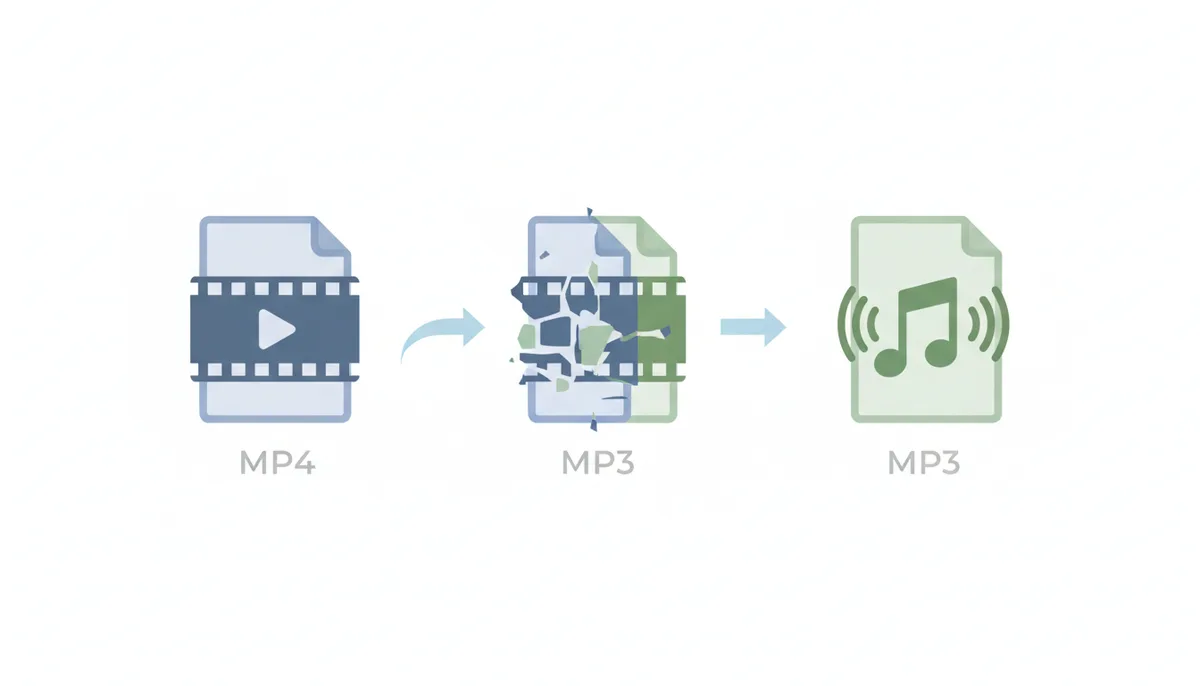
You've got a video file sitting on your computer—maybe it's a lecture recording, a music video, or footage from a conference—and you just need the audio. The traditional approach feels risky: upload your file to some website, wait for it to process on their servers, then download the result. But what if that video contains sensitive information? What if it's 2GB and your internet crawls at upload speeds?
Here's the thing: you don't need to upload anything anymore. Modern web browsers can convert your MP4 to MP3 right on your computer, using the same processing power that runs your spreadsheets and streams your videos. Your file never leaves your machine.
Why Convert a Video to Audio Without Uploading It?
Privacy matters when you're dealing with personal videos. That recording of your child's first words, the confidential business presentation, or the rough cut of your creative project—these aren't files you want sitting on someone else's server, even temporarily. When you convert locally in your browser, the file stays on your computer the entire time. No copies exist elsewhere.
Speed is the second advantage most people notice immediately. A 500MB video file takes several minutes to upload on typical home internet. Processing time on the server adds more delay. Then you wait again to download the result. With browser-based conversion, you skip straight to processing. A five-minute HD video converts to MP3 in about 30 seconds on most modern computers.
The security implications run deeper than just privacy. Traditional online converters create multiple vulnerabilities: your file travels across the internet twice (upload and download), sits on a server you don't control, and could be intercepted at any point. Some services claim they delete files immediately, but you're trusting their word and their security practices. Browser-based conversion eliminates these risks entirely because the file never enters the network.
How Does In-Browser Conversion Actually Work?
The key technology making this possible is WebAssembly, or Wasm for short. Think of WebAssembly as a way to run serious software—the kind that used to require installation—directly in your web browser. It's the same technology that lets you edit photos online or play complex games without downloading anything.
Here's what happens when you select a video file for conversion: your browser loads a compiled version of professional media software into its memory. This isn't some simplified web app—it's the same conversion engine that desktop programs use, running at near-native speed. The browser accesses your file through standard web APIs, processes it using your computer's CPU, and outputs the result directly to your downloads folder.
The traditional model works completely differently. When you use a server-based converter, your browser acts like a delivery service: pick up the package (your file), drive it to the warehouse (upload to server), wait while workers process it, then bring back the result. With client-side conversion, your browser becomes the factory itself.
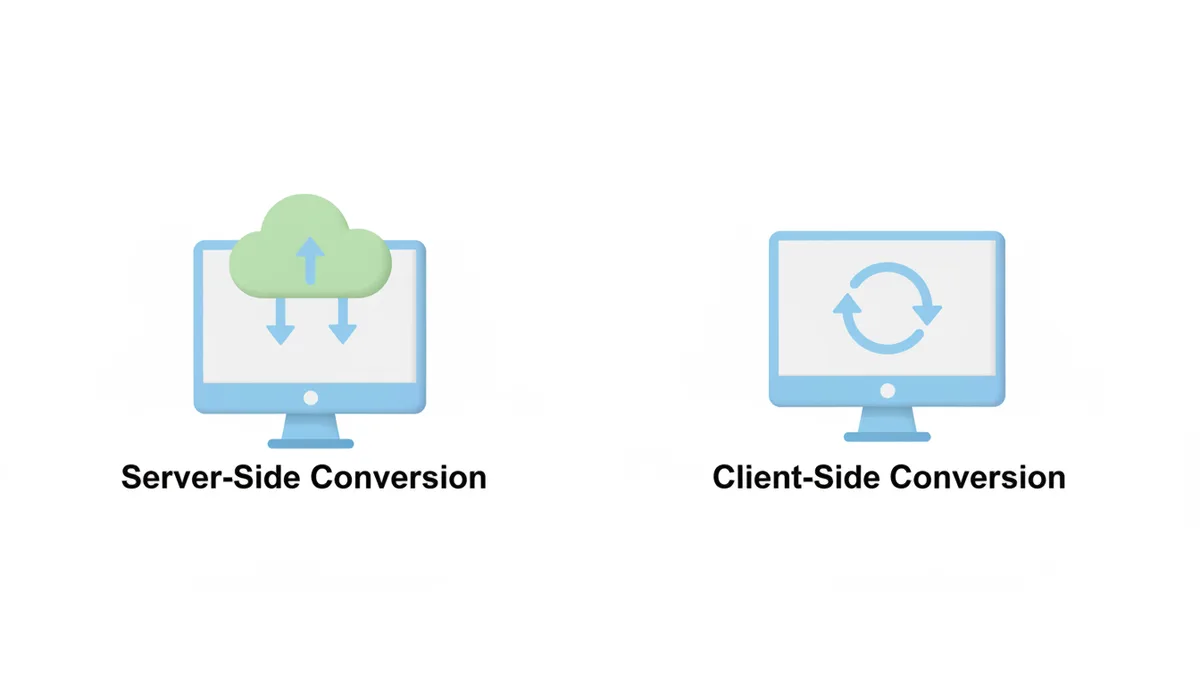
This shift from server-side to client-side processing represents a fundamental change in how web applications work. Instead of treating your browser as a simple viewer, modern web technology turns it into a powerful processing environment. The same JavaScript engine that runs website animations now coordinates complex media operations, while WebAssembly handles the heavy computational work.
Step-by-Step: Converting MP4 to MP3 with ExtractSound
Converting your video takes about four clicks. Here's the exact process:
- Open ExtractSound in your browser. The converter loads directly on the homepage—no account needed, no software to install. The WebAssembly conversion engine loads when you first access the page.
- Select your MP4 file. You've got two options: drag the file directly onto the upload area, or click to browse your computer's files. The moment you select a file, notice what doesn't happen—no upload progress bar appears because the file isn't going anywhere. The browser simply reads the file from your disk.
- Choose your output settings. The format dropdown defaults to MP3, which works for most purposes. Below that, you'll see quality options ranging from 128 kbps to 320 kbps. For spoken content like podcasts or lectures, 128 kbps sounds fine. Music needs 192 kbps or higher. When in doubt, choose 256 kbps—it strikes a good balance between quality and file size.
- Click Convert and wait. The conversion starts immediately. You'll see a progress bar showing the percentage complete. A typical five-minute video converts in 20-40 seconds, depending on your computer's speed. The resulting MP3 file automatically downloads to your default downloads folder when complete.
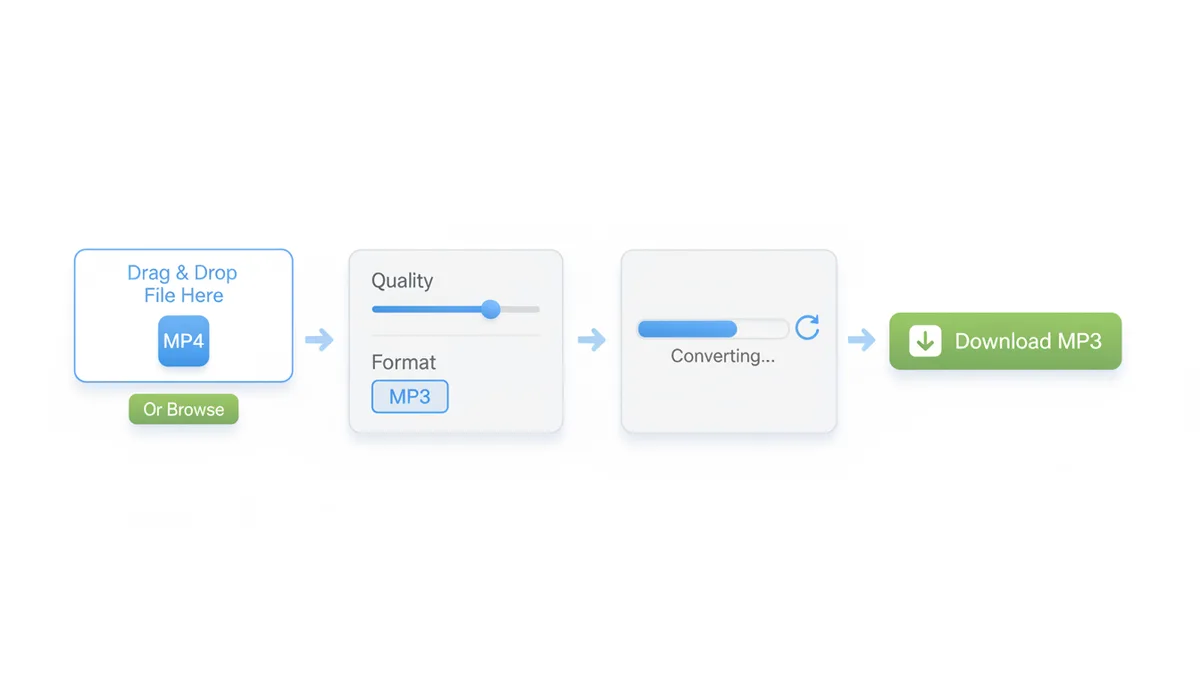
The interface deliberately keeps things simple. No registration walls, no email requirements. The service processes files directly in your browser without uploading them to any server.
One detail that surprises many users: you can close other tabs or programs while converting. Because the processing happens in your browser tab, not on a remote server, you won't lose your progress if your internet connection drops. The only requirement is keeping that specific browser tab open until conversion completes.
Choosing the Right MP3 Quality: Bitrate, Sample Rate, and File Size
Bitrate directly controls the trade-off between audio quality and file size. It measures how much data the MP3 uses per second of audio, expressed in kilobits per second (kbps). Double the bitrate, double the file size—but the quality improvement isn't linear. The difference between 128 and 192 kbps is noticeable; between 256 and 320 kbps, most people can't tell.
| Bitrate | Quality | Use Case | File Size per Minute |
|---|---|---|---|
| 128 kbps | Acceptable | Podcasts, audiobooks, voice recordings | 0.96 MB |
| 192 kbps | Good | Music streaming, general listening | 1.44 MB |
| 256 kbps | Very Good | Music collection, careful listeners | 1.92 MB |
| 320 kbps | Excellent | Archival, audiophile use | 2.40 MB |
You'll also encounter two bitrate modes: CBR (Constant Bitrate) and VBR (Variable Bitrate). CBR maintains the exact same bitrate throughout the file, making file sizes predictable. VBR adjusts the bitrate based on the audio complexity—using more bits for complex musical passages and fewer for silence or simple sounds. VBR typically sounds better at the same average bitrate, but some older devices struggle with VBR files. When compatibility matters, stick with CBR.
Sample rate affects audio fidelity differently than bitrate. It determines how many times per second the audio is sampled, measured in kilohertz (kHz). CD audio uses 44.1 kHz, which captures frequencies up to 22.05 kHz—beyond human hearing range. Some video files use 48 kHz, common in film and TV production. For MP3 output, either works fine. The converter typically maintains the source sample rate unless you specifically need compatibility with older devices that require 44.1 kHz.
Channel configuration—stereo versus mono—offers another way to reduce file size. Mono uses a single audio channel, cutting file size in half compared to stereo. For speech content like lectures or audiobooks, mono often sounds identical to stereo, especially when listening through phone speakers or basic earbuds. Music almost always benefits from stereo's spatial separation.
Troubleshooting: What to Do When Browser Conversion Fails
The most common problem you'll encounter: the browser freezing or crashing with very large files. This happens because all processing occurs in your browser's memory (RAM). A two-hour 4K video might need several gigabytes of RAM for conversion—more than some browsers can handle. The solution is straightforward: try a shorter segment first, or close other browser tabs to free up memory.
Sometimes the issue isn't size but format. MP4 is a container format, like a box that can hold different types of content. Inside, the video might use H.264 (very common), H.265/HEVC (newer, more efficient), or other codecs. While most browser converters handle standard codecs well, exotic or proprietary formats can cause problems. You'll know this is happening when the converter immediately fails or shows an error about unsupported format.
Browser choice matters more than you might expect. Chrome and Edge typically offer the best performance for media operations, thanks to their optimized JavaScript engines. Firefox works well too, though sometimes slower on large files. Safari can be pickier about formats but generally handles standard MP4 files fine. If one browser struggles, try another—they each implement WebAssembly slightly differently.
Corrupted source files create particularly confusing errors. The converter might process partway then fail, or produce output with missing audio sections. Before assuming the converter is broken, try playing the source video in multiple players. VLC Media Player, being extremely forgiving of format issues, makes a good test. If VLC can't play it properly, neither can the converter.
Browser-Based vs. Desktop Software: Which Tool Should You Use?
Browser-based converters like ExtractSound excel at convenience and privacy. You're converting a single file, you want it done now, and you don't want to install anything. Perfect for extracting audio from that one presentation or converting a handful of music videos. The privacy advantage is absolute—your files never leave your control.
Desktop software becomes necessary when you're processing dozens or hundreds of files. Programs like HandBrake, VLC, or Audacity offer batch processing that browser tools can't match. They also provide fine-grained control: custom encoding parameters, advanced filters, precise editing tools. If you're converting your entire video library or need specific technical requirements, desktop software is the right choice.
| Feature | Browser-Based Tool | Desktop Software | Traditional Online Converter |
|---|---|---|---|
| Convenience | Instant access, no installation | Requires installation | Instant access, no installation |
| Privacy & Security | Files never leave your computer | Files never leave your computer | Files uploaded to third-party servers |
| Speed (single file) | Fast, no upload needed | Fastest processing | Slow due to upload/download |
| Batch Processing | One file at a time | Unlimited batch processing | Usually limited or paid feature |
| Advanced Editing | Basic format conversion only | Full editing capabilities | Basic conversion only |
| Installation Required | No | Yes | No |
Traditional server-based online converters occupy an awkward middle ground. They offer the convenience of browser access but sacrifice privacy and speed. Your files travel across the internet twice, wait in processing queues, and temporarily exist on someone else's computers. The only advantage they once claimed—no installation required—is now matched by browser-based tools that keep your data private.
Beyond MP3: When to Choose AAC, WAV, or FLAC
MP3's dominance comes from universal compatibility, but it's not always the best choice. AAC (Advanced Audio Coding) delivers better sound quality than MP3 at the same bitrate. At 128 kbps, AAC sounds noticeably clearer than MP3—important when file size matters. Most modern devices support AAC: iPhones, Android phones, smart TVs, and car stereos. The main holdouts are older MP3 players and some bargain electronics.
WAV files serve a completely different purpose. They store uncompressed audio, preserving every bit of the original sound. A typical song in WAV format consumes 50 MB versus 5 MB for a high-quality MP3. You'd choose WAV when you need to edit the audio later—audio editing software performs better with uncompressed sources. Think of WAV as your working format, MP3 or AAC as your distribution format.
FLAC splits the difference: lossless compression that preserves perfect quality while reducing file size by about half compared to WAV. Audiophiles appreciate FLAC for archiving their music collections. You get bit-perfect reproduction of the original while saving storage space. The downside: many devices don't support FLAC playback, though this is improving. Converting from FLAC to MP3 later always remains an option.
The source audio in your MP4 file influences which format makes sense. If the video contains AAC audio (very common), converting to AAC preserves more quality than going to MP3. If it contains uncompressed PCM audio (rare but possible), converting to FLAC prevents any quality loss. The converter typically shows the source audio format in the file information, helping you make an informed choice.
The Technology Deep Dive: FFmpeg and WebAssembly
The heavy lifting in browser-based conversion comes from FFmpeg, an open-source multimedia framework that's essentially the Swiss Army knife of media processing. Released in 2000 and continuously improved since, FFmpeg handles virtually every audio and video format ever created. Professional video editors, streaming services, and media players all rely on FFmpeg under the hood.
WebAssembly makes it possible to run FFmpeg in a browser at near-native speed. Traditional JavaScript would be far too slow for real-time media processing. WebAssembly provides a compilation target that browsers can execute efficiently, similar to how desktop applications run. The FFmpeg libraries are compiled to WebAssembly, creating a version that runs in browsers while maintaining most of the original performance.
The performance characteristics are fascinating. WebAssembly enables performance-sensitive applications like media encoding to run efficiently in modern browsers. On a modern laptop, converting a five-minute video to audio takes roughly the same time whether using a desktop program or a WebAssembly version. The slight speed penalty comes from security sandboxing—the browser ensures the code can't access anything outside its designated memory space.
Browser vendors continue improving WebAssembly performance. SIMD (Single Instruction, Multiple Data) support allows parallel processing of audio samples, significantly speeding up conversion. Threading support lets converters use multiple CPU cores, though browser security models limit this compared to desktop software. These improvements mean browser-based conversion gets faster with each browser update, without the converter itself changing.
The size of the WebAssembly module matters for initial loading. A full FFmpeg build can exceed 30 MB, which sounds large but downloads quickly on modern connections. Smart implementations load only the components needed—if you're converting to MP3, why download the video encoding modules? This selective loading keeps the tool responsive while maintaining broad format support.
Real-World Performance: Converting Different Video Types
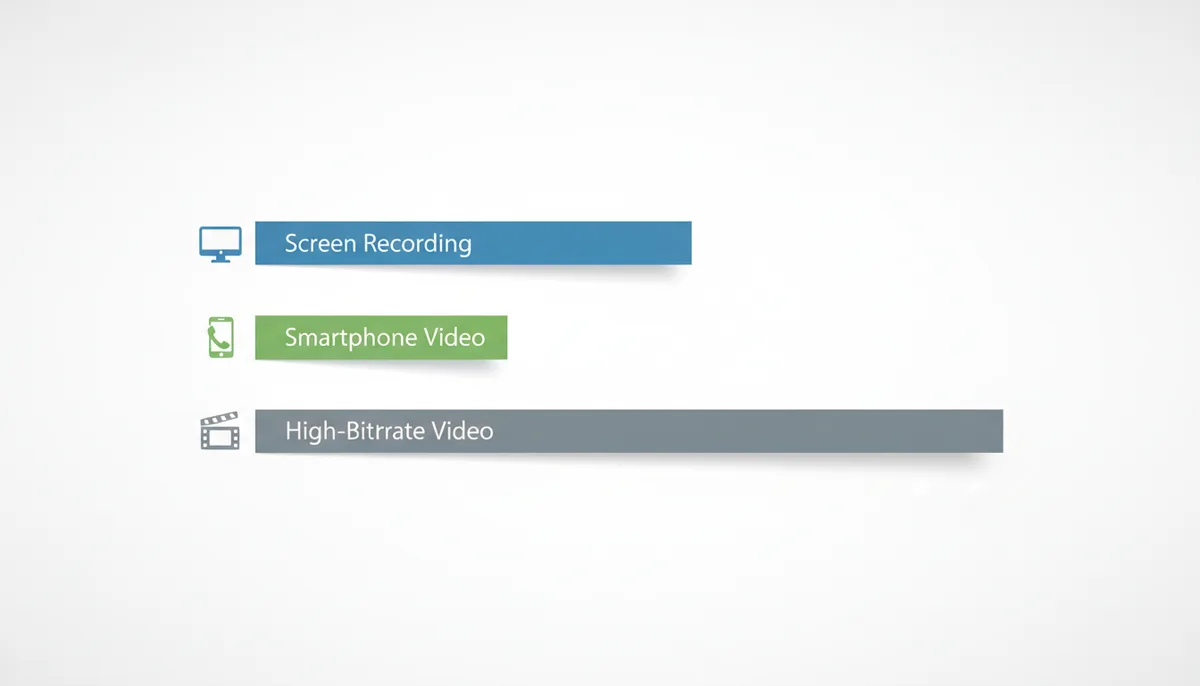
Not all video files convert equally. A 100MB MP4 might process in 15 seconds or 2 minutes, depending on what's inside. Understanding these differences helps you predict conversion times and troubleshoot when things run slower than expected.
Screen recordings present the simplest case. A 30-minute Zoom recording or screen capture typically uses low frame rates (15-30 fps) and simple compression. The audio track is often mono at a modest bitrate. Converting a 500MB screen recording takes about 20-30 seconds on a typical laptop from the last five years. The CPU barely works because there's less data to decode.
Smartphone videos tell a different story. Modern phones record at high bitrates to preserve quality—an iPhone recording at 4K/60fps can hit 400 Mbps. A five-minute video might be 1.5GB. The converter must decode every frame to extract the audio track, even though it discards the video data. That same laptop now needs 45-60 seconds for conversion. You'll hear the fan spin up as the CPU decodes HEVC or H.265 compression.
Professional video content pushes browsers to their limits. A DSLR recording in ProRes or a drone shooting in D-Log creates files with minimal compression. A 10-minute clip might reach 5-10GB. Browser-based converters can handle these, but expect longer processing times—potentially several minutes. The browser must allocate huge amounts of memory to buffer the uncompressed frames during extraction.
The codec inside your MP4 makes a massive difference. H.264 remains the most common and fastest to process—it's been optimized for over a decade. H.265/HEVC offers better compression but requires more processing power to decode. VP9 (sometimes found in WebM containers) falls somewhere between. AV1, the newest codec, provides excellent compression but can take twice as long to process as H.264.
Here's what actually happens during a problematic conversion: You drop in a 2GB file. The progress bar jumps to 10%, then crawls. Your browser's memory usage spikes to 4GB or more. The fan kicks into high gear. After 30 seconds at 15%, the page becomes unresponsive. This isn't a crash—it's the browser struggling to allocate memory for the decoded video frames. The solution: wait it out (it often recovers), or refresh and try with a smaller file.
Variable frame rate videos create unique challenges. Many phones record at variable frame rates to save space—dropping to 24fps in static scenes, jumping to 60fps during motion. The converter must track these changes throughout the file. You won't see errors, but conversion takes longer than expected for the file size. Gaming recordings from OBS or Nvidia ShadowPlay commonly use variable frame rates.
Privacy Implications: What Browser-Based Really Means
When ExtractSound claims your file never leaves your computer, that's a verifiable technical fact, not marketing speak. Understanding how to confirm this yourself matters in an era of data breaches and privacy violations.
Open your browser's developer tools (F12 in most browsers) and switch to the Network tab before converting a file. Start a conversion and watch the network activity. You'll see initial requests loading the WebAssembly modules and interface assets. Once conversion begins, network activity stops completely. No data uploads appear because there's nowhere to upload to—the conversion happens entirely in your browser's sandbox.
The File API provides the critical privacy layer. When you select a file, the browser doesn't give the web application direct disk access. Instead, it creates a controlled reference that allows reading the file's contents without exposing your file system. The converter can read your selected MP4 but can't browse your documents folder or access other files. This sandboxing is enforced at the browser level—no web application can bypass it.
Traditional online converters leave extensive digital footprints. Your IP address gets logged with the upload. The file name and size create metadata. Server logs record processing times and parameters. Even if they delete the file, these traces remain. CDN (Content Delivery Network) caches might retain copies. Their privacy policy might promise deletion, but technical reality is messier. A subpoena or hack could expose files you thought were gone.
Browser-based conversion eliminates these risks through architecture, not policy. There's no server to hack, no logs to subpoena, no cache to persist. The only trace is your browser history showing you visited the converter's website—not what you converted or even that you converted anything. Clear your browser history, and even that disappears.
Corporate users particularly benefit from this approach. Converting internal training videos, confidential presentations, or unreleased marketing materials through traditional online services violates most companies' data policies. IT departments often block these services entirely. Browser-based conversion sidesteps these concerns—the files never leave the corporate network, maintaining compliance with data residency requirements.
The memory cleanup after conversion deserves attention. When conversion completes, the browser should release the memory used for processing. Modern browsers handle this automatically through garbage collection. However, very large conversions might leave the tab using significant memory until you close it. Privacy-conscious users should close the tab after downloading their converted file, ensuring complete cleanup of any temporary data in browser memory.
Frequently Asked Questions
Does converting in my browser use a lot of my computer's CPU?
Yes, and that's exactly what you'd expect. Because the conversion happens on your machine instead of a server, it will use your CPU resources just like any other program would. You might hear your computer's fan spin up during conversion, especially for long videos or high-resolution sources. This is completely normal—it's the same CPU usage you'd see from desktop video editing software. The benefit is that you're using your own processing power to maintain privacy, rather than trusting someone else's servers.
Is there a file size limit for browser-based conversion?
While ExtractSound itself handles large files well, your web browser has memory (RAM) limitations that create practical boundaries. Most modern browsers can handle files up to 2-4 GB without issues, depending on your computer's available RAM. Attempting to convert extremely large files—like a 4K movie that's 10 GB or more—might cause the browser tab to slow down significantly or crash. The browser needs to load portions of the file into memory for processing, and there's a limit to how much it can juggle at once. If you hit this limit, you'll need to use desktop software instead.
Will I lose audio quality when converting from MP4 to MP3?
Yes, you will lose some quality because both formats use lossy compression. When your MP4 video contains AAC audio (the most common scenario), converting to MP3 means recompressing already-compressed audio. However, by choosing a high bitrate like 256 or 320 kbps for your MP3, the quality loss becomes nearly imperceptible to human ears. The theoretical loss exists, but in practice, you won't notice it during normal listening. If preserving exact quality matters, consider extracting to WAV or FLAC instead.
Can I convert a video directly from a URL, like a YouTube link?
No, browser-based tools that work without uploading can't process URLs directly. To convert a file without uploading it, the tool needs access to the file on your local disk. When you provide a URL, something needs to download that video first—and in a privacy-preserving browser tool, there's no server to do that downloading. Tools that accept URLs must download the video to their servers first, then process it there, which defeats the purpose of private, local conversion.
Can I trim or cut the audio with this type of tool?
Most browser-based converters focus on format conversion rather than editing. While technically possible to implement trimming in WebAssembly, it adds complexity that goes against the simplicity these tools aim for. If you need to extract just a portion of the audio—say, minutes 5 through 8 of a longer video—you'll need desktop software like Audacity for precise control. Some converters might offer basic start/end time selection, but for real editing work, dedicated audio software remains necessary.
What if my video file isn't an MP4?
Modern browser-based converters handle most common video formats beyond MP4. MOV files (common from iPhones and Mac recordings) work identically to MP4 in most cases—they're actually related formats. AVI files, despite being older, convert fine. WebM files from screen recorders process without issues. The underlying FFmpeg engine supports hundreds of formats, so unless you're dealing with something truly obscure or proprietary, the conversion process remains the same. Just drag in your MOV, AVI, or WebM file exactly as you would an MP4.
Making the Most of Browser-Based Conversion
The shift from server-side to browser-based conversion represents more than a technical improvement—it's a fundamental change in how we should think about online tools. Your browser is no longer just a window to view remote content. It's a secure, private processing environment for your personal data.
For the typical user converting occasional files, browser-based tools offer the ideal balance. You get immediate access without installation hassles, complete privacy for sensitive content, and processing speeds that match or beat traditional upload-and-wait services. The technology continues improving with each browser update, making these tools faster and more capable over time.
Remember that choosing the right audio settings makes a bigger difference than the conversion method. A poorly chosen bitrate wastes space or sacrifices quality regardless of which tool you use. Take the time to match your settings to your actual needs—spoken content rarely needs more than 128 kbps, while music collections deserve at least 256 kbps.
The next time you need audio from a video file, skip the upload step entirely. Modern browsers can handle the conversion privately, securely, and quickly. Your files stay under your control, your sensitive content remains private, and you get your results faster than ever. That's the promise of client-side conversion technology, and it's available right now in your browser.
Sources
- WebAssembly — Claims in the 'How Does In-Browser Conversion Actually Work?' and 'The Technology Deep Dive' sections regarding what WebAssembly is and how it enables running high-performance code in a browser.
- FFmpeg — Information in 'The Technology Deep Dive' about FFmpeg being the underlying open-source library used for media transcoding in many applications, including browser-based ones.
- Mozilla Developer Network (MDN) — The technical explanation of how a browser can access local files without uploading them, as mentioned in the 'How Does In-Browser Conversion Actually Work?' section.
- Fraunhofer Institute for Integrated Circuits IIS — The history and technical standards behind the MP3 format, backing the information in the 'Choosing the Right MP3 Quality' section.
- Xiph.Org Foundation — Information and specifications for the FLAC format, as discussed in the 'Beyond MP3' section.
- VideoLAN — The existence and capabilities of VLC Media Player as a primary desktop alternative for media conversion, used in the 'Browser-Based vs. Desktop Software' comparison.