Why an Extracted MP3 Can Sound Worse Than the Original Video
The video looked great. Clean 4K footage, decent lighting, and — when you played it back — audio that sounded full and clear. Then you converted it to MP3, and the cymbals dissolved into a hissy wash, the vocals retreated behind a blanket, and the whole thing felt like it was playing from the next room. So you tried a different converter. Same result.
The maddening part is that the converter probably isn't incompetent. It's being asked to do something inherently destructive, using a source that was already compromised before you ever opened it. There are three separate layers of loss stacked between the original recording and your final MP3, and each one has a specific, fixable-or-not cause. Here's the full chain — and how to keep the damage to a minimum.
Why Does My 'High-Quality' Video Produce a Low-Quality MP3?
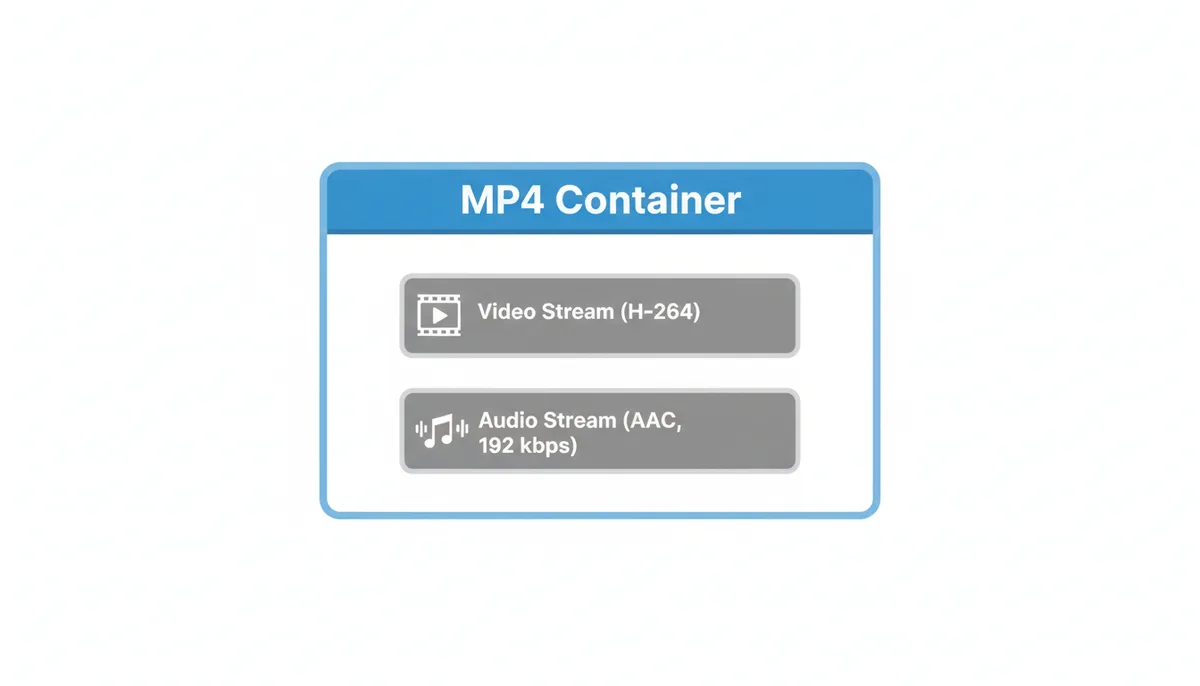
Almost everyone makes the same assumption: a video file is one thing, so high-quality video means high-quality audio. It isn't, and it doesn't. A video file — MP4, MKV, MOV, AVI — is a container. Think of it as a box. Inside the box sit separate, independent tracks: usually one video stream and one audio stream, sometimes several of each, plus subtitles and metadata. The box holds them in sync, but each stream was compressed by its own codec, with its own settings, and its own quality ceiling.
That distinction matters because production budgets are allocated visually. A creator will spend money on a good camera and then let the camera's built-in encoder compress the audio to 96 kbps. A platform like a social app will re-encode uploads and squeeze the audio track hard while keeping the picture sharp, because viewers notice blurry video but rarely catch muddy audio over phone speakers. The picture tells you nothing about what's happening in the audio stream.
So when you extract an MP3, two things go wrong in sequence. First, the audio stream inside the container is usually already lossy — compressed once, often aggressively. Second, your converter decodes that lossy stream and re-compresses it into a new lossy format. That second step — the actual conversion — is where the audible damage happens. Extraction itself doesn't have to lose anything at all, as you'll see later. The confusion between "extracting" and "re-encoding" is the root of most bad results.
It Starts with the Source: Deconstructing Your Video File's Audio
Open almost any MP4 from a phone, a camera, or a downloaded streaming rip, and the audio stream inside will be AAC (Advanced Audio Coding) — not MP3, and definitely not the uncompressed PCM you'd find in a professional audio file. AAC became the default audio codec for video because it sounds better than MP3 at the same bitrate, so everyone from Apple to camera manufacturers to streaming platforms standardized on it. MKV files sometimes carry AC3 (the Dolby DVD-era codec) or Opus; professional MOV files from editing suites may carry raw LPCM. But for everyday video, assume AAC until proven otherwise.
You should check before you convert, not after. Two free tools do this well:
- VLC Media Player — open the file, then go to Tools → Codec Information (Ctrl+J on Windows). You'll see the codec, sample rate, and bitrate for each stream.
- MediaInfo — drop the file in and it shows the full technical breakdown in a tree view: codec, constant or variable bitrate, sample rate, channel count, sometimes even the encoder name.
Once you know what's inside, one rule governs everything else: the extracted audio can never be better than the source stream. Conversion is a one-way street. If the video holds a 96 kbps AAC track — common for phone footage — then your output MP3's quality ceiling is "96 kbps AAC minus whatever the re-compression destroys." If your VLC check shows a healthy 256 kbps AAC stream, you have something worth preserving. But you'd be surprised how often gorgeous footage from a serious camera is paired with a heavily squeezed audio track, because the camera maker treated audio as an afterthought.
The Compounding Problem of Transcoding: Why Converting Lossy-to-Lossy Is So Damaging
When a converter turns your video's AAC audio into an MP3, it does something technically called transcoding: it fully decodes the AAC stream back into raw audio (the PCM samples, like a WAV in memory), then compresses those samples all over again using the MP3 encoder. Two lossy compressions, back to back.
The classic analogy is a photocopy of a photocopy. The first copy already lost some detail — fine lines blurred, faint background smudges appeared. When you photocopy that, the machine doesn't know the blurred lines and smudges are flaws. It treats them as content. So the second copy faithfully reproduces the artifacts of the first, then adds its own. Repeat the process and quality collapses fast. Audio people call this generation loss.
With audio codecs it gets worse than the analogy suggests, because each codec has its own signature weaknesses. AAC, for instance, handles sharp attacks (drum hits, plosives) reasonably well, but it leaves behind a faint, grainy texture that you can't hear on first listen. When the MP3 encoder receives the decoded PCM, it wastes part of its bitrate budget trying to encode that leftover grain — bits that should have gone to the actual music. Then MP3, which is notoriously clumsy with transients compared with AAC, smears the attacks a second time. The result: the music gets hit by AAC's weaknesses and then MP3's weaknesses, sequentially.
Since the audio in your video is almost always already lossy, converting it to MP3 is a guaranteed, audible step down. This is the single biggest cause of audio quality loss when converting video to MP3, and no bitrate setting fully compensates for it — a point we'll come back to when we get to the practical workflow.
How MP3 Compression Actually Throws Away Audio Data
MP3 files are small because the format is built on psychoacoustics — the science of what your ears and brain actually perceive versus what exists in the raw signal. The encoder runs a model of human hearing, identifies the parts of the sound you're least likely to notice, and simply doesn't spend bits on them. Two masking phenomena drive most of the discarding:
Frequency masking (simultaneous masking). A loud sound at one frequency makes quieter sounds at nearby frequencies inaudible. A blasting guitar at 1 kHz will completely cover a soft detail at 1.1 kHz. The MP3 encoder finds those masked details and omits them. On the spectrogram — a picture of sound with frequency on one axis and time on the other — you can literally see whole bands of quieter content that never make it into the file.
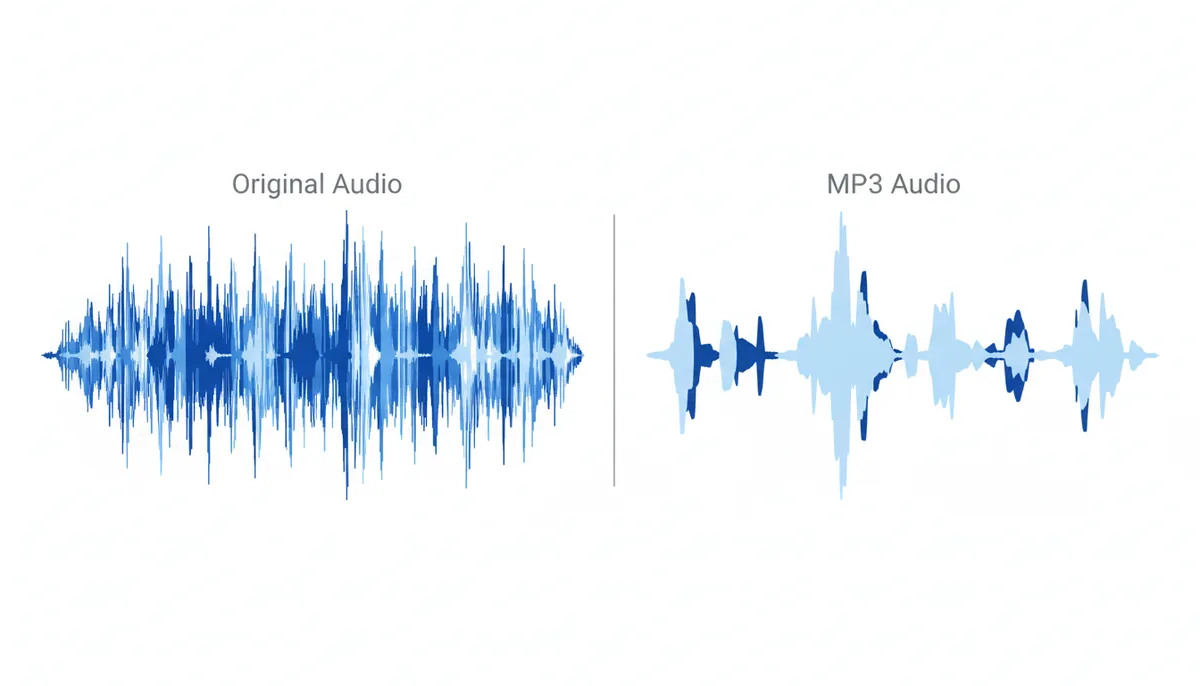
Temporal masking. A loud event also covers quieter sounds that occur immediately before or after it — a window of a few milliseconds before, and a longer one after. So the encoder can drop fine detail around each drum hit or vocal onset, and you won't notice — in theory.
Two things break the theory. First, the model assumes average listeners and average material; complex, busy material like orchestral music or dense electronic mixes gives the model far less slack. Second — and this is what produces MP3 compression artifacts — when bitrate runs low, the encoder is forced to mask aggressively. That's when you hear:
- "Swishy" or "watery" cymbals and reverb tails — a faint noise-like pumping on high-frequency content. MP3 veterans call these birdies: little chirps of quantization noise escaping where the encoder ran out of bits.
- Pre-echo — a smear just before a sharp attack, because MP3's filter structure is bad at sudden transients when bits are scarce.
- Narrowed stereo image — when bits run scarce, the encoder may allocate too few bits to coding the difference between the left and right channels, or fall back on cruder stereo approximations, and the soundstage narrows toward mono.
- A muffled top end — the encoder often applies a low-pass filter and simply cuts everything above roughly 15–16 kHz when the bitrate can't cover the full spectrum.
If your converted audio sounds muffled, that last one — plus whatever the source AAC already threw away — is usually why. The sparkle was either never in the file or got voted off during the psychoacoustic triage.
How Your Choice of Bitrate Dictates the Final Quality
Bitrate, measured in kilobits per second (kbps), is the amount of data the encoder is allowed to spend on each second of audio. It's a budget. Give the psychoacoustic model 320 kbps and it can afford to keep most masked detail; give it 128 kbps and it has to sacrifice aggressively. More budget equals better quality and bigger files, in direct proportion.
Two allocation strategies exist:
CBR (Constant Bitrate) spends exactly the same number of bits on every second, whether it's a silent gap or a full orchestral climax. It's predictable for file size and required by some old hardware and streaming systems.
VBR (Variable Bitrate) lets the encoder spend heavily on complex passages and almost nothing on silence or simple tones. At the same average bitrate, VBR almost always sounds better than CBR, because music isn't uniformly complex. The LAME encoder — the reference MP3 encoder most serious tools are built on — exposes VBR presets from V0 (highest quality, averaging around 240 kbps) down through V9. For music, V0 to V2 is the sensible range.
The blunt rule: less than 192 kbps for music is false economy. Speech survives 64–96 kbps fine, which is why podcasts sound acceptable at low rates. Cymbals, acoustic guitar, and layered vocals don't. If someone tells you 128 kbps is "CD quality," that claim dates from the era when hard drives were measured in megabytes. We can afford better now.
| Bitrate | Quality Level | Common Artifacts | Best For |
|---|---|---|---|
| 128 kbps | Fair — audible flaws on music | Swishy cymbals, smeared reverb, collapsed stereo, top end cut around 16 kHz | Speech, podcasts, voice memos |
| 192 kbps | Good | Minor loss of crispness; stereo image mostly intact | Everyday music listening |
| 256 kbps | Excellent | Hard to detect even for trained listeners | High-quality music libraries, critical listening |
| 320 kbps | Perceptually transparent for most listeners | Essentially none | Highest-quality compatible MP3 copies, DJ playback, sharing where MP3 is required |
One honest trade-off: going from 192 to 320 kbps roughly doubles the file size for an improvement most people can't hear on most material. I still recommend 320 (or V0) for anything you'll keep, because storage is cheap and re-converting from a bad first attempt is what actually costs you — every generation adds damage.
A Practical Guide to Extracting Audio with Minimal Quality Loss
Here's the workflow that keeps the damage to the theoretical minimum. The first decision happens before you touch a converter.
Step 1 — Analyze the source. Open the video in MediaInfo or VLC's Codec Information. Write down the audio codec, bitrate, and sample rate. Everything after this step depends on what you find.
Step 2 — If you don't strictly need an MP3, demux instead of converting. Demuxing (also called "pass-through" or "stream copy") pulls the audio stream out of the container and rewraps it, without decompressing or re-encoding anything. What's in the output file is bit-for-bit what was in the video. Zero new damage. With FFmpeg — the free, industry-standard tool underneath most converters — it looks like this:
ffmpeg -i video.mp4 -vn -acodec copy audio.aac
The -vn flag drops the video stream; copy tells it to pass the audio through untouched. The output extension has to match the codec (.aac for AAC, .mp3 if the source happens to be MP3 already). Ten seconds of work, and no quality lost at all.
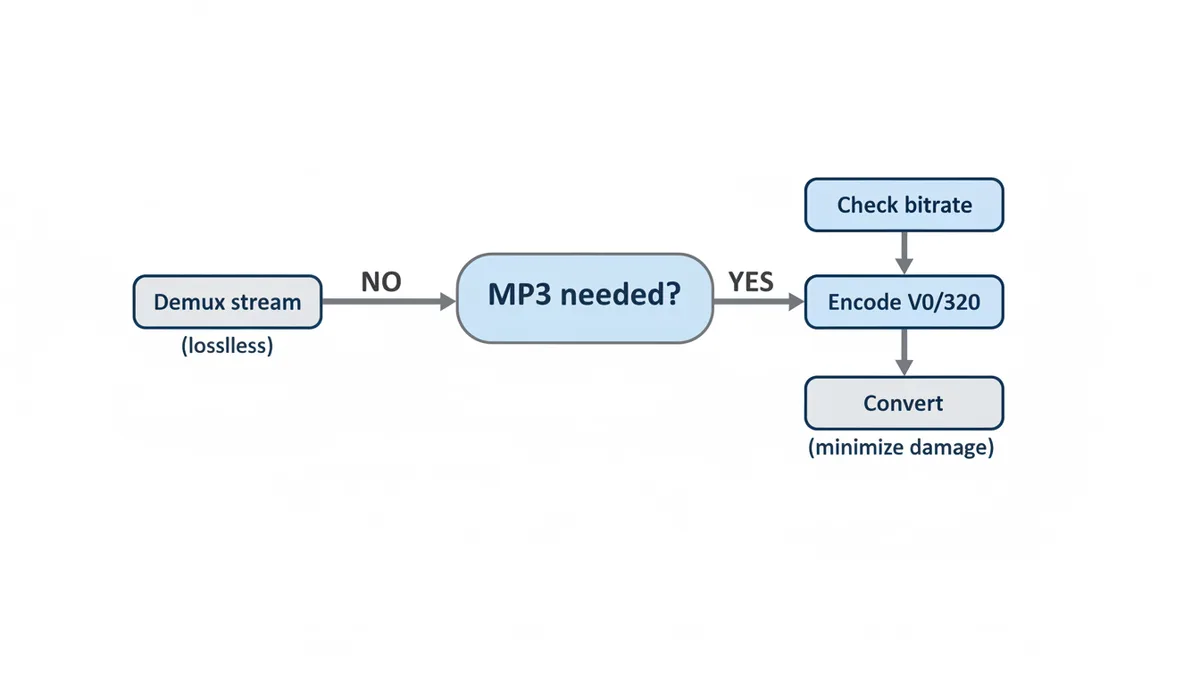
Step 3 — If an MP3 is genuinely required, match the source's sample rate. Video audio is usually 44.1 kHz or 48 kHz. A sample rate is just how many snapshots of the waveform per second the file holds — 48,000 versus 44,100. Resampling from one to the other is an extra processing step that buys you nothing, and sloppy resamplers add their own faint distortion. Set the converter to match whatever MediaInfo reported.
Step 4 — Encode at the top of the quality scale. V0 (VBR) or 320 kbps CBR. Given that transcoding lossy-to-lossy is unavoidable in this branch, the least you can do is avoid adding an unnecessary new bottleneck on top.
If you'd rather skip the command line, a browser-based tool like ExtractSound does the same job — it processes the file and lets you pick the output format and quality before converting, so choose the highest quality setting it offers rather than the default.
The honest qualification: this workflow minimizes new damage. If your source stream was a 96 kbps AAC to start with, no amount of care on your end recovers what that 96 kbps AAC already discarded. You can only stop making it worse — which is still worth doing.
Is MP3 Always the Right Choice? Comparing Audio Formats
MP3's real product isn't quality — it's compatibility. An MP3 will play on a 2004 car stereo, a cheap off-brand phone, an ancient DVD player's USB port, and every smart device shipped in the last quarter century. If that's what you need, MP3 is the right answer. But if you're judging purely on sound per megabyte, or on safety for future editing, there are better options.
| Format | Compression Type | Quality Result | Key Advantage | Main Drawback |
|---|---|---|---|---|
| MP3 | Lossy | Good to excellent, depending on bitrate | Plays on literally every device | Oldest codec; less efficient than its successors |
| AAC | Lossy | Very good to excellent, even at moderate bitrates | Better sound per megabyte in the Apple/Android/streaming ecosystem | A few legacy devices won't touch it |
| FLAC | Lossless | Bit-perfect copy of the decoded source | Archiving; safe format for further audio editing | Files several times larger than MP3 |
| Original stream (demux) | No re-compression | Identical to the source, whatever it was | Zero new damage, near-instant operation | You inherit the source codec, which some players reject (e.g., Opus from an MKV) |
My decision rule is simple. If the destination is arbitrary hardware of unknown age, use MP3. If everything you'll play it on is from the last decade or lives in the Apple or Android world, AAC buys you better sound at smaller sizes — which is exactly why your video already holds AAC. And if you plan to edit the audio in any way — cut it, mix it, clean it, master it — do not work with MP3s. Demux the original, or convert to FLAC or WAV, because every save-and-re-export of a lossy file compounds generation loss. For anything involving a digital audio workstation, lossless is the only safe working format.
Where Conversion Goes Wrong in Practice: Bad Defaults and Edge Cases
Most bad-sounding MP3s are ruined before you ever press the convert button, because the defaults in most converters — desktop and online alike — are tuned for small file sizes and fast batch jobs, not fidelity. Here are the failure modes that actually produce the complaints above, and how to check for each.
Vague quality presets. A dropdown that says "Low / Medium / High" tells you nothing. "High" often maps to 128 kbps CBR — fine for speech, audibly flawed on music. If the tool won't show you an actual number in kbps, treat the output as a gamble. The fix is simple: use a converter that exposes the real bitrate and bitrate mode (CBR/VBR), or one that at least documents what its presets mean.
Silent sample-rate conversion. Video audio is usually 48 kHz; a lot of encoders default to 44.1 kHz because that's the CD standard. A sample rate is just how many snapshots of the waveform per second the file holds — 48,000 versus 44,100. Converting between them means mathematically interpolating new sample values, and cheap resamplers do that interpolation sloppily, adding faint distortion on top of everything else. Most tools resample quietly, without asking. Set the output rate manually to match whatever MediaInfo reported.
The re-conversion loop. This is the one I see most often. The first conversion sounds bad, so the user feeds that MP3 into a second converter, then a third. Each pass decodes and re-encodes the previous pass, stacking artifact on artifact, exactly like the photocopy chain. If a result sounds wrong, always go back to the original video file and start over with different settings — never convert a converted file.
Files with multiple audio tracks. MKV and MOV containers can carry several audio streams: a main mix, a commentary track, a raw camera-mic track. Some converters grab the first stream they find, which may be the 64 kbps camera-mic scratch track instead of the program mix. MediaInfo lists all streams with their order; in FFmpeg you pick explicitly with the -map flag. If your extraction sounds bizarrely worse than everything above predicts, check that you pulled the right track.
A source that was already re-compressed upstream. If the video you downloaded is itself a re-upload, a screen recording, or a rip from a platform that re-encodes everything, the generation-loss chain started before the file reached you. No converter setting fixes that. When the audio actually matters, spend the two minutes finding a cleaner original — a first-generation upload — before you spend them on encoder settings.
A Worked Example: One Video, Four Ways to Extract It
Numbers make this concrete. Say you have a four-minute concert clip shot on a phone — 1080p video, and MediaInfo reports the audio stream as AAC, 48 kHz, 128 kbps. That's a typical phone recording: decent but not lavish. Four minutes is 240 seconds, and the quick estimate for file size is bitrate divided by 8, in kilobytes per second (plus a few percent for container overhead). Here's what each extraction route produces:
Route 1 — Demux (no conversion). You copy the AAC stream out untouched. 128 kbps ÷ 8 = 16 KB per second, so the output lands around 3.8 MB. Bit-for-bit identical to the source; nothing lost, nothing gained. If your devices play raw .aac or .m4a files — nearly everything modern does — this is the winner.
Route 2 — Convert to MP3 at 320 kbps CBR. Now 320 ÷ 8 = 40 KB/s, about 9.6 MB. You took one hit of new transcoding damage, minimized by the generous bitrate, and paid two and a half times the file size for the privilege of MP3 compatibility. Acceptable trade when the destination is old hardware that refuses AAC.
Route 3 — Convert to MP3 at 128 kbps CBR. Same ~3.8 MB as the demuxed file, but re-quantized through MP3's worse transient handling on top of matching the source's bitrate almost exactly. This is the worst of both worlds: maximum new damage with zero size savings. Yet it's the default output of half the free converters on the internet.
Route 4 — Decode to WAV. Uncompressed 16-bit stereo PCM at 48 kHz runs at 1536 kbps — 192 KB per second — so roughly 46 MB for the same four minutes. Nothing new is lost, but nothing is recovered either; you've frozen the 128 kbps AAC's quality in place at twelve times the size. Justified only if the next step is editing in audio software.
The pattern generalizes into a three-step habit. First, run MediaInfo and read the source stream's bitrate. Second, let that number set your expectations and route: a reported 96 kbps means phone-quality source, so demux or accept the ceiling; a reported 256 kbps means there's something genuinely worth protecting. Third, if you do need MP3, estimate the size trade with the bitrate-divided-by-eight shortcut before you commit — sometimes the "better" setting costs storage you didn't intend to spend, and sometimes demuxing wins on every metric at once.
Frequently Asked Questions
Can I convert the video to WAV to get the best possible quality?
Yes — in the sense that WAV (which usually holds uncompressed LPCM audio) adds no new loss when you convert into it. Decoding a lossy stream to WAV freezes that stream's current quality in place and prevents anything further from being lost. But it cannot restore what earlier lossy compression discarded. A 96 kbps AAC track expanded to WAV gives you a mathematically exact copy of the 96 kbps AAC sound, in a file roughly ten times the size. WAV is the right move when you're going to edit the audio, or when the source was lossless in the first place (say, LPCM inside a professional MOV file). For casual listening, it's mostly wasted storage.
Why not just extract the original audio track without converting it at all?
That is the gold-standard move — demuxing — and it's the right answer whenever your playback gear accepts the original format. The reason it isn't the default everywhere is partly a tooling problem (many simple web converters only offer re-encoding, since stream copy is a different pipeline), and partly a compatibility problem. If the video's audio is AC3 from a DVD rip, or Opus from someone's downloaded MKV, your car stereo and half your apps will refuse to play the raw extracted file. Check what the source codec is; if it's AAC, demuxing is straightforward and essentially every modern device will play the result.
Is a 320 kbps MP3 always better than a 192 kbps AAC?
Not always, and this is where bitrate numbers mislead people. AAC is a more modern codec with a fundamentally better filter design — it handles transients more gracefully and has more sophisticated stereo handling than MP3. So a well-encoded 192 kbps AAC frequently matches a 256 kbps MP3 in listening tests, and comfortably beats a 192 kbps MP3. Bitrate comparisons only mean anything within the same codec. The quality of the encoder matters too: a good LAME MP3 beats a poor encoder's 320 kbps output. Compare like with like, and never assume the bigger number wins.
My video is 4K HDR. Why does the audio still sound bad after conversion?
Because resolution and audio fidelity are completely independent properties sharing a container. Nothing stops a 4K HDR file from carrying a 96 kbps audio stream — the video stream was compressed separately, by a separate codec, at a separate bitrate. Camera makers, streaming platforms, and screen-recording apps all spend their compression budget on the picture. Confirm it with MediaInfo: you'll often find a razor-sharp 3840×2160 picture paired with an audio stream that would embarrass a 2005 ringtone. The 4K is telling you nothing about the audio.
Will using a professional desktop tool give me a better MP3 than an online converter?
Often, yes, for two concrete reasons. First, serious desktop tools tend to be built on well-implemented encoders — the LAME MP3 encoder is the reference implementation and sounds measurably cleaner than random encoders. Second, desktop tools expose the full settings surface: bitrate mode (CBR vs VBR), quality presets, sample rate matching, channel handling. That control lets you avoid the classic errors, like resampling 48 kHz down to 44.1 kHz for no reason or defaulting to 128 kbps CBR. That said, the gap narrows when an online converter actually shows its quality settings and processes properly — ExtractSound, for instance, lets you choose the output quality before converting rather than hiding the decision. Whichever tool you use, what matters is encoder quality plus your settings — not where the software runs.
If I convert from a 128 kbps AAC to a 320 kbps MP3, will the quality improve?
No — it will get slightly worse, and the file will be roughly two and a half times bigger. The 320 kbps setting controls how much data the new encoder is allowed to spend describing the audio it receives. It cannot restore information the AAC encoding already threw away; that signal no longer exists in the decoded audio. Meanwhile, the MP3 encoder re-quantizes everything it was handed, including the mild artifacts AAC introduced in the first pass, and adds its own approximation on top. Bigger budget does not mean recovered budget. When the source material is AAC and you must have MP3, match the source's sample rate, spend plenty of bits to minimize the new damage, and accept that the result is bounded by the 128 kbps ceiling you started with.
Sources
- FFmpeg — Claims about the technical processes of transcoding, demuxing (stream copying), and the parameters that control audio conversion.
- ISO - International Organization for Standardization — Verifying the names and standards numbers for MPEG-1 Audio Layer III (MP3) and Advanced Audio Coding (AAC).
- Audacity Manual — Practical definitions and explanations of core audio concepts like sample rate, bit depth, and stereo vs. mono tracks.
- Hydrogenaudio Knowledgebase — In-depth community-vetted information on audio codecs, recommended LAME encoder settings (VBR, CBR), and objective/subjective quality testing.
- Sound On Sound Magazine — Authoritative articles from a pro-audio perspective on the practical implications of using different audio formats and compression levels.