Why Are We Skeptical of 'Free Online Converters'?
You've got a video file on your computer, and you need just the audio. A quick search turns up dozens of "free online MP4 to MP3 converters," but something stops you from clicking that upload button. Where exactly does your file go when you upload it? Who else might access it? When—if ever—is it deleted from their servers?
These aren't paranoid questions. Traditional online converters work by accepting your file upload, processing it on their servers, and sending back the converted result. Your personal video—maybe it's a family recording, a business presentation, or copyrighted material—sits on someone else's computer during this process. Even services with strong privacy policies can suffer breaches, and free services often monetize in ways that aren't immediately obvious.
But there's a fundamentally different approach emerging: browser-based conversion. These tools promise to convert your files without ever uploading them anywhere. The entire process happens on your computer, inside your web browser. If that sounds too good to be true, you're right to be curious about how it actually works.
What Are the Two Models for Online File Conversion?
Understanding the difference between server-side and browser-based conversion is like understanding the difference between ordering takeout and cooking in your own kitchen. Both get you a meal, but the process—and who handles your ingredients—couldn't be more different.
Server-side conversion follows this path: You select a file on your computer and click "upload." Your browser packages that file into chunks and sends them across the internet to the converter's server. The server receives your file, stores it (at least temporarily), runs conversion software on it, and generates the output file. Then you download that converted file back to your computer. Throughout this process, your original file exists on someone else's hardware.
Browser-based conversion keeps everything local. You select a file, but instead of uploading it, your browser loads it into its own memory. JavaScript code running in your browser—enhanced with powerful WebAssembly modules—performs the actual conversion. The output file is generated right there in your browser's memory, ready to save back to your hard drive. Your file never travels across the network.
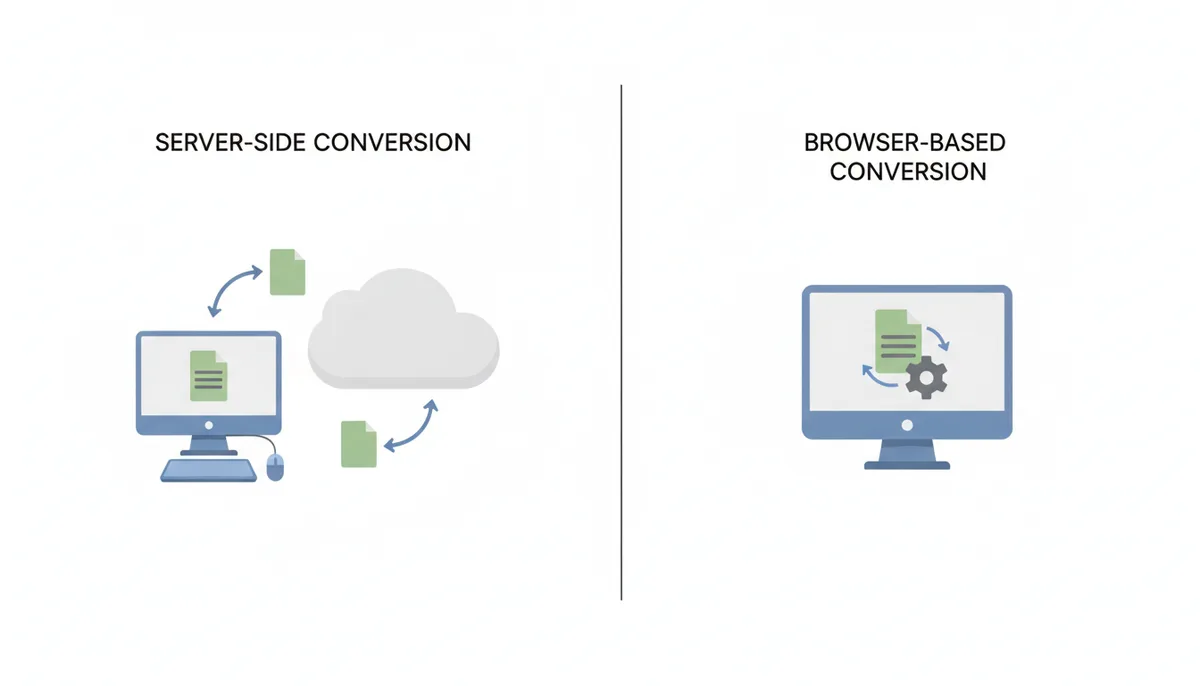
The privacy implications are stark. With server-side conversion, you're trusting the service provider to handle your data responsibly, delete it when promised, and maintain adequate security. With browser-based conversion, there's no trust required—the service provider never sees your file because it never leaves your machine.
How Does Your Browser Access a File Without Uploading It?
When you click "Choose File" on a website, something specific happens that's worth understanding. The HTML5 File API, introduced around 2008 and now supported by all modern browsers, gives web pages controlled access to files you explicitly select.
Here's the key distinction: when you select a file through a file input or drag one onto a web page, you're not giving the website your file. You're giving it permission to read that file. The browser creates what programmers call a "reference"—think of it as a temporary pass that lets the JavaScript on that page, and only that page, access the file's contents.
The JavaScript can then read your file into memory as a `Blob` (Binary Large Object) or an `ArrayBuffer`—essentially loading the raw bytes of your file into the browser's working memory. This happens entirely on your computer. But here's the critical point: once JavaScript has access to these bytes, it can do anything with them that the code instructs—including sending them to a remote server.
The browser's permission model protects you from unauthorized access, not authorized misuse. A website cannot scan your hard drive, access files you haven't selected, or read files from previous visits. Each file selection is a fresh, explicit grant of permission that expires when you leave or refresh the page. But that permission is complete—the JavaScript now has full read access to your selected file. Whether it processes that file locally or uploads it depends entirely on what the website's code actually does, not on what it claims to do.
What's Inside an MP4 File?
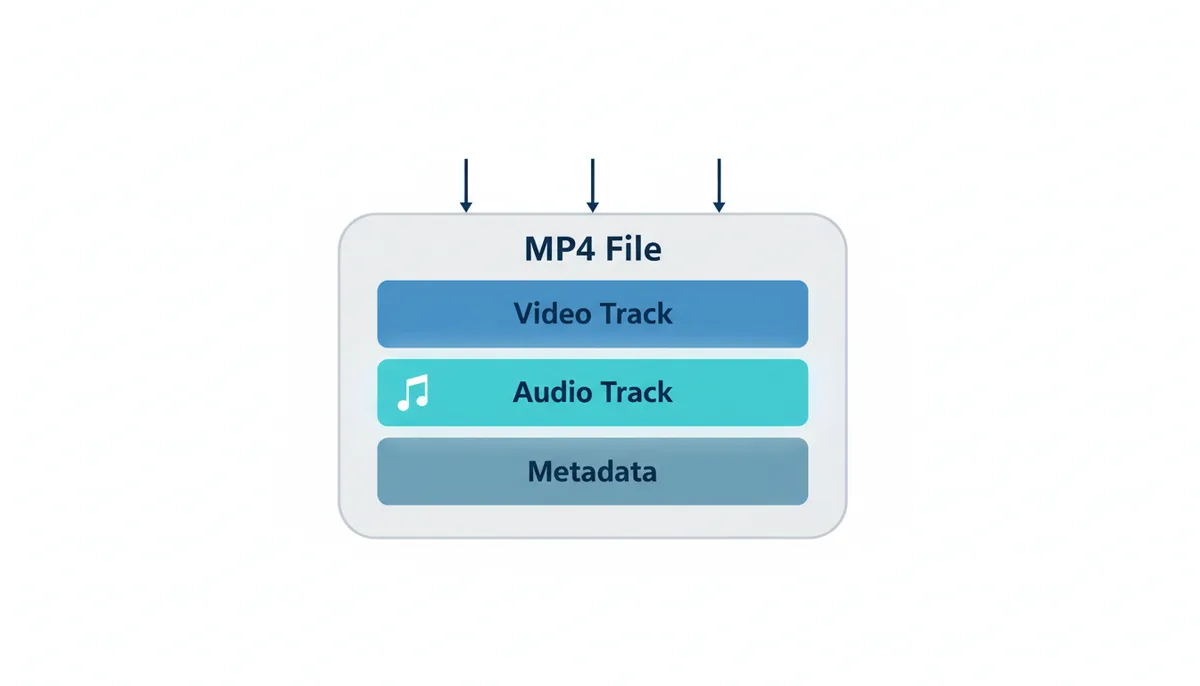
An MP4 file isn't actually "a video" in the way you might think. It's a container—more like a sophisticated filing cabinet that holds multiple streams of data. Understanding this structure helps explain why converting "MP4 to MP3" is more accurately described as "extracting and converting the audio track from an MP4 container."
Inside a typical MP4 file, you'll find several components. The video track contains frames of visual data, usually compressed with a codec like H.264 (AVC) or the newer H.265 (HEVC). The audio track—the part we care about for conversion—typically uses AAC (Advanced Audio Coding), though it might be MP3, AC-3, or another format. There's also metadata: timestamps, chapter markers, subtitles, and sometimes multiple audio tracks for different languages.
When you "convert" MP4 to MP3, you're really performing three distinct operations. First, you open the MP4 container and identify the audio stream. Second, you decode that audio from its current format (usually AAC) into raw, uncompressed audio data. Third, you encode that raw audio into the MP3 format. This isn't a simple file extension change—it's a complete reprocessing of the audio data.
The quality implications matter here. If the original audio in the MP4 is already compressed (as AAC always is), you're performing a second generation of compression when encoding to MP3. This is why choosing your output bitrate carefully matters—you can't add quality that isn't there, but you can certainly lose more.
What is WebAssembly and Why Is It the Key to In-Browser Performance?
JavaScript made the modern web possible. It handles your clicks, updates the page dynamically, and communicates with servers. But ask JavaScript to decode video frames or process audio samples by the millions, and you'll be waiting a while. This performance gap is exactly what WebAssembly (often shortened to Wasm) was designed to bridge.
WebAssembly is a low-level programming language that runs in your browser alongside JavaScript. Unlike JavaScript, which is text that needs to be interpreted, WebAssembly is a binary format—closer to the machine code your processor actually understands. This gives it near-native performance, meaning code can run almost as fast in your browser as it would as a desktop application.
The genius of WebAssembly is that it doesn't replace JavaScript—it complements it. Your web page's user interface, event handling, and general logic remain in JavaScript. But when you need to perform computation-heavy tasks like decompressing video frames, decoding audio samples, or applying complex algorithms, JavaScript can hand off that work to a WebAssembly module that executes it at blazing speed.
For audio and video processing, this speed difference isn't marginal—it's transformative. Operations that would take minutes in pure JavaScript complete in seconds with WebAssembly. This is what makes professional-grade media conversion possible in a web browser.
How Can a Professional Tool like FFmpeg Run in a Browser?
FFmpeg is the Swiss Army knife of media processing. This open-source software library, written in C, powers countless desktop applications, streaming services, and media workflows worldwide. It can read practically any media format ever created and convert between them with precise control over every parameter. Getting this powerhouse to run in a web browser seemed impossible until WebAssembly came along.
The magic happens through a tool called Emscripten. This sophisticated compiler takes C and C++ source code and compiles it not to Windows executables or Mac applications, but to WebAssembly modules. When developers compile FFmpeg with Emscripten, they get ffmpeg.wasm—a file that contains all of FFmpeg's media processing capabilities in a format web browsers can execute.
But it's not quite as simple as clicking "compile." FFmpeg was designed to run on operating systems with file systems, command lines, and direct hardware access. Emscripten provides a virtualization layer that translates these system calls into operations a browser can handle. When FFmpeg tries to "read a file," Emscripten intercepts this and reads from the browser's memory instead. When it tries to "write a file," that output goes to a virtual file system in RAM.
The resulting ffmpeg.wasm file is typically several megabytes—substantial for a web resource, but a small price for gaining desktop-quality media processing in the browser. When you visit a page that uses browser-based conversion, one of the first things it does is download this WebAssembly module and prepare it for use.
What Are the Exact Steps for Converting the Audio?
The conversion process breaks down into distinct phases that mirror how desktop software would handle the same task. Understanding these steps demystifies what happens between clicking "convert" and downloading your MP3.
First comes demuxing—dismantling the MP4 container to access its contents. FFmpeg reads the file structure, identifies each stream (video, audio, subtitles), and extracts just the audio stream. At this point, you have compressed audio data in its original format, typically AAC.
Next is decoding. The AAC audio data consists of compressed frequency information that needs to be expanded back into raw waveform data—what audio engineers call PCM (Pulse Code Modulation). This is uncompressed audio, the same format used on audio CDs. For a typical song, this decoded data might be 10 times larger than the compressed version, which is why we rarely work with uncompressed audio directly.
The raw PCM audio now enters the encoding phase. The LAME encoder—widely regarded as the best MP3 encoder—takes over. LAME analyzes the audio and applies psychoacoustic models to determine what information human ears won't miss. It removes this "unnecessary" data while preserving the parts that matter most for perceived quality. You control this quality-versus-size tradeoff by setting the bitrate.
Finally, the encoder writes the compressed audio data into a properly formatted MP3 file, complete with headers and optionally metadata tags. This final file exists as a Blob in your browser's memory, ready to be saved to your disk. The entire process happened without any data leaving your computer.
How Does This Intensive Process Avoid Freezing Your Browser Tab?
You've probably experienced a frozen web page—clicking does nothing, scrolling stops working, and the browser might even offer to kill the unresponsive tab. This happens when JavaScript code monopolizes the browser's main thread, which handles all user interaction. Media conversion involves processing millions of audio samples, which could easily lock up your browser for minutes.
Web Workers solve this problem elegantly. A Web Worker is JavaScript code that runs in a completely separate thread from the main browser interface. Think of it as hiring an assistant who works in another room—they can perform lengthy tasks without blocking your ability to continue working.
When you start a conversion, the main thread creates a Web Worker and hands it two things: the file data and the conversion parameters. The worker loads the FFmpeg WebAssembly module, feeds it your file, and manages the entire conversion process. During this time, your browser tab remains completely responsive. You can switch tabs, scroll the page, or even start preparing another file.
The worker communicates progress back to the main thread through messages—"Started processing," "25% complete," "Conversion finished." When the conversion completes, the worker sends the final MP3 data back to the main thread, which can then offer it as a download. This architecture ensures that no matter how large your file or how long the conversion takes, your browser never freezes.
How Do You Control the Final Audio Quality and File Size?
The primary lever you have for controlling your MP3 output is bitrate, measured in kilobits per second (kbps). This number directly determines how much data is allocated to each second of audio. At 128 kbps, each second of audio gets 128 kilobits (16 kilobytes) of data. At 320 kbps, it gets 2.5 times as much. More data means the encoder can preserve more detail, resulting in better quality but larger files.
You'll often see two bitrate modes: CBR (Constant Bitrate) and VBR (Variable Bitrate). CBR is straightforward—if you choose 192 kbps, every second gets exactly 192 kilobits. This makes file sizes predictable but isn't the most efficient use of space. A moment of silence gets the same data allowance as a complex orchestral crescendo.
VBR is smarter. It analyzes the audio and allocates more data to complex sections while using less for simple parts. A VBR file might average 192 kbps but use 320 kbps for intricate musical passages and drop to 96 kbps for quiet moments. This typically delivers better quality than CBR at the same average bitrate, though file sizes become less predictable.
Sample rate, measured in kilohertz (kHz), determines how many times per second the audio waveform is measured. CD audio uses 44.1 kHz, capturing frequencies up to 22.05 kHz—just beyond the typical human hearing range. While you might see options for 48 kHz or even 96 kHz, these make little difference for MP3 output since the format's compression already limits high-frequency detail.
| Bitrate (kbps) | Mode | Typical Use Case | Quality vs. Size Trade-off |
|---|---|---|---|
| 128 | CBR | Speech podcasts, audiobooks | Acceptable for speech; music lacks detail |
| 192 | CBR | General music listening | Good quality for most listeners; some compression artifacts |
| 256 | CBR | High-quality music collection | Excellent quality; larger files but worth it for music |
| 320 | CBR | Archival, critical listening | Maximum MP3 quality; large files |
| V0 | VBR | Best quality-to-size ratio | Near-320 quality with 25% smaller files |
What Are the Limitations of Browser-Based Conversion?
The biggest constraint is your own computer's performance. When you use a server-based converter, you're borrowing someone else's powerful hardware. With browser-based conversion, you're using your own CPU. On a modern laptop, converting a 5-minute video might take 30 seconds. On an older machine, the same task could take several minutes. There's no way around this—the processing has to happen somewhere, and you've chosen to keep it local.
Memory limitations pose another challenge. Your browser needs to load the entire file into RAM, process it, and hold the output in RAM before saving. For a typical music video, this isn't a problem. But for a two-hour movie, you might be loading several gigabytes into browser memory. Browsers aren't designed for this scale of data manipulation. Chrome might limit a single tab to 4GB of memory. Firefox and Safari have their own limits. Exceed these, and the tab crashes, losing all progress.
Browser differences matter more than you might expect. While WebAssembly is a standard, each browser implements it differently. Chrome's V8 engine, Firefox's SpiderMonkey, and Safari's JavaScriptCore all have their own optimization strategies. A conversion that works smoothly in Chrome might be 20% slower in Safari, or occasionally hit edge cases that cause errors in Firefox. These aren't usually deal-breakers, but they mean the experience isn't perfectly uniform.
The download process itself can be awkward for very large files. When the conversion finishes, the browser needs to transfer the result from memory to your disk. For files over a few hundred megabytes, this can cause the browser to become temporarily unresponsive, or the download might fail with vague error messages. These are browser limitations, not flaws in the conversion process itself.
Which Type of Converter is Right for You?
Choosing between browser-based, server-based, and desktop converters comes down to your specific needs and constraints. Each approach makes different trade-offs.
Browser-based converters excel when privacy is paramount. If you're converting sensitive content—personal recordings, confidential presentations, or copyrighted material you have rights to use—keeping the data on your machine removes entire categories of risk. They're also unbeatable for convenience. No software to install, no accounts to create, no ads to navigate. The trade-off is performance that depends entirely on your hardware and practical limits on file sizes.
Server-based converters make sense when you need to convert truly massive files or your computer isn't up to the task. Some services also offer batch processing, format options beyond what WebAssembly modules support, or integration with cloud storage services. You're trading privacy and some control for convenience and expanded capabilities.
Desktop software remains king for power users. Applications like Handbrake, Adobe Audition, or the command-line FFmpeg give you absolute control over every parameter, support for batch operations, and no file size limits beyond your hard drive capacity. The cost is the initial setup and learning curve.
| Attribute | Browser-Based Converter | Server-Based Converter | Desktop Software |
|---|---|---|---|
| Privacy & Security | Excellent - files never leave your device | Depends on provider's policies and security | Excellent - fully offline capability |
| Speed | Limited by your CPU | Often faster with server hardware | Limited by your CPU but optimized |
| Convenience | Very high - nothing to install | High - but requires uploads/downloads | Low - requires installation and learning |
| File Size Limits | Limited by browser memory (typically 1-2GB) | Often generous or unlimited | Limited only by disk space |
| Required Installation | None | None | Yes |
| Offline Access | No - need internet to load the tool | No - requires internet throughout | Yes - works completely offline |
For most users converting typical video files—YouTube downloads, phone recordings, video clips—browser-based conversion hits the sweet spot. Tools like ExtractSound load quickly, process files privately, and produce quality identical to desktop software. The convenience of not installing anything while maintaining complete privacy over your files makes this approach compelling for everyday use.
What Actually Happens When the Browser Runs Out of Memory?
Memory exhaustion during browser-based conversion isn't a graceful failure—it's often sudden and confusing. Understanding what happens can save you from losing work and help you recognize the warning signs.
When you load a 500MB video file for conversion, the browser doesn't just need 500MB of RAM. First, the File API reads the file into an ArrayBuffer, consuming memory equal to the file size. Then FFmpeg's WebAssembly module initializes its own memory space—typically starting at 256MB and growing as needed. During demuxing, the browser creates additional buffers for the separated audio stream. The decoder then generates uncompressed PCM audio, which can be 10 times larger than the compressed input. A 50MB compressed audio track becomes 500MB of raw audio data in memory.
Modern browsers try to manage this gracefully, but they have hard limits. Chrome typically restricts a single tab to 4GB on 64-bit systems. As you approach this limit, you'll notice degraded performance first. The conversion slows dramatically as the browser starts using disk-based virtual memory. The progress indicator might stall for minutes at a time.
Then comes the crash. In Chrome, you'll see "Aw, Snap! Something went wrong." Firefox shows "Gah. Your tab just crashed." Safari simply reloads the page. There's no recovery—all data in that tab's memory is gone. The browser doesn't save partial conversions or offer to resume.
Smart implementations monitor memory usage and warn users before hitting limits. They might check available memory before starting, estimate the required space based on file size and duration, or implement chunked processing for larger files. But many converters simply let you proceed until the browser kills the tab.
You can monitor memory usage yourself through browser developer tools. In Chrome, open Task Manager (Shift+Esc) to see per-tab memory consumption. If you see a tab steadily climbing past 2GB during conversion, you're entering dangerous territory. The practical limit for reliable conversion is about half your system's RAM or 2GB, whichever is smaller.
How Do Browser Converters Handle Corrupted or Unusual Files?
Not every MP4 file is created equal. Files can be corrupted, use non-standard encoding, or contain exotic formats that challenge even professional software. How browser-based converters handle these edge cases reveals a lot about their robustness.
Corrupted files pose the first challenge. A typical corruption might involve damaged headers, missing index atoms, or truncated data streams. Desktop FFmpeg can often recover partial data from damaged files using specialized flags and recovery modes. The WebAssembly version has the same capabilities in theory, but browser constraints complicate recovery. When FFmpeg encounters corruption, it attempts to seek past the damaged section. In a browser, this seeking happens in memory, potentially triggering multiple reads of the entire file as FFmpeg tries different recovery strategies.
Variable frame rate (VFR) video presents another complication. Most videos use constant frame rates—every frame displays for exactly 1/30th or 1/24th of a second. But screen recordings, webcam captures, and some phone videos use VFR, where frame duration varies. This complexity in the video track can confuse the audio extraction process, leading to sync issues or incorrect duration detection. The converter might report a 10-minute video as 15 minutes, or produce audio that gradually drifts out of sync.
Exotic codecs create compatibility puzzles. While the MP4 container specification is standardized, it can hold almost any type of compressed data. Your file might contain Opus audio instead of AAC, or use the ancient MP2 format. The WebAssembly build of FFmpeg typically includes only common codecs to keep file size manageable. Desktop FFmpeg might support 200+ audio formats; the browser version might handle 20.
Multiple audio tracks introduce user interface challenges. A movie file might contain English, Spanish, and French audio tracks, plus a commentary track. Desktop software lets you select which to extract. Browser converters must either default to the first track (potentially wrong), extract all tracks (confusing), or implement track selection UI (complex). Many simply process the first track and ignore the rest.
The failure modes vary widely. A well-implemented converter catches exceptions, shows meaningful error messages, and fails cleanly. Others might silently produce empty files, hang indefinitely, or crash the tab. The best implementations validate files before processing, checking headers and codec support upfront rather than failing midway through a long conversion.
What's the Real-World Speed Difference Between Conversion Methods?
Marketing claims about conversion speed are meaningless without context. "Lightning fast" could mean anything. Here's what actually affects conversion speed and the general patterns you can expect.
The primary factor is your CPU's single-thread performance. While modern CPUs have many cores, browser-based conversion typically uses just one or two. A recent high-end processor will significantly outperform a several-year-old budget chip—potentially by a factor of 3-5x for the same file. This isn't inefficiency—it's the computational reality of decoding millions of video frames and audio samples.
Server-based converters often seem faster, but the comparison is complex. A server might have powerful processors converting multiple files simultaneously. But your file must first upload—at typical home internet speeds, a 500MB file might take several minutes just to upload. The server processes it quickly, then you download the result. The same file converting locally might take a few minutes of processing but no transfer time, making the total time comparable or even faster for local conversion.
File characteristics dramatically impact speed. Resolution barely matters for audio extraction—a 4K video and 480p video with the same audio track take similar time. What matters is duration and audio complexity. A 10-minute file takes roughly twice as long as a 5-minute file. Videos with simple audio (like speaking) may convert somewhat faster than complex music due to reduced encoder analysis overhead.
Browser implementations vary in performance. Different JavaScript engines optimize WebAssembly execution differently, and these optimizations change with each browser version. Rather than specific percentages, expect variation—the same conversion might run notably faster in one browser than another, and these relationships shift as browsers update.
These timing estimates assume typical conditions and should be treated as rough illustrations:
| File Type | Modern Desktop (2023+) | Mid-range Laptop (2019) | Budget/Older (2016) | Server-Based (with transfer) |
|---|---|---|---|---|
| 3-min music video (150MB) | Under 30 seconds | 30 seconds - 1 minute | 1-2 minutes | 2-4 minutes total |
| 10-min podcast (80MB) | Under 1 minute | 1-2 minutes | 2-3 minutes | 1-3 minutes total |
| 30-min presentation (400MB) | 2-3 minutes | 3-5 minutes | 6-10 minutes | 5-8 minutes total |
| 90-min movie (2GB) | 5-10 minutes | 10-20 minutes | 20-40 minutes | 15-30 minutes total |
Note: These ranges are illustrative based on typical hardware classes and average network conditions. Actual times vary widely based on specific CPU models, memory speed, browser implementation, network bandwidth, server load, and encoding settings used.
How Can You Verify a Converter Really Processes Files Locally?
Trust but verify. While many converters claim to process files locally, some are deceptive, and others are hybrid solutions that upload in certain cases. Here's how to confirm what's actually happening.
The most definitive test uses your browser's Developer Tools. Open them before selecting a file (F12 in most browsers), switch to the Network tab, and clear any existing activity. Now perform a conversion. A truly local converter shows minimal network activity—just the initial page resources, maybe some analytics, and possibly ads. You should see no POST requests with large payloads, no upload progress, no data streams to external servers.
Watch for deceptive patterns. Some sites claim "no upload" but send files to their servers for "processing optimization" or "quality analysis." Others process small files locally but silently switch to server processing for larger files. The Network tab exposes these behaviors—look for any request where the size matches your input file.
File size limits provide another clue. True browser-based converters have strict limits imposed by browser memory constraints—typically 1-2GB maximum. If a service happily accepts your 5GB file, it's almost certainly uploading it. Browser tabs simply cannot handle files that large in memory.
Performance patterns reveal the truth too. Local processing speed depends entirely on your CPU—the same file should take the same time on repeated conversions. Server-based processing shows variable speeds based on server load and network conditions. If conversion sometimes takes 30 seconds and sometimes 3 minutes for identical files, you're likely using a server-based service.
Advanced users can monitor system resources. During local conversion, your CPU usage should spike and RAM consumption should increase by at least the size of your file. Use Task Manager on Windows, Activity Monitor on Mac, or `top` on Linux. No CPU spike means processing isn't happening on your machine.
Remember the limits of verification: you're checking the current behavior of the current code. The site could update tomorrow with different behavior. Third-party scripts, compromised CDNs, or malicious browser extensions could intercept data even from legitimate local processors. If the Network tab shows no file-sized uploads during your session, then your file didn't leave your machine during that specific conversion. But this verification is session-specific—you're trusting that the code you receive each time you visit behaves the same way.
Frequently Asked Questions
Is browser-based conversion truly 100% private?
Yes, when the tool genuinely operates client-side, your privacy is absolute. The file data never enters any network request. You can verify this yourself using your browser's developer tools—open the Network tab and watch during conversion. You'll see the initial page load and maybe some analytics, but no upload of your file data. The processing happens entirely in your computer's memory, making it technically impossible for the service provider to access your files.
Does this use a lot of my computer's CPU and battery?
Yes, browser-based conversion is computationally intensive. Your CPU usage will spike to near 100% during active conversion, and on a laptop, you'll notice increased fan activity and faster battery drain. A 10-minute video might use as much battery as an hour of normal web browsing. This is the direct trade-off for keeping the processing local—you're using your electricity and computing power rather than someone else's.
Why don't all online converters work this way?
Building a robust browser-based converter requires significant technical expertise. Developers must understand WebAssembly, manage complex memory operations, handle edge cases across different browsers, and create a smooth user experience despite the constraints. Server-based processing is conceptually simpler—upload, process with standard tools, download. It also allows providers to use powerful server hardware, handle any file size, and more easily monetize through ads or subscriptions. For many services, these benefits outweigh the privacy advantages of client-side processing.
Can I convert a 2-hour movie this way?
Technically possible but practically challenging. A 2-hour movie file might be 2-4GB, which needs to fit in your browser's memory alongside the converted output. Most browsers limit individual tabs to 4GB of RAM, and the conversion process needs working space beyond just the file sizes. You're more likely to encounter crashes or errors with files over 1GB. For reliable conversion of feature-length content, desktop software remains the better choice.
What happens if I close my browser tab mid-conversion?
The conversion stops immediately and all progress is lost. Everything—the loaded file, the partially converted data, the WebAssembly module state—exists only in that tab's memory. Close the tab, and it's like pulling the power cord on a desktop application. There's no way to resume; you'll need to start over. This is why browser-based converters work best for smaller files where re-starting isn't a significant inconvenience.
Is the audio quality as good as a desktop application?
Yes, the output quality can be identical. Browser-based converters use the same professional-grade encoding libraries as desktop software. The LAME encoder compiled to WebAssembly produces bit-for-bit identical MP3 files to its desktop counterpart when given the same settings. The only quality difference comes from the settings you choose, not from any limitation of running in a browser. Whether you're using a browser tool or Adobe Audition, encoding 256 kbps MP3 with LAME produces the same result.
Sources
- MDN Web Docs — Technical claims about the functionality of the File API, Web Workers API, and the implementation of WebAssembly in modern browsers.
- WebAssembly.org — The official definition, specifications, and performance goals of WebAssembly as a compilation target for the web.
- FFmpeg — Information on its role as the core multimedia framework, its libraries (libavformat, libavcodec), and its capabilities for demuxing and decoding media files.
- Emscripten — Claims about its function as a compiler toolchain for porting C/C++ applications like FFmpeg to WebAssembly.
- The LAME Project — Statements regarding LAME as a high-quality, open-source MP3 encoder widely used as a standard for quality.
- ISO (International Organization for Standardization) — The ultimate authority for the specifications of the MP4 (ISO/IEC 14496-14) and MP3 (ISO/IEC 11172-3) file formats.