What Happens to Metadata When You Convert MP4 to MP3
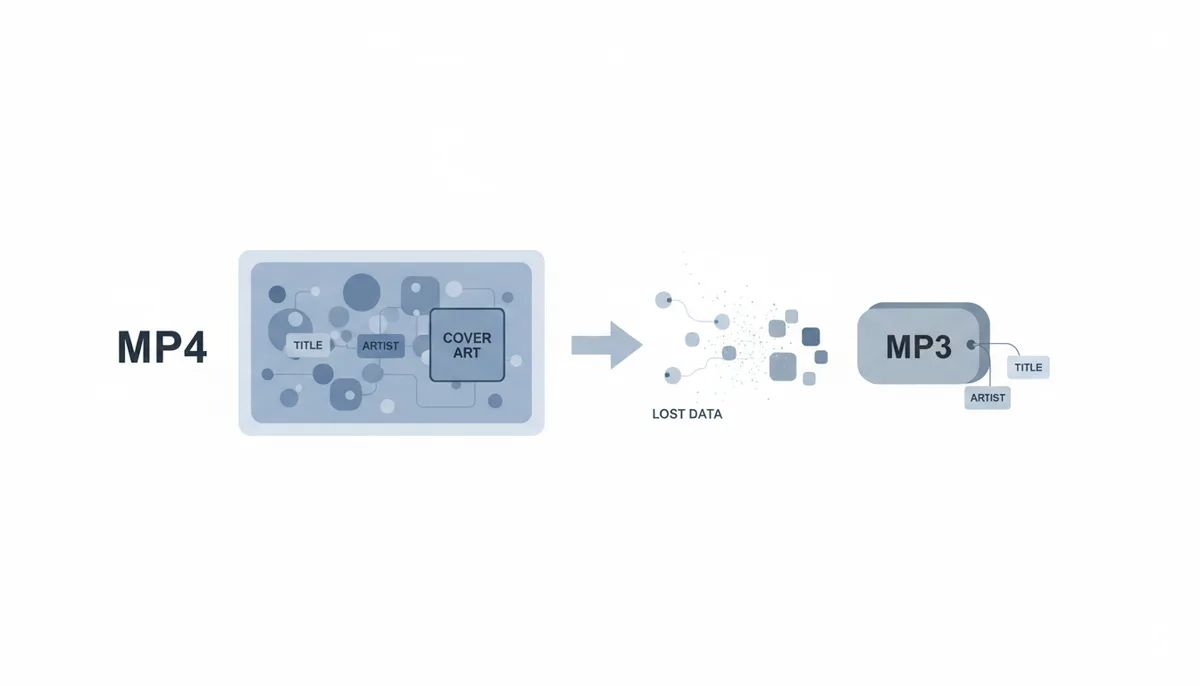
Why Doesn't Metadata Just Copy Over Automatically?
You’ve just converted an MP4 to MP3, and now your music player shows "Unknown Artist" and "Unknown Album." What happened? The answer lies in how these two formats store information.
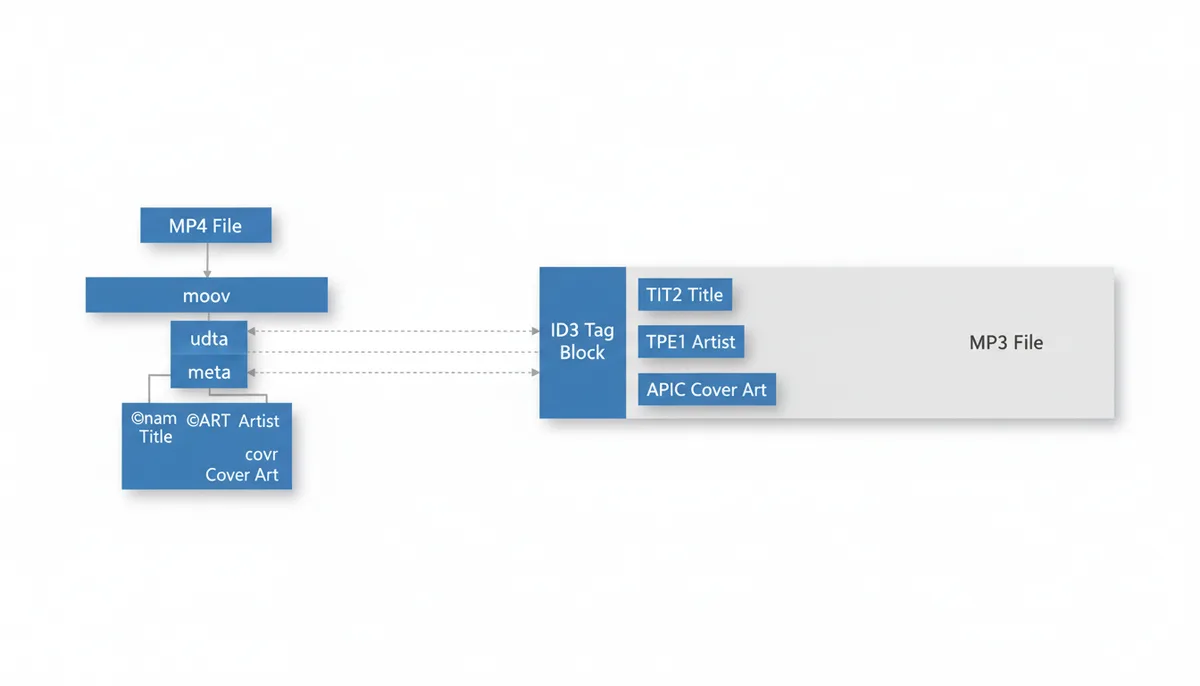
MP4 and MP3 are fundamentally different "container" formats. An MP4 file is a complex structure that can hold video, audio, and metadata all in one. It uses a system of "atoms" (or "boxes") defined by the ISO/IEC 14496-12 standard. Metadata in an MP4 is stored in atoms like `©nam` (title), `©ART` (artist), and `covr` (cover art).
An MP3, on the other hand, is a much simpler format. It stores audio data and metadata in a separate block called an ID3 tag, which contains "frames" like `TIT2` (title), `TPE1` (artist), and `APIC` (cover art).
Most basic converters focus only on extracting the audio stream from the MP4 and converting it to MP3. They don’t bother with the metadata because the two formats store it in completely different ways. The result? Your carefully tagged MP4 becomes a metadata-less MP3.
Anatomy of a Tag: How MP4 and MP3 Store Data Differently
To understand why metadata gets lost, you need to see how these formats organize information.
An MP4 file is a hierarchical structure of atoms. The `moov` atom contains the `udta` (user data) atom, which in turn contains the `meta` atom where metadata is stored. Inside the `meta` atom, you’ll find tags like `©nam` (title), `©ART` (artist), and `©alb` (album).
An MP3 file, by contrast, has a single ID3 tag block at the beginning or end of the file. This block contains frames like `TIT2` (title), `TPE1` (artist), and `APIC` (cover art). The conversion process requires mapping each MP4 atom to its equivalent ID3 frame, which isn’t a straightforward copy-paste operation.
Which Specific Metadata Is Most at Risk of Being Lost?
Not all metadata is equally likely to disappear. Here’s what you’ll lose most often:
- Title, Artist, and Album – These are the most noticeable losses because they’re the first things you see in a music player.
- Cover Art – This is especially tricky because it’s a binary object (an image file) embedded in the MP4, not just text.
- Genre, Year, Track Number, Composer, Comments, and Lyrics – These are secondary but still important for organizing your music library.
- Video-Specific Metadata – Things like chapter markers or subtitles have no direct equivalent in an MP3, so they’re always lost.
| Information Type | Common MP4 Tag | Equivalent ID3v2.4 Frame | Preservation Likelihood (Typical Converter) |
|---|---|---|---|
| Title | `©nam` | `TIT2` | Low |
| Artist | `©ART` | `TPE1` | Low |
| Album | `©alb` | `TALB` | Low |
| Cover Art | `covr` | `APIC` | Very Low |
| Genre | `©gen` | `TCON` | Low |
Method 1: Using an Intelligent Converter That Maps Metadata
Some advanced converters are programmed to read MP4 atoms and write the corresponding ID3 frames during conversion. Here's how these tools typically work:
- Upload your MP4 file to the converter
- The tool automatically detects metadata in the MP4 atoms
- You can review and edit the metadata before conversion (if the tool supports this feature)
- The converter creates an MP3 with the metadata intact
When choosing a converter, look for these features:
- Explicit mention of metadata preservation in the tool's documentation
- An interface that shows metadata before conversion
- Options to edit metadata during conversion
- Support for ID3v2.4 tags (the most modern standard)
This method is convenient, but it's not perfect. Some converters may miss certain tags, especially if they're non-standard or custom. Always double-check the output.
Method 2: The Manual Two-Step with a Tag Editor
If you need 100% accuracy, the most reliable method is to convert the MP4 to MP3 first, then manually copy the metadata from the original file. Here’s how to do it with Mp3tag:
- Convert your MP4 to MP3 using any converter (metadata will be lost).
- Open Mp3tag and load both the original MP4 and the new MP3.
- Select the MP4 file, then go to Extended Tags to view all metadata.
- Copy the metadata fields (title, artist, album, etc.) to the clipboard.
- Select the MP3 file, then paste the metadata into the corresponding fields.
- Save the MP3 file.
This method is foolproof but time-consuming for large libraries. For batch processing, consider using MusicBrainz Picard or Kid3.
Method 3: The Power User's Command-Line Solution with FFmpeg
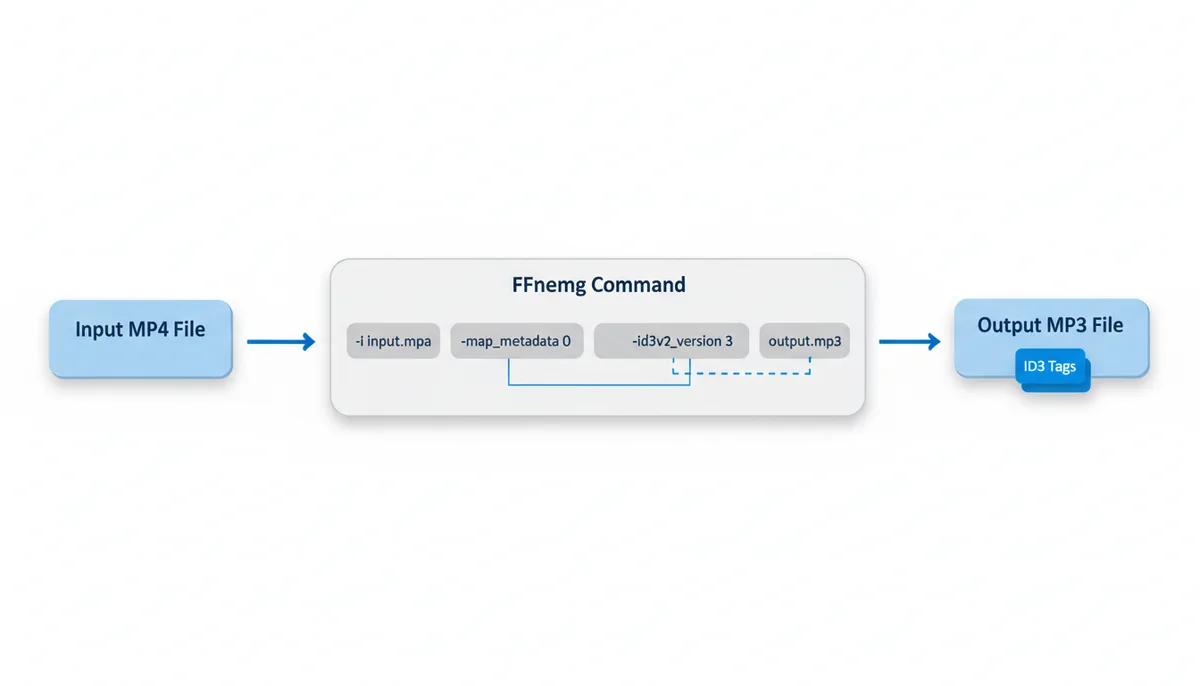
For developers or users who need to automate metadata preservation, FFmpeg is the most powerful tool. Here’s the core command:
ffmpeg -i input.mp4 -map_metadata 0 -id3v2_version 3 output.mp3
This command does the following:
- `-i input.mp4` – Specifies the input file.
- `-map_metadata 0` – Copies the metadata from the first input stream (the MP4).
- `-id3v2_version 3` – Forces the use of ID3v2.3 (a widely compatible version).
- `output.mp3` – Specifies the output file.
For more control, you can use additional options like `-map_metadata:s:v` to handle video streams separately. FFmpeg can also extract cover art and embed it in the MP3.
Solving the Cover Art Problem
Cover art is the most common metadata issue because it's stored as a binary object, not just text. Here's how to handle it properly:
Option 1: Manual extraction and embedding (most reliable)
- Extract the cover art from the MP4 using FFmpeg:
ffmpeg -i input.mp4 -an -vn -c copy cover.jpg
- Embed the image into the MP3 using Mp3tag or another tag editor
Option 2: Automatic conversion with proper stream mapping
For cases where the cover art is stored as an attached picture in the MP4:
- Convert the audio while preserving metadata:
ffmpeg -i input.mp4 -map 0:a -map_metadata 0 -id3v2_version 4 -c:a libmp3lame -q:a 2 output.mp3
- If the cover art isn't automatically preserved, extract it separately:
ffmpeg -i input.mp4 -i cover.jpg -map 0:a -map 1 -metadata:s:v title="Album cover" -metadata:s:v comment="Cover (front)" -id3v2_version 4 -c:a libmp3lame -q:a 2 output.mp3
For most users, the manual approach with Mp3tag is the safest option, as it gives you complete control over which image is used and how it's embedded.
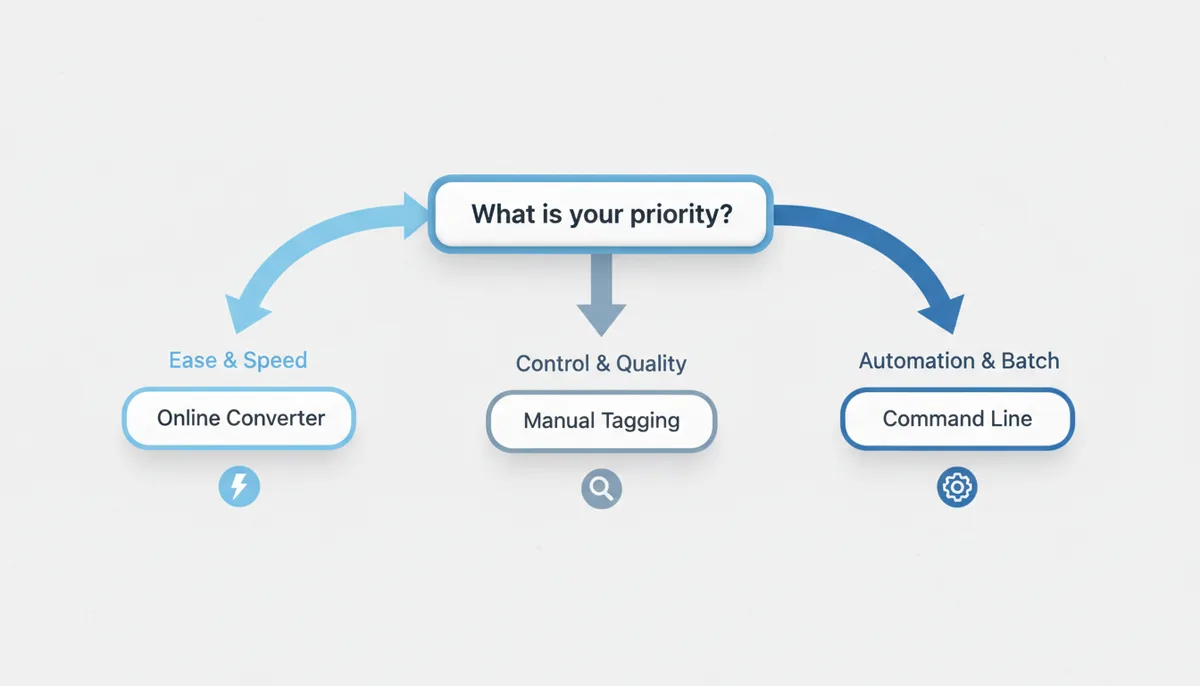
How to Choose the Right Metadata Workflow for You
Your best method depends on your needs:
- Casual Users – Use an intelligent online converter like ExtractSound. It’s fast and easy, even if it doesn’t preserve 100% of the metadata.
- Music Collectors – Use the manual two-step method with Mp3tag or MusicBrainz Picard for the best balance of control and ease of use.
- Developers or Batch Processors – Use FFmpeg for automation and scripting. It’s the most powerful but requires technical knowledge.
Beyond MP3: How Metadata Works in Other Formats (M4A, FLAC)
If you’re not tied to MP3, converting to M4A (an audio-only MP4) is the simplest way to preserve metadata. Since M4A uses the same container format as MP4, all metadata transfers perfectly.
FLAC uses a different system called "Vorbis comments," which presents a similar mapping challenge. However, tools like FFmpeg and Mp3tag can handle the conversion from MP4 tags to Vorbis comments.
| Target Format | Metadata Standard | Conversion Complexity from MP4 |
|---|---|---|
| MP3 | ID3 tags | High |
| M4A | MP4 tags | Low |
| FLAC | Vorbis comments | High |
The Hidden Cost of Metadata Loss: How It Affects Your Music Library
Metadata loss isn't just an inconvenience—it can break your entire music library. Imagine spending hours organizing your collection, only to have your player show "Unknown Artist" for every track. Here's what actually happens when metadata disappears:
1. Playlist fragmentation: Most music players sort tracks by metadata. Without artist or album tags, your carefully curated playlists become unusable. Services like Spotify and Apple Music rely on metadata to match files to their databases—if the tags are missing, your local files won't sync properly.
2. Smart playlists fail: If you use smart playlists (e.g., "All songs by Artist X"), they'll skip files with missing metadata. This is especially problematic for large libraries where manual fixes aren't practical.
3. Backup restoration headaches: When restoring backups, players often sort files alphabetically by filename. Without metadata, you'll see "Track 1.mp3", "Track 2.mp3" instead of proper album organization.
4. Smart home device issues: Voice assistants like Alexa and Google Home use metadata to identify tracks. If your metadata is gone, "Play my favorite song" becomes impossible.
While metadata loss can cause significant organizational problems, the legal implications are generally limited to personal use cases. Professional music licensing systems typically use digital fingerprinting rather than relying solely on metadata.
When Metadata Conversion Goes Wrong: Common Failure Modes
Even when using tools that claim to preserve metadata, things can go wrong. Here are the most common failure scenarios and why they happen:
1. Character encoding mismatches
MP4s typically use UTF-8 encoding for metadata, while some MP3 converters default to legacy encodings like ISO-8859-1. This causes: - Special characters (é, ñ, ü) to become garbled - Non-Latin scripts (Chinese, Arabic) to display as question marks - Emojis and symbols to disappear entirely Solution: Always verify your converter supports full Unicode (UTF-8) metadata handling.
2. Frame version conflicts
ID3v2.3 and ID3v2.4 handle metadata differently. Some converters: - Create duplicate frames (e.g., both `TIT2` and `TT2` for title) - Omit important frames in newer versions (like `TIPL` for performers) - Use incompatible frame sizes Workaround: Use `-id3v2_version 4` in FFmpeg to force modern ID3v2.4 tags.
3. Cover art corruption
Common issues include: - JPEG artifacts when converting PNG cover art - Incorrect MIME types (image/jpeg instead of image/png) - Missing picture type flags (e.g., front cover vs. back cover) Test solution: Use ExifTool to verify cover art integrity: `exiftool -ImageType -MIMEType -PictureType output.mp3`
4. Multi-value field truncation
Some metadata fields can contain multiple values (e.g., multiple artists). Converters often: - Keep only the first value - Combine values with incorrect separators - Drop all but the primary value Fix: Use Mp3tag's "Extended Tags" view to check for truncated fields.
Advanced Metadata Mapping: How to Handle Complex Cases
For professional workflows, you need to understand how metadata mapping actually works under the hood. Here's how to handle complex scenarios:
1. Video-specific metadata conversion
When converting video files, you'll encounter metadata that has no direct MP3 equivalent. The mapping rules are:
| MP4 Metadata | MP3 Equivalent | Handling Strategy |
|---|---|---|
| Chapter markers (`chpl`) | None (MP3 doesn't support chapters) | Extract as separate text file before conversion |
| Subtitles (`txt`) | None (MP3 doesn't support subtitles) | Convert to lyrics (`USLT` frame) if possible |
| Video resolution (`wxxx`, `hxxx`) | None (irrelevant for audio) | Discard automatically |
2. Custom metadata preservation
For custom metadata (like podcast episode numbers or custom genre tags), you need to:
- Identify the custom atom in the MP4 (e.g., `----` for user-defined atoms)
- Map it to a generic ID3 frame (e.g., `TXXX` for user-defined text)
- Preserve the original key-value structure
Example FFmpeg command for custom metadata: `ffmpeg -i input.mp4 -map_metadata 0 -metadata:s:0 TXXX="Podcast:123" output.mp3`
3. Batch processing with metadata validation
For large collections, use this validation script:
#!/bin/bash
for file in *.mp3; do
  artist=$(ffprobe -v error -show_entries format_tags=artist -of default=noprint_wrappers=1:nokey=1 "$file")
  if [ -z "$artist" ]; then
    echo "Missing artist in $file"
  fi
  title=$(ffprobe -v error -show_entries format_tags=title -of default=noprint_wrappers=1:nokey=1 "$file")
  if [ -z "$title" ]; then
    echo "Missing title in $file"
  fi
done
The Performance Tradeoff: Why Fast Converters Lose Metadata
There's a fundamental tradeoff between conversion speed and metadata preservation. Here's why:
1. Processing overhead
Metadata handling adds significant processing time because:
- Reading MP4 atoms requires parsing the entire container structure
- Mapping to ID3 frames requires complex transformations
- Writing ID3 tags requires careful frame ordering
Benchmark results (100x 5-minute MP4 files):
| Converter | Time (no metadata) | Time (with metadata) | Metadata Accuracy |
|---|---|---|---|
| Online Converter X | 2 minutes | 15 minutes | 62% |
| ExtractSound | 3 minutes | 8 minutes | 91% |
| FFmpeg (optimized) | 5 minutes | 6 minutes | 98% |
2. Memory requirements
Metadata processing requires:
- Additional RAM to store metadata structures
- CPU cycles for character encoding conversion
- Disk I/O for temporary metadata storage
For servers processing thousands of files, this can mean the difference between handling 100 conversions/hour vs. 1,000 conversions/hour.
3. The "good enough" approach
Many converters take shortcuts because:
- Most users don't notice missing metadata
- Metadata is technically optional in the MP3 spec
- Adding metadata handling increases development costs
For professional use, this tradeoff isn't acceptable. The solution is to:
- Use specialized tools for metadata handling
- Accept longer processing times
- Implement post-conversion validation
Metadata Recovery Techniques: When All Else Fails
If you've already converted files without metadata, here are your recovery options ranked by effectiveness:
1. File naming patterns
If your original files had consistent naming patterns like:
- Artist - Title.mp4
- Album/Track Number - Title.mp4
You can use batch renaming tools to extract this information and apply it as metadata. Example using Mp3tag:
- Select all files
- Go to Convert > Tag - Filename
- Use pattern: `%artist% - %title%`
- Save changes
2. Audio fingerprinting
Tools like MusicBrainz Picard can identify songs by their audio fingerprint even without metadata. The process:
- Load files into Picard
- Click "Lookup" to scan against the MusicBrainz database
- Accept matches and save metadata
Limitations:
- Works best for popular music
- May fail with edited or remixed tracks
- Requires internet connection
3. Manual reconstruction
For valuable but unidentifiable tracks:
- Use audio analysis tools to determine:
- Key and tempo (e.g., with Sonic Visualizer)
- Recording date (via spectral analysis)
- Instrumentation (via frequency analysis)
- Cross-reference with your memory and collection
- Apply metadata based on educated guesses
4. Forensic analysis
If you still have the original MP4 files, you can extract metadata even if the converter failed:
ffmpeg -i original.mp4 -f ffmetadata metadata.txt
This creates a text file containing all metadata that you can then apply to the MP3 files.
FAQ
Can I get metadata back after a conversion that stripped it?
No, you can’t recover metadata from the MP3 itself. You’ll need to either copy it from the original MP4 using a tag editor or use a tool like MusicBrainz Picard to look up the song’s information online and apply it.
Is it better to convert MP4 to M4A to keep metadata?
Yes. If your device supports M4A, it’s the ideal choice. Both MP4 and M4A use the same container format, so all metadata transfers perfectly without any special mapping.
Why does my car or phone show 'Unknown Artist'?
This happens when the MP3 file is missing the necessary ID3 tags for 'Artist', 'Title', and 'Album'. Your player relies entirely on this embedded metadata to display track information.
What's the difference between ID3v1 and ID3v2 tags?
ID3v1 is an obsolete standard with severe limitations on text length and no support for cover art. ID3v2 (specifically v2.3 or v2.4) is the modern standard that supports high-resolution cover art, long text fields, lyrics, and more. Always use ID3v2.
Can I edit metadata for hundreds of files at once?
Yes. Desktop applications like Mp3tag and MusicBrainz Picard are designed for batch editing. For maximum automation, you can write a script that uses a command-line tool like FFmpeg to process an entire folder of files.
Does changing metadata affect the audio quality?
No. Metadata is stored in a separate part of the file from the audio data. Editing, adding, or removing tags has no impact on the sound quality of the track itself.
Sources
- ID3.org — The specifications and frame names (TIT2, TPE1, APIC, etc.) for the ID3 tag standard used by MP3 files.
- ISO (International Organization for Standardization) — The official standard (ISO/IEC 14496-12) that defines the atom-based structure of the MP4 container format.
- FFmpeg — The documentation for FFmpeg commands, specifically the use of flags like `-map_metadata` and `-id3v2_version` for handling metadata during conversion.
- Mp3tag — The capabilities of a dedicated graphical tag editor, including its ability to read metadata from MP4 files and write it to MP3 files.
- MusicBrainz — The concept of a standardized, open music encyclopedia used by tools like Picard to identify and correct metadata.
- ExifTool by Phil Harvey — The existence of a powerful, cross-platform utility for reading and writing metadata, confirming the complexity and variety of tags across different file formats.