Why Your MP4 File Won’t Convert to MP3, and What to Do About It
You found the perfect video clip, dragged the MP4 into your browser converter, and... nothing. The progress bar freezes, an error pops up, or you just get a garbled, silent MP3 file. Meanwhile, another MP4 from a different source converts just fine. It’s infuriating, and the generic error messages don’t help.
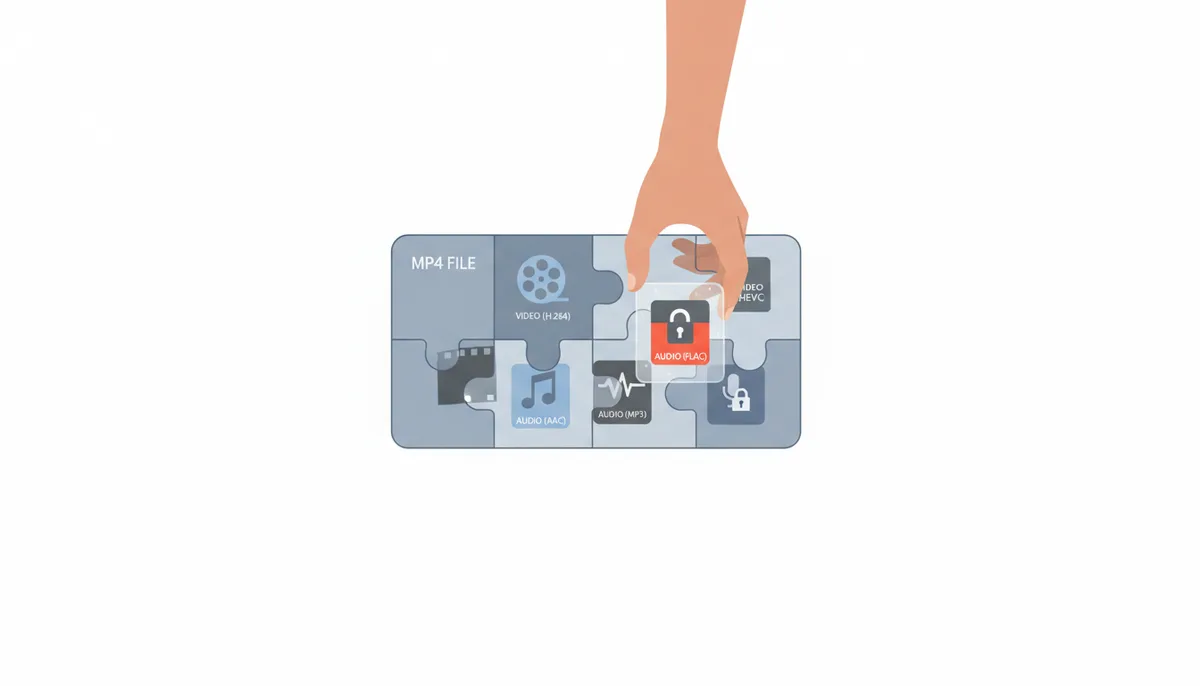
The problem is the label “MP4.” It’s a lie of omission. It makes you think you’re dealing with one consistent type of file, but you’re not. An MP4 is a container—a box that can hold dozens of different types of video and audio, some of which browsers simply can’t handle. When conversion fails, it’s usually for one of four concrete reasons: an incompatible codec inside the box, digital locks (DRM) on the box, damage to the box itself, or your browser hitting a hard performance wall. Let’s break down exactly what’s happening and how you can figure out which one is blocking you.
Why Did My MP4 to MP3 Conversion Fail When Other Files Work?
Think of an MP4 file as a shipping container. From the outside, they all look the same. But one might be full of furniture (common, easy-to-handle content), while another is packed with volatile chemicals (a newer, complex video format) or even locked shut with a customs seal (DRM). Your browser-based converter is like a dock worker with a specific set of tools; he can unload the furniture, but he’s not equipped for the chemicals, and he’s legally barred from breaking the seal.
When a conversion tool fails on one file but works on another, it’s a clear sign the problem is with the contents of the MP4 container, not the container itself. Your job is to identify which of these four culprits is responsible:
- Incompatible Codec: The audio or video inside uses a format the browser’s engine doesn’t understand.
- DRM Protection: The file is encrypted, often from a paid streaming service or store, making the audio data inaccessible.
- File Corruption: The container’s structure is damaged, so the converter can’t even find the audio stream to extract.
- Browser/System Limits: The file is too large, too complex, or your computer is too slow for the browser’s sandboxed environment.
The rest of this article is a diagnostic manual. We’ll start by understanding how the conversion actually works—because knowing the mechanism shows you where the breakdowns happen.
How Does a Browser-Based Converter Actually Process Your File?
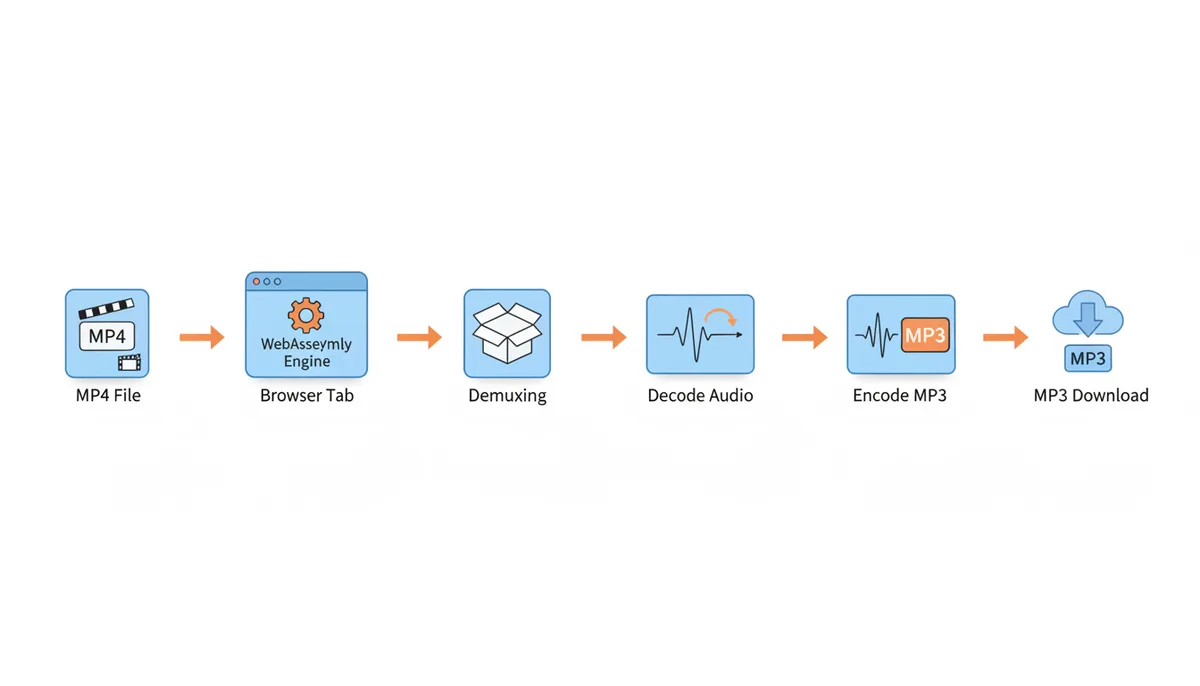
Tools like ExtractSound advertise “no uploads, no storage.” That’s a key privacy feature, but it also dictates the entire conversion architecture. Your file never leaves your computer. Instead, the website loads a miniature audio processing factory into your browser tab. Here’s how it works, step by step:
- You select your MP4. The browser reads it directly from your hard drive into the tab’s working memory.
- A WebAssembly (Wasm) module, which is essentially a high-performance bundle of code compiled from tools like FFmpeg, takes over. This is the engine of the converter.
- The Wasm engine performs “demuxing.” It cracks open the MP4 container and reads its internal index to locate the separate audio and video streams.
- It isolates the raw audio data stream. If that audio is encoded in, say, AAC, the engine decodes it back to a raw, uncompressed waveform.
- This raw audio is then fed into an MP3 encoder, which compresses it into the new MP3 format you requested.
- The final MP3 data is handed back to the browser, which prompts you to save it to your downloads folder.
Every single one of these steps is a potential failure point if your file doesn’t conform to expectations. The failure happens locally, on your machine, which is why the error is often vague—the website doesn’t “see” what went wrong.
Is an Incompatible Video or Audio Codec the Problem?
This is the most common technical hurdle. The audio in your MP4 isn’t just “audio.” It’s encoded with a specific algorithm called a codec—like AAC, AC-3, or MP3 itself. The video track uses its own codec, like H.264 or HEVC. The browser converter must have the software capability to decode these original formats before it can re-encode to MP3.
Modern browsers have built-in support for a handful of codecs—mainly H.264 for video and AAC for audio—because those are needed for basic web video playback. Advanced converters use WebAssembly to bundle broader support, but there are limits. A codec that’s rare, proprietary, or very new might not be included. If the engine hits an audio stream it can’t decode, the process halts. Surprisingly, an unsupported video codec can also cause failure, as the demuxer might choke trying to parse the file.
| Codec | Typical Source | Browser Conversion Compatibility |
|---|---|---|
| H.264 (AVC) / AAC | Smartphone videos, YouTube downloads, most web video | Natively supported by most browsers. Almost always works with client-side converters. |
| H.265 (HEVC) | 4K video from modern phones, some Blu-rays | Often fails. Browser native support is spotty; WebAssembly libraries may or may not include an HEVC decoder. |
| AV1 | High-efficiency streaming (e.g., newer Netflix, YouTube) | Usually fails. AV1 is too new for most Wasm conversion bundles and is not widely supported in all browsers' client-side conversion stacks. |
| AC-3 (Dolby Digital) | DVD rips, broadcast TV recordings | Sometimes fails. AC-3 is not a standard web audio codec, so support depends on the specific WebAssembly build used by the converter. |
| DTS | Blu-ray rips | Almost always fails. DTS is proprietary and computationally intensive, and it is rarely included in client-side conversion builds. |
For example, you record a 4K video on a recent iPhone. It likely uses HEVC for video to save space. When you try to convert it in-browser, the Wasm engine might lack an HEVC decoder because of licensing costs. The file fails. Your older video, shot in 1080p H.264, converts without a hitch. It’s not the file size; it’s the codec inside.
Could Digital Rights Management (DRM) Be Blocking the Conversion?
If your MP4 came from a source like the iTunes Store, Amazon Prime Video, Netflix, or any other paid service that allows downloads, it almost certainly has DRM. Systems like Apple’s FairPlay or Google’s Widevine encrypt the audio and video streams. The file is designed to only play in authorized applications that can communicate with a license server.
Here’s the crucial part: a browser-based converter sees a DRM-protected file as gibberish. The demuxer can’t find a valid audio stream because it’s encrypted. There is no “conversion” to be done; the tool has no access to the raw data. Legitimate conversion services, including ExtractSound, are built to respect DRM and will either fail outright or produce a silent, unplayable file. They can’t and won’t break the encryption.
If you’re trying to get the audio from a purchased movie or TV show, the conversion failure is a feature, not a bug. It’s the system working as intended to prevent copying.
What Makes an MP4 File ‘Corrupt’ and How Does It Stop Conversion?
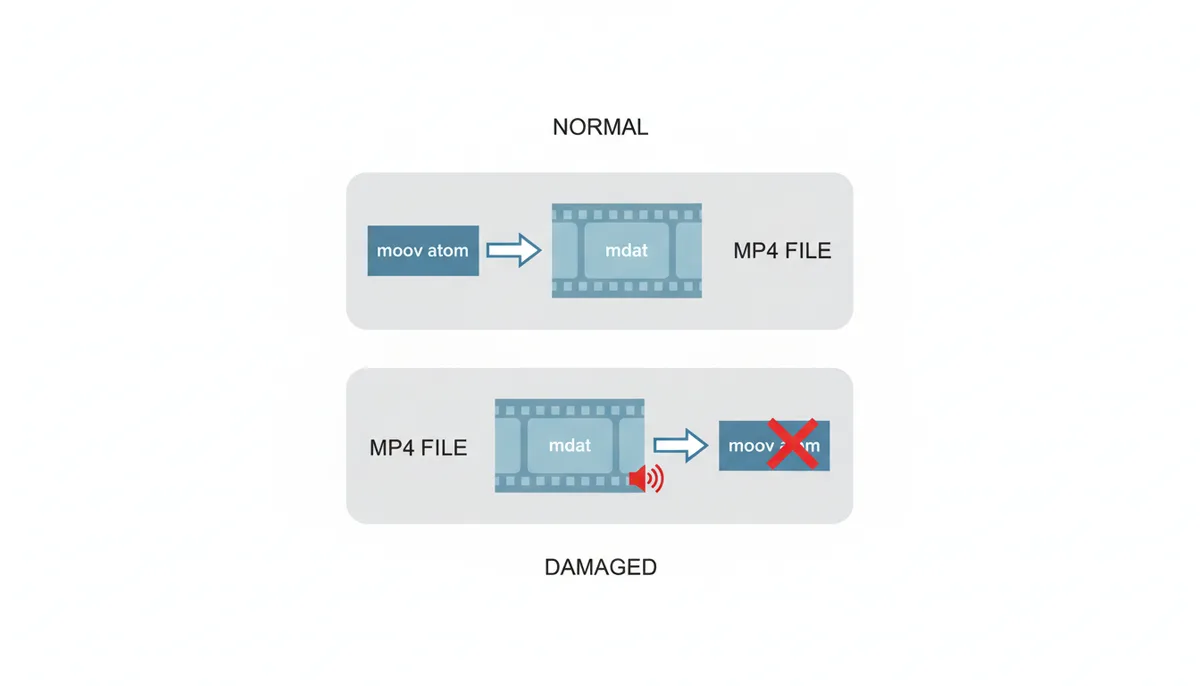
Corruption doesn’t necessarily mean the file is completely trashed. Often, it means the internal structure is misarranged. An MP4 file has two main parts: the ‘mdat’ section, which is the raw video and audio data blocks, and the ‘moov atom,’ which is the index or table of contents for that data.
The converter needs to read the ‘moov atom’ first to know how to interpret the ‘mdat.’ It tells the tool, “The audio stream starts at byte 1,024, is encoded in AAC, and has a sample rate of 44.1 kHz.” If the ‘moov atom’ is missing, damaged, or inconsistent with the actual media data, the converter gets lost. It can’t locate the audio, so it fails.
This often happens with files downloaded via unstable internet connections, transferred improperly from a camera card, or saved abruptly when a recording app crashes. The data might be 99% intact, but without that accurate map, it’s unusable. A separate issue is the placement of the moov atom. Some valid MP4s are structured for streaming, with the moov atom at the very end. While this isn't corruption, it forces a browser converter to read the entire file before it can even start the conversion process, which can trigger memory limits or timeouts. The opposite structure—fast-start—moves the moov atom to the front of the file for immediate playback and processing, which is ideal for web tools.
Are You Hitting Your Browser’s Performance and Memory Limits?
Browser tabs are sandboxed. For security, they’re given a limited slice of your system’s RAM and CPU power. This is the hidden ceiling of client-side conversion. Let’s put numbers on it: a browser tab might be limited to 1-4 GB of RAM, depending on your system and browser. A 10-minute 4K video file can easily be 3-4 GB in size.
When you start conversion, the browser has to load that entire file—or large chunks of it—into that working memory, plus the raw decoded audio, plus the Wasm engine itself. It runs out of memory. The tab may crash, the page may freeze, or the process will hang indefinitely. It’s not a codec issue; it’s a physical resource limit.
Similarly, decoding HEVC or re-encoding high-quality MP3 is CPU-intensive. On an older or low-power computer, the process can be so slow it appears stuck. You might mistake a 20-minute conversion time for a failure. The trade-off for privacy and no installation is that you’re constrained by the browser’s relatively weak, isolated environment.
How Can You Diagnose the Exact Reason Your File Failed?
Stop guessing. Follow this sequence to pinpoint the issue.
Step 1: The DRM Sniff Test. Try playing the file in VLC Media Player, which handles almost everything. If it’s from a commercial source and VLC refuses to play it or shows a DRM error, that’s your answer. If it plays fine, DRM is unlikely.
Step 2: The Codec Audit. Download MediaInfo (free, open-source). Drag your MP4 into it. Look at the “Audio” section. Note the “Codec” (e.g., AAC LC, AC-3) and “Bit rate.” Then look at the “Video” section. Note the “Codec” (e.g., AVC, HEVC). Compare the audio codec to the table earlier. If it’s AC-3, DTS, or something obscure, you’ve likely found the culprit. An HEVC video codec is also a red flag.
Step 3: The Corruption Check. In VLC, try to seek through the file’s timeline. Jump to the middle, then near the end. If it fails to seek, stutters uncontrollably, or shows severe artifacting, the file is corrupt. Also, try playing it from start to finish. If it crashes VLC—a famously resilient player—the file is severely damaged.
Step 4: The Size Check. Right-click the file, select “Properties,” and note its size. If it’s over 2 GB and you’re on an older machine or using a browser with many open tabs, a memory limit is probable.
This diagnostic flow takes five minutes and tells you exactly which of the four main failure modes you’re dealing with.
What Are Your Options When a Browser Conversion Fails?
Your solution depends entirely on your diagnosis. Here’s your decision tree.
If the issue is Codec or Large File Size: Move to a desktop application. HandBrake (free) or VLC (free) have direct access to your full system resources and include libraries for a vast range of codecs. In HandBrake, set the video to “None” or a pass-through codec, and choose MP3 for audio. It will handle multi-gigabyte HEVC files that would crash a browser tab. The trade-off is you have to install software.
If the issue is File Corruption: First, try to re-download or acquire a clean copy from the original source. If that’s impossible, you can attempt repair. Some video repair tools can rebuild a ‘moov atom’ if the ‘mdat’ is intact, but success isn’t guaranteed and good tools often cost money.
If you want a universal fallback: Use a traditional, server-side online converter. You upload your file, their server converts it, and you download the MP3. It will handle any codec their server supports. The trade-offs are significant: you relinquish privacy (they have your file), you’re subject to upload/download speeds and queue times, and file size limits are often stricter.
| Solution Type | Best For | Key Limitation |
|---|---|---|
| Robust Browser Converter (Client-side) | Privacy and convenience for small to medium files with common codecs (e.g., AAC, H.264). | Limited by browser memory and CPU allocation; limited codec support compared to desktop tools. |
| Desktop Application (e.g., HandBrake, VLC) | Maximum compatibility, large or complex files, and access to full system resources for reliable processing. | Requires installation, updates, and learning a new interface; not as instant as a one-click web tool. |
| Server-Side Online Converter | When you need a simple fallback and do not want to install software. | Privacy and security concerns because you must upload your file; slow for large files and often has strict file size caps. |
My personal rule: For anything under 1 GB from a known source (my own camera, a public domain video), I use the browser converter for speed and privacy. For anything larger, or from an unknown source with potential codec issues, I open HandBrake. It’s slightly more work, but it works.
What Happens When the Browser Tries to Decode an Unsupported Codec?
Let's get specific about the failure moment. Say your MP4 uses the HEVC (H.265) video codec and an AAC audio track. You drag it into the converter. The Wasm engine demuxes the file successfully and isolates the AAC audio stream. It begins decoding that AAC to raw audio. So far, so good.
But the Wasm library might also try to parse the video track, even if it's not needed for the final MP3, to validate the file's structure. If the library wasn't compiled with an HEVC decoder, it hits a brick wall. It doesn't just skip the video; it throws a fatal error. The message you see might be "Failed to decode stream" or "Unsupported codec." The process dies right there. The audio extraction never reaches the encoding stage.
Worked example: You have a file, presentation.mp4. MediaInfo shows:
Video: HEVC, 1920x1080, 30 fps.
Audio: AAC, 128 kbps.
You try ExtractSound. It fails. You then try a different browser-based converter. It also fails. This consistency across different web tools points to a missing codec in their Wasm builds, not a temporary glitch. The solution isn't to try another website; it's to change tool categories. You open VLC, go to Media > Convert / Save, add the file, choose "Audio - MP3" profile, and run it. It works, because VLC's native libraries include an HEVC decoder. The diagnostic lesson: when two reputable browser tools fail identically, suspect a fundamental codec incompatibility.
There's an edge case here: some advanced browser converters might use the browser's own built-in decoding capabilities via the WebCodecs API. If the browser supports HEVC natively (like Safari on certain hardware), the conversion could work even if the Wasm library doesn't have the decoder. This is inconsistent and hard to rely on. It explains why the same file might convert on your MacBook but fail on your Windows PC—the underlying system's codec support differs.
The Hidden Cost of "Free" and the Privacy Trade-Off
Browser-based converters like ExtractSound are free because they perform the work on your machine. You're lending them your CPU cycles instead of paying with money or data. But "free" has other costs: time and reliability.
Converting a one-hour, high-quality video lecture to MP3 might take 2 minutes on a desktop tool like FFmpeg using all your CPU cores. In a browser tab, constrained and using a WebAssembly version of the same encoder, it could take 10 minutes. That's a direct trade-off: you gain privacy (the file stays local) and convenience (no install), but you pay in processing time and hit-or-miss compatibility.
Server-side converters flip this trade-off. You upload the file, their powerful server converts it in 30 seconds, you download it. The cost is your privacy: they have your file. Their privacy policy might promise deletion, but you are trusting them. For a personal vacation video, that might be fine. For a confidential work recording or an unpublished project, it's a non-starter. Furthermore, these servers often impose strict file size limits (typically 100-500 MB) to manage their bandwidth and storage costs.
The effort consideration is real. Diagnosing a failed conversion takes 5-10 minutes. Installing HandBrake takes 5 minutes and a bit of learning. For a one-off problem with a single file, that might feel like too much effort, pushing you to try three different browser tools first. But if you regularly need to extract audio from various sources—lectures, gameplay footage, archival videos—investing that 30 minutes to learn a robust desktop tool saves hours of frustration later. My rule: if I need to do this more than twice a month, I use the desktop tool every time.
Edge Cases and Oddities: When Everything Should Work, But Doesn't
Sometimes, you'll do everything right. The codec is AAC, no DRM, file plays fine, it's under 1GB, and still, the browser converter chokes. Here are the less common culprits.
Variable Bitrate (VBR) Audio: Most audio in MP4s is Constant Bitrate (CBR). Some editing software produces Variable Bitrate AAC, which changes the bitrate dynamically to match complexity. Older or simpler Wasm audio decoders can stumble on VBR streams, misreading the timing and causing the encode to fail or produce a corrupted MP3. MediaInfo will show "Variable" under "Bit rate mode."
Multiple Audio Tracks: Your MP4 might have a primary stereo track and a secondary 5.1 surround track. The demuxer needs to decide which one to extract. If it defaults to the first track and that track is a complex, multi-channel AC-3 stream it can't decode, it fails. A robust tool would let you choose the track; many basic browser converters do not.
Sample Rate Extremes: Professional audio can have unusual sample rates like 96 kHz. The MP3 format standardly supports up to 48 kHz. When the converter tries to resample from 96 kHz to 44.1 kHz, bugs in the Wasm resampling algorithm can crash the process. Similarly, very low sample rates (like 8 kHz from an old voice recording) can cause issues.
The "Streaming" MP4 (Moov Atom at the End): We mentioned this with corruption, but it's also a design choice for efficient streaming. The entire file must be downloaded before the 'moov atom' at the end is read. In a browser, this means the converter has to read the entire multi-gigabyte file into memory before it can even start demuxing. This can trigger the memory limit crash before the conversion logic truly begins. You can fix this without repairing the file by using a tool like qt-faststart (or FFmpeg) to move the moov atom to the front, but that requires a desktop tool—the very thing you were trying to avoid.
In these edge cases, the failure feels random. The fix is almost always the same: bypass the browser's limitations entirely. Use a desktop tool with mature, fully-featured libraries like FFmpeg or the audio engine in Audacity. They've handled these oddities for years.
Frequently Asked Questions
Does converting a file from MP4 to MP3 reduce the audio quality?
Yes, almost always. The audio in an MP4 is usually compressed with a lossy codec like AAC. When you convert it to another lossy format like MP3, you’re re-compressing already compressed data, which loses more detail. To minimize loss, always choose the highest output bitrate (e.g., 320 kbps). If the source audio is already a low-bitrate MP3, the quality drop will be very noticeable.
If my file is DRM-protected, is there any legal way to get an MP3 of the audio?
Generally, no. Circumventing DRM is illegal under laws like the DMCA in the United States and similar legislation elsewhere. The legal path is to purchase the audio track separately from a DRM-free source. For music, buy the MP3 or lossless version from stores like Bandcamp or Amazon Music. For movie dialogue or scores, you’re often out of luck—the content is licensed for viewing, not for extraction.
Why is a desktop converter like HandBrake often better for large files?
Desktop applications aren’t constrained by the browser sandbox. They can use all your computer’s RAM and CPU power directly. A browser tab might be capped at 2GB of RAM; HandBrake can use 8GB or 16GB if needed to smoothly process a huge 4K video file. It also doesn’t have the overhead of running a full web engine alongside the conversion task.
My file has an M4A extension, not MP4. Why might it fail?
M4A is just an MP4 container that typically holds only audio. It can fail for all the same reasons: an unsupported audio codec (like Apple Lossless / ALAC), DRM protection (common with older iTunes Store purchases), or file corruption. Treat it exactly like an MP4 for diagnostic purposes.
Can a virus be hidden in an MP4 file?
It’s extremely rare in practice. A virus would need to exploit a specific vulnerability in the video or audio decoder software. A secure, browser-based converter that uses sandboxed WebAssembly is a very low-risk environment—it processes media data, it doesn’t execute any code from the file itself. The risk is far lower than downloading and running an .exe file.
What is the ‘moov atom’ and why is it so important?
The ‘moov atom’ is the index of the MP4 file. It contains all the pointers that tell a player or converter where each piece of audio and video data is located and how it’s encoded. If it’s missing, the file is unreadable. If it’s at the end of the file (common for files optimized for streaming), the entire file must be downloaded before playback or conversion can begin, which can cause timeouts or failures in web tools.
Sources
- MDN Web Docs — Information on how modern browsers handle media codecs via the WebCodecs API.
- FFmpeg — Authoritative list and documentation for the vast number of audio and video codecs that FFmpeg (and Wasm ports of it) can handle.
- World Wide Web Consortium (W3C) — The official standard for Encrypted Media Extensions, which defines how DRM works in web browsers.
- ISO - International Organization for Standardization — The official standard for the MP4 file format (ISO/IEC 14496-12), confirming its nature as a container format.
- MediaInfo — Reference for the tool recommended for diagnosing file codec and container issues.
Related reading
- What Happens to Metadata When You Convert MP4 to MP3Read →
- How Bitrate Changes MP3 Quality and File Size When You Convert Video to AudioRead →
- Why an Extracted MP3 Can Sound Worse Than the Original VideoRead →
- Why Are We Skeptical of 'Free Online Converters'?Read →
- What It Means to Extract Audio from a Video FileRead →